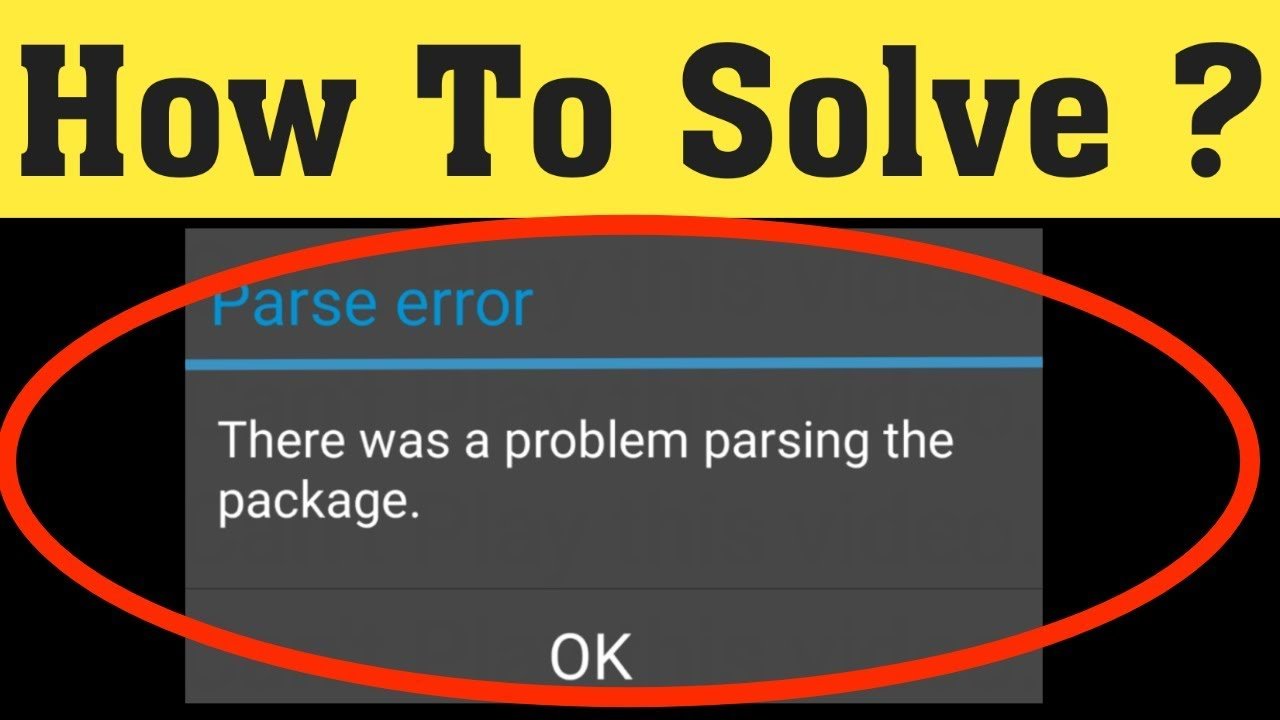
If you’ve ever tapped “Install” on an APK and seen the message “There was a problem parsing the package,” you’ve hit one of Android’s most frustrating dead-ends. This parse error on Android gives you a single “OK” button and zero guidance which is exactly why you’re here.
The good news: this error is almost always fixable in under five minutes. It does not mean your phone is broken, and it does not mean the APK is a virus. It means Android couldn’t read the installation file and there’s a specific reason why. This guide covers every cause and every fix, including Android 14 and Android 15-specific issues that most other guides completely miss.
What Is a Parse Error on Android?
A parse error officially displayed as “There was a problem parsing the package” occurs when Android’s Package Installer cannot read or process an APK file during sideloading. The word “parse” means to read and interpret structured data. When Android says it can’t parse the package, it means the file is unreadable, incompatible, or blocked.
This error only appears when installing apps from outside the Google Play Store. If you exclusively use the Play Store, you will almost never encounter it. For a broader look at why APK installations fail, see our guide on Why APK File Not Installing on Android.
Every Cause of Parse Error Explained
Understanding the cause is the fastest path to the right fix. Here are all known triggers, from most to least common:
| Cause | What It Means | Who It Affects |
|---|---|---|
| Corrupted or incomplete download | APK didn’t download fully | Everyone |
| Unknown Sources not enabled correctly | Android 8+ uses per-app permission, not global toggle | First-time sideloaders |
| Android version incompatibility | APK requires newer/older Android | Older devices, new OS adopters |
| CPU architecture mismatch | App built for arm64-v8a but device uses armeabi-v7a | Budget phones, older chipsets |
| APK signature mismatch | Old version installed with different signature | Manual app updaters |
| Insufficient storage | Not enough space to unpack the APK | Low-storage devices |
| Renamed APK file | Extension changed from .apk to .zip or .bin | Browser downloads |
| AndroidManifest.xml corruption | Internal config file is damaged | Modded/beta APKs |
| Security app blocking install | Antivirus or Samsung Auto Blocker blocking silently | Samsung One UI 6+ users |
| minSdkVersion / targetSdkVersion violation | App targets SDK Android no longer permits | Android 15 users, legacy apps |
How to Fix Parse Error on Android Step by Step
Work through these in order. Most users solve it by step 3 or 4.
Step 1 — Re-download the APK
Delete the existing file and download it fresh. A broken partial download is the single most common cause. Check the file size on APKMirror the exact MB is listed on the download page. A mismatch means the download failed.
Step 2 — Enable “Install Unknown Apps” correctly
On Android 8 and above, there is no longer one global Unknown Sources switch. Go to Settings → Apps → [Your File Manager or Browser] → Install Unknown Apps → Allow from this source. The old path (Settings → Security → Unknown Sources) no longer exists on most modern devices. For a full walkthrough, see Install Unknown Apps on Android.

Step 3 — Check Android version vs. app requirements
Look up the app’s minimum Android version on APKMirror or the developer’s site. Compare with your version at Settings → About Phone → Android Version. If the app requires Android 10 and you’re on Android 8, no fix will work you need a different APK version.
Step 4 — Uninstall any previous version first
If an older version is already installed, even from the Play Store, uninstall it completely before installing the new APK. Conflicting APK signatures between versions silently trigger parse errors.
Step 5 — Verify the file extension is .apk
Open the file in a manager like ZArchiver or Files by Google. Some browsers save APKs with a different extension. Rename to filename.apk if needed.
Step 6 — Free up storage space
Android needs extra space to unpack an APK during installation, not just to store it. Clear at least 500MB before retrying. Use Settings → Storage → Free Up Space to delete cached data.
Step 7 — Download the correct CPU architecture variant
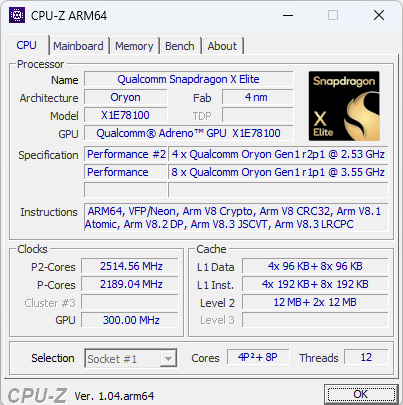
Install CPU-Z or DevCheck from the Play Store to find your device’s ABI (arm64-v8a, armeabi-v7a, or x86_64). On APKMirror, expand “Variants” to choose the right one. When in doubt, select the Universal build.
Step 8 — Disable third-party security apps temporarily
Some antivirus apps intercept the package installer before Android can process it. Disable briefly, attempt install, then re-enable. Never leave security software off permanently.
Step 9 — Clear Package Installer cache
Go to Settings → Apps → Show System Apps → Package Installer → Storage → Clear Cache. A corrupted installer cache can produce false parse errors even on valid, compatible APKs.
Step 10 — Try a different file manager
If you’re using a manufacturer’s built-in file manager, switch to Files by Google (free on the Play Store). Some third-party managers handle the handoff to the package installer more reliably.
Brand-Specific Fixes
Each Android manufacturer adds its own security layer on top of base Android. Here’s what’s different per brand:
Samsung (One UI 6+ / Galaxy Devices)
Samsung introduced Auto Blocker in One UI 6 and it is enabled by default. This feature silently blocks all sideloaded APKs regardless of your Unknown Sources setting. Almost no other guide covers this, and it’s the number one reason Samsung users can’t fix the parse error through normal steps.
- Go to Settings → Security and Privacy → Auto Blocker
- Toggle Auto Blocker OFF
- Attempt your APK install
- Re-enable Auto Blocker after installing
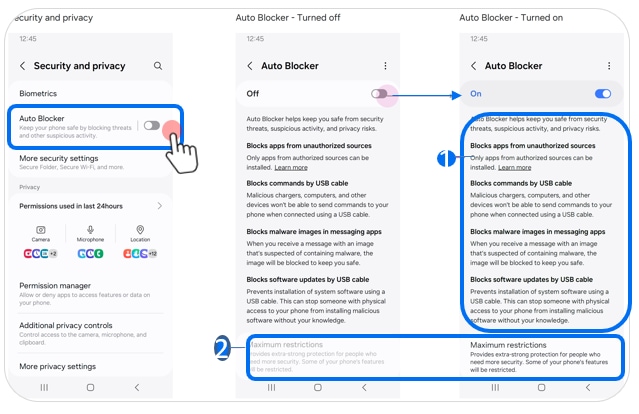
See the official Samsung Auto Blocker support page for your specific device model.
⚠️ Auto Blocker exists for good reason. Only disable it for APKs from sources you completely trust.
Xiaomi / Redmi (MIUI / HyperOS)
Go to Settings → Additional Settings → Privacy → Install Unknown Apps. Select your browser or file manager and enable it. For region-locked Xiaomi devices, the built-in security scanner may show a warning during install tap “Continue Installing” to proceed.
OnePlus (OxygenOS)
Go to Settings → Security → Install Unknown Apps. Enable the source app. OxygenOS may show an additional risk warning confirm to proceed. If the error persists, check that your APK targets Android 8+ (API 26 or above).
Huawei (EMUI / HarmonyOS No Google Play)
Post-2019 Huawei devices ship without Google Mobile Services. Many APKs depend on GMS libraries and will produce parse-like errors on these devices even when the APK is otherwise valid. Use Huawei AppGallery or search for GMS-free APK variants on APKPure. For full sideloading steps, see our guide: How to Install APK on Android Without Play Store.
Android 14 & 15-Specific Parse Error Issues
If you updated your phone and suddenly started getting parse errors on APKs that worked before, here’s what changed:
| Android Version | Change | Impact |
|---|---|---|
| Android 8+ | Unknown Sources replaced with per-app Install Unknown Apps permission | Old fix guides are useless no global toggle exists anymore |
| Android 14 | Enhanced Play Protect scanning on sideloaded apps | Some APKs trigger soft-blocks that look like parse errors |
| Android 15 | Apps targeting API level below 24 (Android 7) blocked entirely | Legacy APKs produce parse errors that no setting can override |
⚠️ Android 15 SDK Enforcement: If you’re on Android 15 and one specific app always fails, the app itself is the problem. Android 15 refuses to install APKs with a
targetSdkVersionbelow 24. No settings change will fix this the developer must release an updated build. Check the APK’s manifest using APK Analyzer before installing.
Split APKs and XAPK Files
Standard APKs are a single .apk file. Large apps especially games are often distributed as Split APKs (multiple .apks files) or XAPK files (a zip bundle containing the APK plus OBB data).
If you try to install a .xapk file directly or rename it to .apk, you will always get a parse error. Android’s built-in installer cannot handle these formats. For a complete walkthrough, see How to Install XAPK Files on Android.
Correct tools for split/XAPK installs:
- SAI (Split APKs Installer) free, open-source, handles
.apksbundles - APKPure app built-in XAPK installer
- APK Installer by Uptodown supports both formats
Do not rename a .xapk to .apk they are structurally different formats.
ADB Fix for Developers and Advanced Users
Android’s UI only says “parse error.” ADB gives you the actual error code. With USB Debugging enabled (Developer Options → USB Debugging), connect your phone to a PC and run:
adb install -r /path/to/your/app.apk
Common ADB error codes and their fixes:
| ADB Error Code | Meaning | Fix |
|---|---|---|
INSTALL_FAILED_INVALID_APK | Corrupted file | Re-download |
INSTALL_FAILED_OLDER_SDK | minSdkVersion too high for your device | Find older APK version |
INSTALL_FAILED_CPU_ABI_INCOMPATIBLE | Wrong architecture variant | Download correct ABI build |
INSTALL_FAILED_UPDATE_INCOMPATIBLE | Signature mismatch with installed version | Uninstall existing app first |
See Android’s official ADB documentation for full command reference.
For Split APKs via ADB: use adb install-multiple followed by all split APK file paths in sequence.
Rooted devices / Custom ROMs: Parse errors on rooted devices often involve SELinux policy enforcement. Move the APK to /sdcard/Download/ using a root file manager before installing custom ROM SELinux policies sometimes block installs from other directories.
Is the Parse Error Dangerous? Is the APK Safe?
A parse error itself is not dangerous. Android refused the install which means nothing was actually installed. However, the practice of sideloading carries its own risks independent of parse errors.
Before sideloading any APK, ask:
- Is this from the developer’s official website?
- Is this from APKMirror (which mirrors verified Play Store APKs)?
- Does the file size match what’s listed on the download page?
For more on trusted APK sources, see APK Downloader for Android Apps.
Google Play Protect scans sideloaded apps the first time they run on Android 12 and above this scan prompt is normal and does not indicate malware. If Play Protect flags an app as harmful after installation, that is a serious warning. Uninstall immediately. Read more about Google’s Play Protect policy.
For a full comparison of sideloaded APKs vs Play Store apps on safety, see Difference Between APK and Play Store.
Prevention Checklist
✓ Always download APKs from APKMirror, APKPure, or the developer’s official site ✓ Verify file size matches the source listing before installing ✓ Keep at least 1GB free storage before sideloading ✓ Confirm the app’s minimum Android version matches your OS ✓ Install CPU-Z to know your ABI before choosing an architecture-specific APK ✓ Uninstall old app versions before manually installing updates ✓ Use SAI or APKPure for XAPK / Split APK files ✓ Re-enable Samsung Auto Blocker after sideloading ✓ On Android 15, verify APK targetSdkVersion is 24 or above before downloading
Glossary
APK — Android Package Kit; the file format for distributing Android apps outside the Play Store
XAPK — Extended APK format bundling the APK with OBB data files; requires a dedicated installer
Split APK — App distributed as multiple .apk files; cannot be installed individually by Android’s built-in installer
minSdkVersion — Minimum Android API level an app supports; installs fail if your OS is below this
targetSdkVersion — API level the app was built to target; Android 15 blocks apps below API 24
CPU ABI — Defines CPU architecture the APK was compiled for: arm64-v8a (modern), armeabi-v7a (older), x86_64
Auto Blocker — Samsung security feature (One UI 6+) that blocks all sideloaded APK installs by default
ADB — Android Debug Bridge; command-line tool for PC-to-Android communication and advanced installs
Unknown Sources — Android permission allowing installs from outside Google Play; per-app since Android 8
SELinux — Security policy layer in Android that can restrict install paths on rooted/custom ROM devices
Conclusion
Parse error on Android is one of those problems that looks alarming but is almost always solved in minutes. Start with the simplest fix re-download the APK and confirm your Unknown Sources permission is set correctly for the right app. If you’re on Samsung, check Auto Blocker before anything else. If you’re on Android 15 and nothing works, the APK itself needs an SDK update.
For developers, ADB gives you the real error code that Android hides from the UI, making diagnosis far faster. And for anyone dealing with XAPK or Split APK formats, a dedicated installer like SAI eliminates the problem entirely.
Follow the prevention checklist above, stick to trusted APK sources, and you’ll rarely see this error again.
Visit APK Sharp to find informative content about apps, tools, and technology.
FAQs
Q1: What does parse error on Android mean?
A parse error means Android’s package installer could not read or process the APK file. It appears when sideloading apps and can be caused by a corrupted download, OS version mismatch, wrong CPU architecture, or a blocked permission. It does not mean your phone is damaged or the APK is malware.
Q2: Why does parse error happen even after enabling Unknown Sources?
Because Android 8 and above replaced the global Unknown Sources toggle with a per-app permission. You must enable “Install Unknown Apps” for the specific browser or file manager you used to download the APK. On Samsung One UI 6+ devices, the Auto Blocker feature also overrides Unknown Sources entirely and must be disabled separately under Settings → Security and Privacy → Auto Blocker.
Q3: How do I fix parse error on a Samsung Galaxy phone?
First check Auto Blocker: go to Settings → Security and Privacy → Auto Blocker and toggle it off. Then go to Settings → Apps → [Your file manager] → Install Unknown Apps and enable it. Re-download the APK, confirm the file size matches, then retry the install. Re-enable Auto Blocker afterward.
Q4: Does a parse error mean the APK is a virus?
No. A parse error means Android refused the installation nothing was installed on your device. However, sideloading from unverified websites always carries malware risk independent of parse errors. Use trusted sources like APKMirror or the developer’s official site. Google Play Protect will scan any sideloaded app when it first runs.