If you are looking for the best file manager app for Android, you have landed in the right place. The short answer: MiXplorer is the top overall pick free, ad-free, packed with features, and trusted by millions of Android power users worldwide. For a polished paid experience, Solid Explorer is the best runner-up. But the right choice depends on how you actually use your device, so read on for a complete breakdown.
What Is a File Manager for Android and Do You Actually Need One?
A file manager (also called a file explorer or file browser) is an app that gives you direct access to all files and folders stored on your Android device just like Windows File Explorer or macOS Finder. You can move, copy, rename, delete, compress, and organize everything from one place.
Android ships with Files by Google as the default option. It handles basic tasks like freeing storage and deleting junk files but it falls short for anyone who needs more:
- No dual-pane view for side-by-side transfers
- No direct cloud storage browsing (Google Drive, OneDrive, Dropbox)
- No real-time folder size display
- No FTP, SMB, or NAS network access
- No file encryption
- Limited archive support (ZIP/RAR/7z)
If you’ve ever struggled to move files in bulk, access a network drive, or organize your SD card properly a third-party file manager solves all of that instantly.
Pro Tip: Many of the best file managers on this list are distributed as APK files outside the Play Store. If you are new to sideloading, read our guide on how to install APK on Android without the Play Store before downloading.
A Quick Note on Android Scoped Storage (Android 11 and Later)
Before comparing apps, you need to understand one change that affects every file manager on this list.
Starting with Android 11, Google introduced Scoped Storage a privacy-first framework that restricts how apps access your file system. Most apps can only see their own folders by default.
The fix is simple: grant “All Files Access” permission (Settings → Privacy → Permission Manager). Any legitimate file manager will ask for this during setup. Apps built on the Storage Access Framework (SAF) like Material Files and Fossify handle this automatically. Others like MiXplorer and Solid Explorer will prompt you on first launch.
If a file manager cannot see your Downloads or DCIM folder this permission is the reason, every time.
⚠️ Heads up: If you downloaded your file manager as an APK and it is not installing correctly, check our troubleshooting guide on why APK files fail to install on Android it covers the most common reasons including permission blocks and parse errors.
The Best File Manager Apps for Android: Ranked and Reviewed

1. MiXplorer Best Overall Free File Manager for Android
Best for: Power users, developers, anyone who wants maximum control at zero cost.
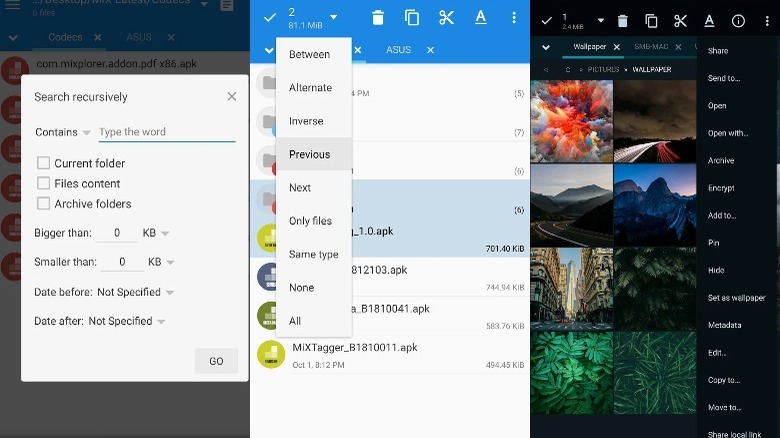
MiXplorer is the most feature-complete free Android file manager available today. Originally distributed through XDA Developers, MiXplorer has been in active development for over a decade with no ads, no subscription, and no paywalled features.
Key features:
- Dual-pane mode with tabbed browsing and drag-and-drop transfers
- Connects to Google Drive, OneDrive, Dropbox, Box, MEGA, pCloud, and 15+ cloud services
- SMB1/2/3, FTP(S), SFTP, WebDAV, and DLNA client support
- AES encryption and EncFS volume support
- Full root access for system-level operations
- Customizable themes, icon packs, and skins
- Add-on modules: PDF reader, image viewer, archiver, text editor, APK signer
- Compatible with Android 14 and Android 15
The free version is available as an APK from XDA or the developer’s site. Since it is sideloaded, make sure you know how to install unknown apps on Android before downloading. If you want Play Store convenience and bundled add-ons, MiXplorer Silver is available for around $5.99 as a one-time purchase.
Note: If MiXplorer is not showing in your regional Play Store, our guide on apps not available in your country explains exactly how to access it.
- Pros: Free, zero ads, massive feature set, decade-long active development, huge XDA community support
- Cons: Free version requires sideloading; first-time setup can feel overwhelming
2. Solid Explorer Best Premium Android File Manager (Paid)
Best for: Users who want a polished, intuitive experience and don’t mind a one-time payment.
Developed by NeatBytes, Solid Explorer is the most beautifully designed file manager on Android. Its Material Design interface is clean and fast, and it adds features that even MiXplorer doesn’t offer out of the box.
Key features:
- Dual-pane management with real-time folder size display
- AES-256 encryption with fingerprint-protected secure vault
- Cloud: Google Drive, Dropbox, OneDrive, Box, SFTP, FTP, WebDAV
- SMB network share access for LAN and NAS browsing
- Root file access on rooted devices
- Detailed folder breakdown and storage analysis
- Plugin architecture for extended functionality
Solid Explorer costs approximately $2.99 as a one-time purchase and offers a 14-day free trial directly on the Google Play Store no subscription required.
- Pros: Gorgeous UI, fingerprint-locked secure folder, real-time folder sizes, premium feel
- Cons: Paid app, no Android TV support
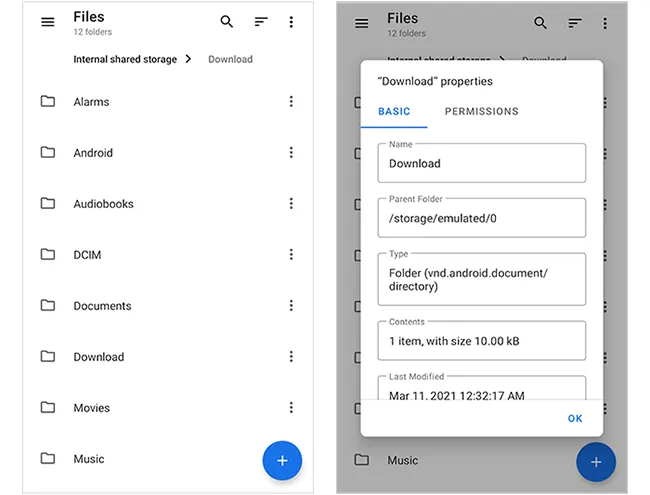
3. Material Files Best Open-Source File Manager for Android
Best for: Privacy-focused users, open-source advocates, and Material You fans.
Material Files is fully open-source, built with Material You / Material Design 3, and adopts your device’s system color theme automatically. Available on both Google Play and F-Droid.
Key features:
- Full Scoped Storage and SAF compliance
- FTP, SFTP, SMB, and WebDAV support
- Archive creation and extraction (ZIP, RAR, 7z)
- Root file browsing
- Automatic Night Mode
- No ads, no tracking, zero data collection
It does not support direct Google Drive or Dropbox browsing cloud access works via WebDAV paths. For local and LAN storage, it is one of the cleanest options available.
- Pros: Free, open-source, F-Droid compatible, zero tracking, beautiful design
- Cons: No direct Google Drive / Dropbox integration
4. Fossify File Manager Best for Privacy and Simplicity
Best for: Users who want a lightweight, trustworthy file browser with folder-level security.
Fossify (maintained by FossifyOrg) is written in Kotlin, fully open-source, available on F-Droid and Google Play and requires zero internet permission to run. That alone makes it one of the most privacy-safe choices on this list.
Key features:
- Lock individual files and folders with fingerprint or PIN
- Color-customizable theme
- File type categorization
- No ads, no analytics, no internet permission required
Fossify is the closest thing to Files by Google in simplicity but with better privacy guarantees and proper folder locking.
- Pros: Free, open-source, zero ads, folder-level locking, maximum privacy
- Cons: No cloud, no FTP/SMB, not built for power users
5. Cx File Explorer Best Free File Manager with Storage Analysis
Best for: Everyday users who want storage management tools at no cost.
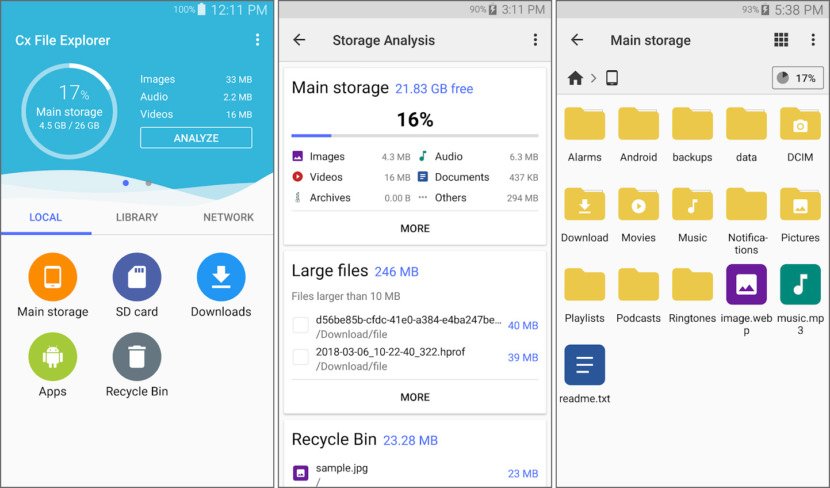
Cx File Explorer’s standout feature is its built-in storage analyzer it shows exactly where your space is going, broken down by file type, folder, and file size. Perfect if you are regularly running low on storage.
Key features:
- Storage analyzer by type, folder, and size
- FTP and SMB client support
- Built-in image, audio, and video players
- Clean breadcrumb navigation with free space indicator
- Free with some optional in-app features
- Pros: Free, detailed storage analysis, clean design, media players built in
- Cons: Partial ads, less powerful than MiXplorer or Solid Explorer
Find more helpful tools and apps in our Tool category.
6. Total Commander Best for Advanced Dual-Panel Power Users
Best for: Developers and users who prefer a classic Orthodox File Manager (OFM) layout.
Ghisler Software GmbH has built Total Commander into a desktop institution and the Android version carries that same depth. The plugin architecture lets you add only what you need FTP, LAN, cloud, archive support, and more keeping the app lean and fast. Compared to Material Design apps, the interface looks dated, but no other Android file manager matches its raw configurability and low resource usage. Best of all, Total Commander is donationware completely free to use, with an optional payment to support the developer.
- Pros: Extremely powerful, plugin-based, lightweight, free (donationware)
- Cons: Dated UI, steep learning curve, plugins needed for full functionality
7. X-plore File Manager Best Free Dual-Pane Option
Best for: Users who want dual-pane browsing without paying for Solid Explorer.
X-plore by Lonely Cat Games uses a unique tree-based dual-pane layout and supports LAN, FTP, Dropbox, Google Drive, SMB, and USB OTG all for free. It is ad-supported but functional.
- Pros: Free, tree-based dual-pane view, wide protocol support, USB OTG
- Cons: Ad-supported, unconventional UI layout
Warning: Stop Using ES File Explorer in 2025
This needs its own section because it directly affects your device security.
ES File Explorer was once the most downloaded Android file manager. It is now a serious security risk and should be removed immediately if you have it installed.
Here is what happened:
- In 2019, security researchers discovered ES File Explorer opened a local HTTP server on port 59777, allowing any app on the same Wi-Fi network to read your files without permission a critical vulnerability.
- The app was removed from Google Play and has not been safely reinstated.
- The developer (ES Global) has been linked to adware and data harvesting.
- XDA Developers forums and r/androidapps consistently warn against using it.
APK versions of ES File Explorer circulating on third-party download sites are unverified and potentially tampered. There is no safe version to download in 2025.
If you downloaded ES File Explorer as an APK from a third-party site, uninstall it now. Replace it with MiXplorer, Material Files, or Fossify all free, all actively maintained, all safe.
Related: Before downloading any APK from third-party sites, understand the difference between an APK and the Play Store version so you know what risks to watch for.

Full Comparison Table: Best Android File Managers Side by Side
| App | Price | Ads | Open Source | Dual Pane | Cloud Support | FTP / SMB | Root | Android TV |
|---|---|---|---|---|---|---|---|---|
| MiXplorer | Free / $5.99 | None | No | ✅ | ✅ (15+ services) | ✅ | ✅ | ✅ |
| Solid Explorer | ~$2.99 | None | No | ✅ | ✅ | ✅ | ✅ | ❌ |
| Material Files | Free | None | ✅ | ❌ | Partial (WebDAV) | ✅ | ✅ | ❌ |
| Fossify | Free | None | ✅ | ❌ | ❌ | ❌ | ❌ | ❌ |
| Cx File Explorer | Free | Partial | No | ❌ | ❌ | ✅ | ❌ | ❌ |
| Total Commander | Free (Donationware) | None | No | ✅ | Via plugins | ✅ | ✅ | ❌ |
| X-plore | Free | Yes | No | ✅ | ✅ | ✅ | Partial | ❌ |
| Files by Google | Free | None | No | ❌ | ❌ | ❌ | ❌ | ❌ |
Which File Manager Is Right for You? (Quick Decision Guide)
- Just want basic file browsing & storage cleanup: → Files by Google or Fossify (more privacy)
- Want the most powerful free option available: → MiXplorer (sideload free) or MiXplorer Silver ($5.99 Play Store)
- Prefer a polished, paid experience: → Solid Explorer (~$2.99, 14-day free trial)
- Privacy and open-source are a priority: → Material Files or Fossify File Manager
- Need NAS, SMB, or FTP access for work: → MiXplorer or Solid Explorer
- Want built-in storage analysis tools: → Cx File Explorer
- Using a rooted Android device: → MiXplorer or Root Explorer
- Need a file manager for Android TV / Google TV: → MiXplorer (the only top-tier Android TV-compatible option)
- Prefer a classic dual-panel developer layout: → Total Commander
Visit APKSharp to discover helpful apps, tools, and guides for Android users.
Free vs Paid: Is It Worth Paying for a File Manager?
For most people no. MiXplorer’s free version covers everything. But paying makes sense in two situations:
- You want a seamless first-launch experience — Solid Explorer needs zero configuration. Install, trial, buy. Done.
- You want to support the developer — MiXplorer Silver ($5.99 one-time) funds continued updates and bundles the PDF reader, archiver, and image viewer add-ons.
Both are one-time purchases, not subscriptions. Neither will charge you again.
Tip: Once you have chosen your app, learn how to back up your Android app data before switching so you do not lose any organized folder structures or app settings.
What to Look For When Choosing an Android File Manager
Before downloading anything, check these eight things:
- Scoped Storage support — Does it work on Android 11+ without workarounds?
- Cloud integration — Which services does it connect to natively?
- Network protocols — FTP, SFTP, SMB, WebDAV for LAN or NAS access?
- Archive support — ZIP, RAR, 7z creation and extraction?
- Privacy policy — Does the app transmit file metadata anywhere?
- Ad presence — Aggressive ads in a file manager are a red flag
- Last update date — Check the Play Store listing; abandoned apps are a risk
- USB OTG support — Critical if you use USB drives with your phone
Common Mistakes to Avoid
- Downloading ES File Explorer from a third-party APK site — No version is safe in 2025. Avoid it entirely.
- Skipping the “All Files Access” permission — Denying it will silently break most file managers.
- Trusting download count over safety — ES File Explorer had 500M+ downloads and was still pulled for security violations.
- Paying without trialing first — Solid Explorer has a 14-day free trial. Use it.
- Using a file manager as a junk cleaner — That is not what they are built for. Use a dedicated storage manager for system cleanup.
Sideloading note: If you install MiXplorer as an APK and get an error, our guide covering parse errors on Android will help you fix it in minutes. You can also check how to update an APK without losing data when a new MiXplorer version releases.
Conclusion
Picking the best file manager app for Android is not about finding the most downloaded option it is about matching the right tool to your actual workflow.
MiXplorer remains the clear winner for most users in 2025: free, ad-free, deeply powerful, and actively maintained. Solid Explorer is the right call if you value design and a seamless setup. Material Files and Fossify are the only two names you should consider if privacy and open-source software matter to you.
And if ES File Explorer is still on your device: uninstall it today.
Your next steps:
- Pick your use case from the decision guide above
- Download your chosen app from Google Play or F-Droid
- Grant “All Files Access” permission for full functionality on Android 11+
- For MiXplorer free, sideload via XDA see our install APK guide if needed
- Back up your current file structure before switching apps guide here
Frequently Asked Questions
Q: What is the best file manager for Android in 2025?
MiXplorer is the best overall Android file manager in 2025. It is free, ad-free, supports dual-pane browsing, FTP, SMB, cloud storage, and AES encryption. For a paid alternative with a polished UI, Solid Explorer is the top choice.
Q: Is Files by Google good enough?
For basic storage cleanup and file browsing, yes. But it lacks dual-pane view, cloud storage browsing, folder size display, FTP/SMB access, and encryption making it too limited for power users or professionals.
Q: What happened to ES File Explorer?
ES File Explorer was removed from the Google Play Store in 2019 after a security researcher discovered it opened a local port that allowed other apps on the same Wi-Fi to read your files without permission. It should not be used or installed in 2025.
Q: Can I use a file manager to install APK files on Android?
Yes. File managers like MiXplorer and Solid Explorer let you browse to an APK file and tap to install it directly. Make sure you have enabled installation from unknown sources first.
Q: What is the best open-source file manager for Android?
Material Files and Fossify File Manager are both excellent open-source options available on F-Droid and Google Play. Material Files is better for users needing FTP/SMB; Fossify is better for those who want maximum simplicity and privacy.
Q: Which Android file manager supports SMB and NAS access?
MiXplorer, Solid Explorer, Total Commander (with FTP plugin), X-plore, and Cx File Explorer all support SMB. MiXplorer and Solid Explorer offer the most reliable SMB 1/2/3 implementations for accessing office NAS drives.
Q: Is MiXplorer safe to use?
Yes. MiXplorer has been actively developed since 2012, is trusted by the XDA Developers community, contains no ads, and collects no user data. MiXplorer Silver is available directly from the official Google Play Store for added trust.