Android app signing is the process of applying a cryptographic digital signature to your app before it can be distributed and without it, no app can be installed or updated on an Android device. This is what Android App Signing Explained is about. Whether you’re a first-time developer preparing your Play Store debut or an agency managing dozens of client apps, understanding how Android app signing works is non-negotiable.
What Is Android App Signing?
Android app signing is a security mechanism that uses public key cryptography to verify that an APK or AAB file comes from a trusted, consistent source. When you sign an app, you attach a digital certificate generated from your private key that Android and the Play Store use to confirm the app’s authenticity and integrity.
Every app must be signed before it can be installed on any Android device, whether through the Play Store or sideloaded directly. If you’re installing APKs outside the Play Store, understanding signing becomes even more important check our guide on how to install APK on Android without Play Store to see how signed files behave differently from unsigned ones.
Quick Answer: Android app signing attaches a cryptographic signature to your app using a private key. It proves the app’s origin, ensures it hasn’t been tampered with, and is required by Google Play for all submissions.
Why Does Android Require App Signing?
Android uses signing as its trust model. The operating system does not have a central authority verifying every app instead, it relies on the developer’s signature. When a user installs an update, Android checks that the new version is signed with the same key as the original. If it’s not, the update is rejected.
According to the official Android developer documentation, all APKs must be digitally signed with a certificate before they are installed on a device or updated.
This matters for three core reasons:
- Identity verification — confirms the app came from you, not a fake copy
- Tamper detection — any modification after signing breaks the signature
- Update chain integrity — Android won’t allow updates across different keys
For agencies and businesses, this also means whoever holds the keystore owns the app. This is a critical business reality that gets ignored until something breaks. You can also read about the difference between APK and Play Store to understand how signing affects both distribution methods differently.
Debug Signing vs. Release Signing
Most developers are accidentally already using signing just not realizing it. Android Studio automatically applies a debug certificate during development so you can test on a device. But this debug key is the same for every developer on every machine and is never accepted by Google Play.
| Feature | Debug Signing | Release Signing |
|---|---|---|
| Who creates it | Android Studio (automatic) | Developer (manual) |
| Key location | ~/.android/debug.keystore | Custom path you choose |
| Accepted by Play Store | No | Yes |
| Same key across machines | Yes (generic) | No (unique) |
| Expiry | 30 years | You set it (25+ years recommended) |
| Used for | Local testing | Production release |

When you’re ready to publish, you must generate your own release keystore and sign your app with it every time you build for production.
Understanding the Android Keystore File
A keystore is a secure container a file that stores one or more private keys along with their associated X.509 certificates. Think of it as a password-protected vault that holds your app’s identity.
Key terms you’ll encounter:
- JKS (Java KeyStore) — the traditional format, now largely replaced by PKCS12
- PKCS12 (.p12 / .pfx) — the current recommended format, more portable and widely supported
- Alias — the name you give to a specific key inside the keystore
- Keystore password — protects the file itself
- Key password — protects the individual key entry within the file
How to Generate a Keystore in Android Studio
- Go to Build → Generate Signed Bundle / APK
- Select APK or Android App Bundle (AAB)
- Click Create new… under Key store path
- Fill in the keystore path, passwords, alias, and certificate details
- Click OK and proceed to build
How to Generate a Keystore via Command Line
keytool -genkey -v -keystore my-release-key.jks \
  -keyalg RSA -keysize 2048 -validity 10000 \
  -alias my-key-alias
The keytool command is part of the Java Development Kit. You can read the full keytool documentation on Oracle’s official site for all available parameters. Keep the resulting .jks file somewhere very safe it cannot be recreated.
APK Signature Schemes: v1, v2, v3, and v4 Explained
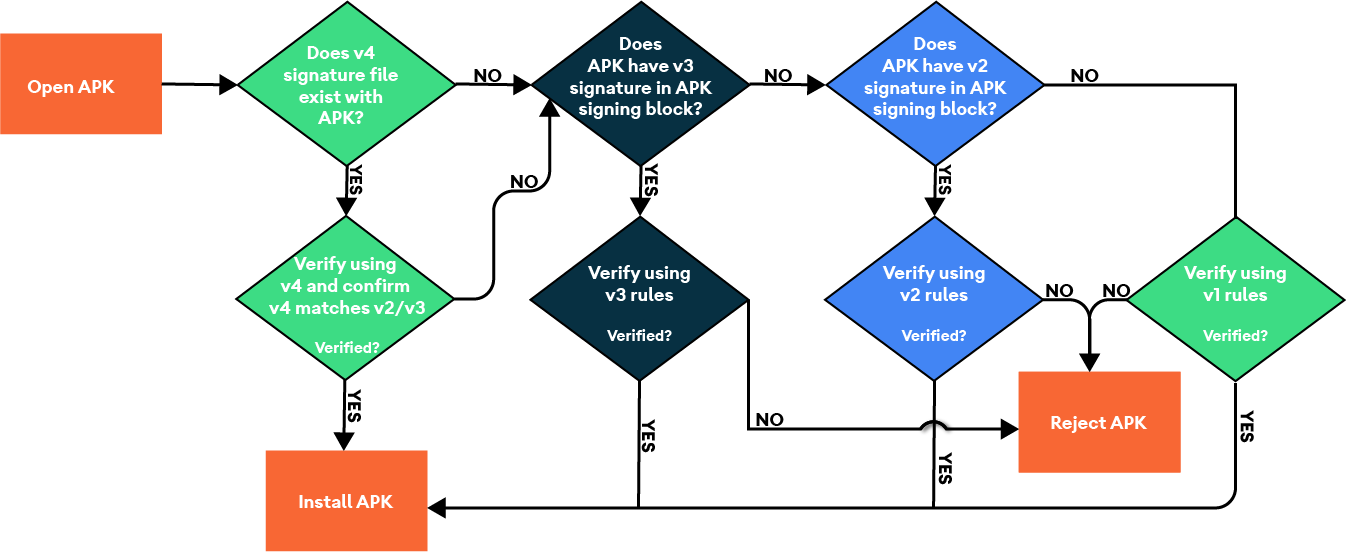
Android has introduced four signature schemes over the years, each improving on the last. Understanding which one applies to your app matters for compatibility and security.
v1 — JAR Signing (Legacy) The original method, inherited from Java. Signs individual files inside the APK. Still supported for very old Android versions (pre-7.0), but easier to tamper with because unsigned parts of the APK aren’t verified.
v2 — Full APK Signing (Android 7.0+) Signs the entire APK as a binary blob. Verification is faster and covers 100% of the file, making tampering impossible without breaking the signature. Recommended as the minimum for most apps today. Read the APK Signature Scheme v2 technical breakdown on Android Open Source Project for full technical detail.
v3 — Key Rotation Support (Android 9.0+) Builds on v2 and adds support for key rotation meaning you can change your signing key without breaking update compatibility for existing users. Stores a signing lineage inside the APK.
v4 — Incremental Updates (Android 11+) Designed for ADB incremental installs, used primarily in development and CI pipelines. Stored in a separate .idsig file alongside the APK. Used alongside v2 or v3, not as a standalone scheme.
| Scheme | Android Version | Key Feature |
|---|---|---|
| v1 | All versions | Legacy JAR signing |
| v2 | 7.0+ (Nougat) | Full-file signing |
| v3 | 9.0+ (Pie) | Key rotation lineage |
| v4 | 11.0+ | Incremental ADB installs |
Tip: Google Play requires at minimum v1 + v2 signing for most apps. Enable all applicable schemes in your Gradle config for broadest compatibility.
Play App Signing: Google’s Managed Signing Service
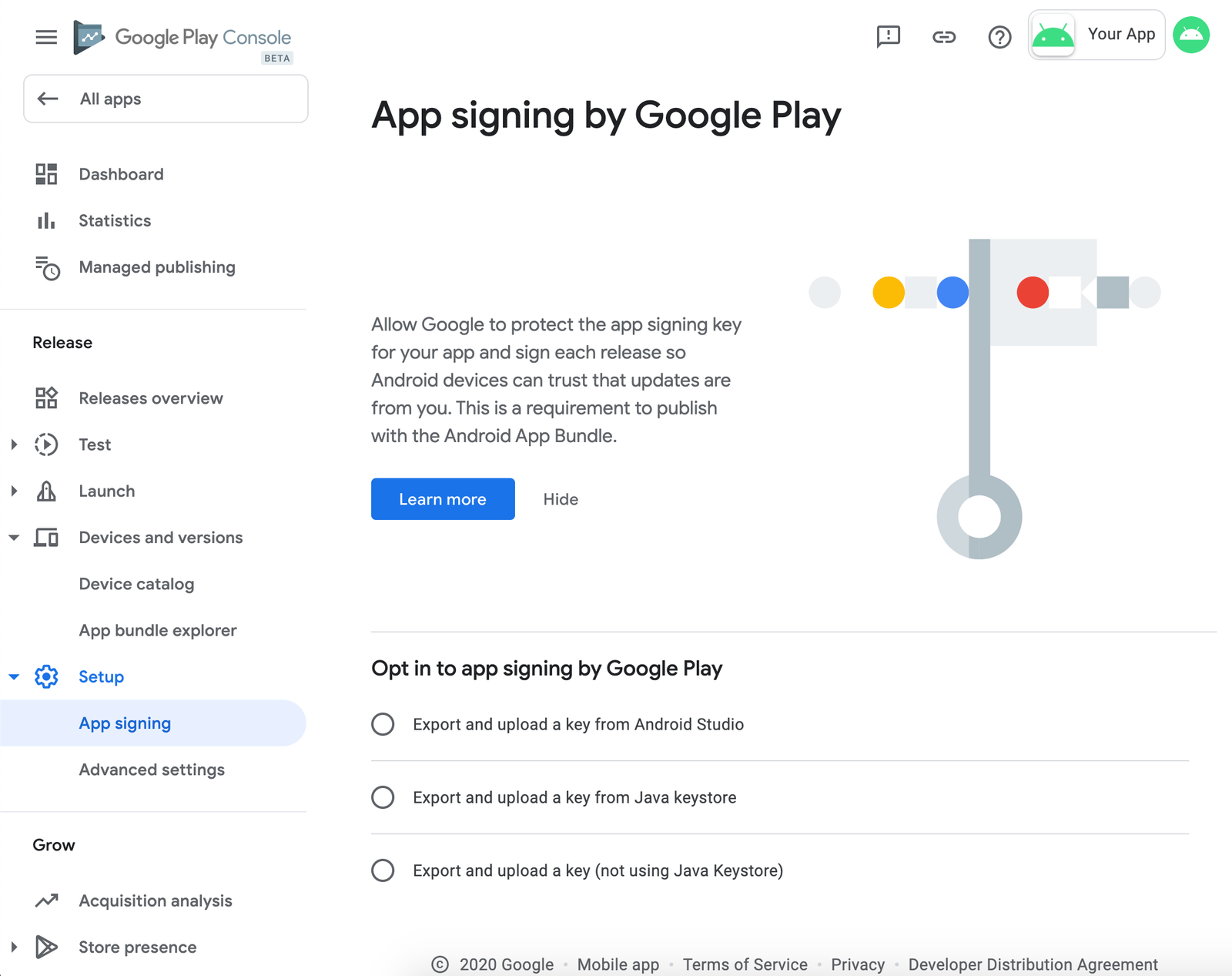
Play App Signing is Google’s service where Google holds and manages your app’s signing key on their secure servers. You upload your AAB signed with an upload key, Google re-signs it with the actual app signing key before delivering it to users.
You can read Google’s official Play App Signing help page to understand enrollment steps and key management options directly from Google.
Upload Key vs. App Signing Key
| Upload Key | App Signing Key | |
|---|---|---|
| Held by | You (the developer) | |
| Used for | Signing before upload | Final signature on delivered APK |
| If lost | Rotatable via Google Play Console | Non-recoverable (Google holds it) |
| Visible to users | No | Yes (on device) |
| Required for | AAB submission with Play App Signing | All Play Store apps |
Is Play App Signing Mandatory?
For new apps submitted as Android App Bundle, Play App Signing is now required by Google. There is no fee it is included with your Google Play Console account ($25 one-time registration).
Benefits of Play App Signing
- Google secures your signing key in their hardware security modules (HSMs)
- If your upload key is compromised, you can rotate it without losing your app’s update chain
- Enables smaller, optimized delivery via the AAB format
- Signing key remains safe even if your development machine is hacked
In the ApkSharp Apps category, we provide complete information about the latest Android apps, tools, and useful guides.
How to Sign an Android App: Three Methods
Method 1 Android Studio (GUI)
- Click Build → Generate Signed Bundle / APK
- Choose Android App Bundle (recommended) or APK
- Select your existing keystore or create a new one
- Enter keystore path, keystore password, key alias, and key password
- Choose release build variant
- Click Finish your signed file is output to the chosen directory
Method 2 Gradle Signing Config
Add this to your build.gradle (app-level):
android {
    signingConfigs {
        release {
            storeFile file("my-release-key.jks")
            storePassword "your_keystore_password"
            keyAlias "my-key-alias"
            keyPassword "your_key_password"
        }
    }
    buildTypes {
        release {
            signingConfig signingConfigs.release
        }
    }
}
⚠️ Never hardcode passwords in version-controlled files. Use environment variables or a
keystore.propertiesfile excluded from Git via.gitignore.
Method 3 Command Line with apksigner
apksigner sign \
  --ks my-release-key.jks \
  --ks-key-alias my-key-alias \
  --out my-app-release-signed.apk \
  my-app-release-unsigned.apk
To verify the signature afterward:
apksigner verify --verbose my-app-release-signed.apkAutomating Signing in CI/CD Pipelines
Manual signing is fine for solo developers. But teams using GitHub Actions, Bitrise, or CircleCI need automated signing as part of their build pipeline. The safest approach:
- Base64-encode your keystore file and store it as an encrypted secret in your CI platform
- Decode it at build time to a temporary path
- Pass credentials via environment variables never in the repo
- Use Fastlane or Gradle signing config reading from ENV
Fastlane’s official Android setup guide walks through the full automation workflow including signing configuration for production releases.

lane :release do
  gradle(
    task: "bundle",
    build_type: "Release",
    properties: {
      "android.injected.signing.store.file" => ENV["KEYSTORE_PATH"],
      "android.injected.signing.store.password" => ENV["KEYSTORE_PASSWORD"],
      "android.injected.signing.key.alias" => ENV["KEY_ALIAS"],
      "android.injected.signing.key.password" => ENV["KEY_PASSWORD"],
    }
  )
end
What Happens If You Lose Your Keystore?
This is the scenario that keeps developers awake at night and it deserves a straight answer.
If you self-manage your signing key and lose your keystore:
- You cannot push updates to your existing app on the Play Store
- You must publish a new app listing with a new package name and key
- All existing users would need to uninstall and reinstall manually
- All reviews, ratings, and install history are lost on the old listing
Enrolled in Play App Signing? Here’s what changes:
- Google holds your app signing key it’s safe even if your machine is destroyed
- Your upload key can be rotated via Google Play Console
- Your app update chain remains intact for all existing users
Signing mismatches are one of the most common reasons APK installations fail silently. Our guide on why APK files fail to install on Android breaks down every cause including signature conflicts. A parse error during installation is another red flag that often traces back to a signing problem the parse error on Android fix guide covers step-by-step solutions for both developers and end users.
⚠️ Expert Warning: Back up your keystore to at least three separate locations an encrypted cloud backup, an encrypted external drive, and a secure password manager like Bitwarden or 1Password. It cannot be recovered once lost.
Common Android App Signing Mistakes
- Committing the keystore to GitHub — exposes your private key publicly
- No keystore backup — single point of failure with no recovery option
- Short validity period — set 25+ years to avoid expiry during app lifetime
- Signing with debug key for production — Play Store will reject it immediately
- Forgetting the key alias — without it, the keystore is unusable
- Not enrolling in Play App Signing — leaves you fully exposed to key loss
- Hardcoding passwords in build.gradle — a serious security risk in team environments
Keystore Security Best Practices
- Store your .jks or .p12 file in an encrypted vault not unencrypted cloud storage
- Use a dedicated password manager for all keystore credentials
- Enable Play App Signing so Google’s HSM protects your signing key
- Rotate your upload key if you ever suspect compromise
- Keep a record of your key alias, validity period, and SHA fingerprints in a secure note
- Use SHA-256 certificate fingerprint for Firebase, Maps API, and OAuth configurations
When pushing updates, always confirm your signing config is consistent across builds to avoid breaking existing installs. Our guide on how to update APK without losing data explains how signing continuity directly affects user data during app updates.
Conclusion
Android app signing is not just a technical checkbox it is the foundation of your app’s trust, security, and long-term update ability. Whether you are generating your first keystore, migrating to Play App Signing, or setting up automated CI/CD builds, getting signing right protects both your app and your users from day one.
Three things to do right now:
- Enroll in Play App Signing if you haven’t already let Google protect your key
- Back up your keystore to multiple encrypted locations immediately
- Set up Gradle signing config with environment variables for any team or automated build workflows
ApkSharp provides complete information about the latest apps, tools, games, and useful guides.
Frequently Asked Questions
Q: What is Android App Signing Explained?
Android App Signing Explained is a guide that helps you understand how Android apps are digitally signed before distribution and why it is necessary for installation and updates
Q: What happens if I lose my Android keystore?
If you self-manage your key and lose the keystore, you cannot push updates to your existing app. You must create a new listing with a new package name, losing all ratings and install history. Enrolling in Play App Signing before this happens is the only real protection.
Q: What is the difference between an upload key and an app signing key?
The upload key is what you use to sign your AAB before uploading to Google Play Console. Google then re-signs the app with the actual app signing key which Google manages on their secure servers before delivering it to users’ devices.
Q: Is Play App Signing mandatory for new Android apps?
Yes. For new apps published as Android App Bundles, Play App Signing enrollment is mandatory. There is no additional cost beyond the standard $25 one-time Google Play Console registration fee.
Q: What are Android signature schemes v1, v2, v3, and v4?
Four versions of APK signing technology. v1 is legacy JAR signing; v2 signs the entire APK for stronger integrity; v3 adds key rotation support; v4 enables incremental installs for development. Most production apps should use v2 at minimum, with v3 recommended for Android 9 and above.