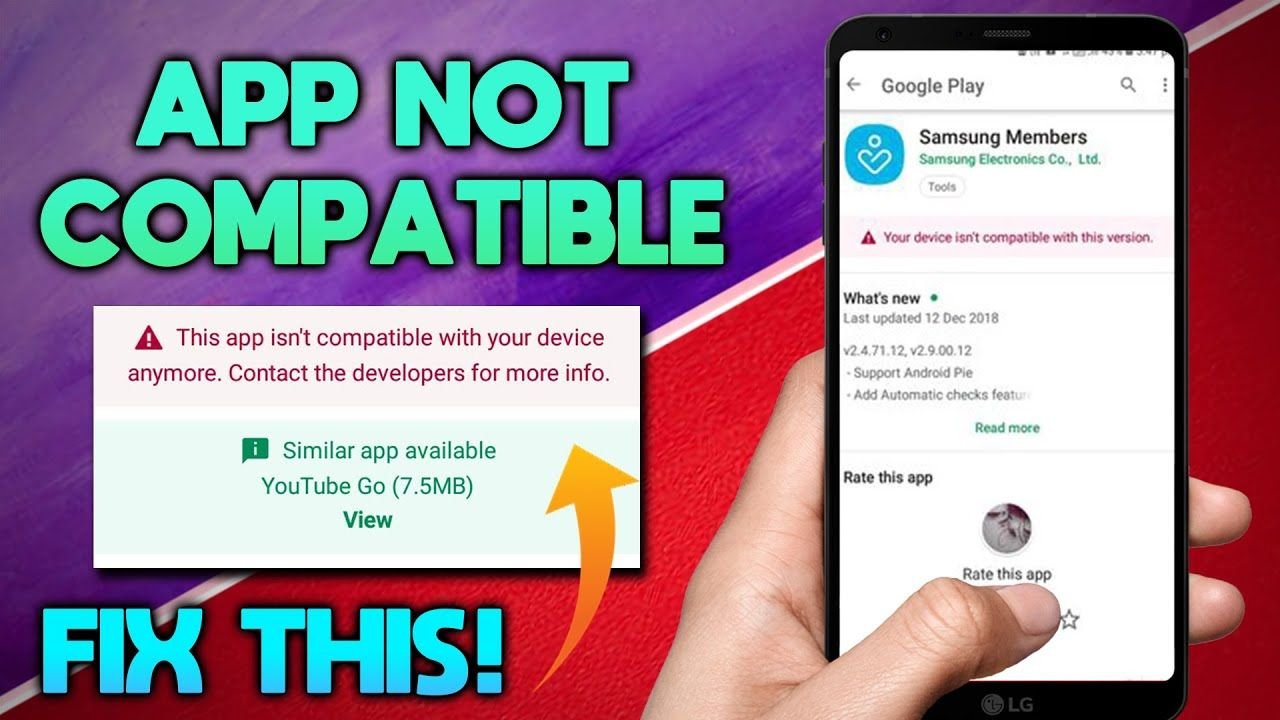
How to Fix App not Compatible with this Device
When you try installing an APK and suddenly see the message “App not compatible with this device,” it can feel confusing and frustrating. You might be using an older Android version, downloading the wrong APK architecture such as ARM instead of ARM64, facing regional restrictions, or dealing with hardware limitations required by the app.
Sometimes the issue is related to outdated system components, while in other cases the developer has restricted support for certain devices. Before trying random solutions, it is important to understand why this error appears and how to fix it properly without harming your device.
This guide explains the real reasons behind the compatibility error and provides clear, practical solutions you can apply immediately.
Why This Error Happens
The compatibility message does not appear randomly. Android checks several conditions before allowing an app to install. If your device fails any of these checks, installation is blocked.
One common reason is Android version mismatch. If the app requires Android 11 and your device runs Android 9, the system will prevent installation. Developers often increase minimum requirements after major updates.
Another reason is CPU architecture mismatch. Android devices use different processor types such as ARMv7, ARM64, or x86. If you download the wrong APK variant, installation will fail even if everything else is correct.
Screen resolution and hardware features can also trigger the issue. Some apps require specific camera features, sensors, or OpenGL versions. If your phone does not meet these technical requirements, the app may show as incompatible.
Regional restrictions are another possibility. Certain apps are limited to specific countries, so even if your device supports the app technically, Play Store or the APK installer may block it. Understanding the cause helps you apply the correct fix instead of guessing.
Method 1: Check Your Android Version
Start with the basics. Open Settings, go to About Phone, and check your Android version.
Then check the minimum Android requirement of the app. If the app requires a newer version than what your device supports, your options are limited. You can:
Update your Android system if an update is available
Install an older version of the app compatible with your Android version
Installing an older version is often the easiest solution when dealing with outdated devices.
Method 2: Download the Correct APK Architecture
Many users ignore APK architecture, but it is critical.
Android apps are built for different processor types:
ARMv7 (older devices)
ARM64 (modern devices)
x86 (mostly emulators)
If you install the wrong architecture, you will get compatibility errors.
You can check your device architecture using a system info app or by searching your device model specifications online. Once you know your CPU type, download the matching APK version.
This alone fixes the issue in many cases.
Method 3: Clear Google Play Store Data
If the error appears inside Google Play Store rather than during manual APK installation, try clearing Play Store data.
Go to:
Settings > Apps > Google Play Store > Storage > Clear Cache and Clear Data
Restart your device and try installing again.
Sometimes Play Store incorrectly flags devices due to outdated cache or account sync problems.
Method 4: Remove and Re-add Google Account
If clearing cache does not help, remove your Google account temporarily.
Go to:
Settings > Accounts > Google > Remove Account
Restart your phone, then sign in again.
This refreshes device certification and can fix compatibility recognition issues.
Method 5: Install an Older Version of the App
If the latest version of the app is not compatible, older versions may still work. Developers sometimes increase minimum requirements over time. For example, an app that once supported Android 8 may now require Android 11. Installing a previous version built for older Android systems can solve the problem.
However, make sure you download from reliable sources and avoid modified or unofficial builds.
Method 6: Check Device Certification
Some devices, especially those running custom ROMs, are not Google-certified. This can cause Play Store compatibility errors.
Open Play Store, go to Settings, and check Device Certification status at the bottom.
If it says “Device is not certified,” certain apps may appear incompatible even if technically supported.
In such cases, you may need to:
Flash official firmware
Register your device ID with Google
Use a certified ROM
This is more technical but effective for rooted users.
Method 7: Use APK Bundles Properly
Some apps are distributed as split APKs or App Bundles. Installing only the base APK may cause compatibility errors.
If the app uses split architecture, you need all required APK parts, including:
Base APK
Configuration APK (screen DPI)
Architecture APK (ARM/ARM64)
Using a split APK installer tool can help install these correctly. Missing components often trigger compatibility errors.
Method 8: Change Device DPI (Advanced Users)
Certain apps restrict installation based on screen density (DPI). Advanced users with rooted devices can modify build.prop values to change DPI settings. However, this method carries risk and should only be attempted by experienced users. Incorrect changes may cause boot issues.
Method 9: Use a VPN for Region-Locked Apps
If the app is restricted to certain countries, using a VPN connected to a supported region may allow installation.
After connecting to a VPN:
Clear Play Store cache
Force stop Play Store
Reopen and search again
This sometimes resolves regional compatibility blocks.
Method 10: Use an Emulator (If On PC)
If you are trying to install the APK on a computer and see compatibility errors, you may need a different emulator version.
Some apps require:
64-bit Android
Higher RAM allocation
Newer Android emulator image
Switching to a newer emulator configuration can resolve the issue.
What You Should Avoid
Do not install modified APK files claiming to “bypass compatibility.” These versions often contain hidden changes that can compromise security.
Avoid random system tweaks if you do not understand them. Compatibility errors are usually solvable with proper version matching rather than risky modifications.
When the App Truly Is Not Compatible
Sometimes there is no workaround.
If your device lacks required hardware features or is too old to support modern APIs, forcing installation may result in crashes or poor performance.
In that case, your best options are:
Use an alternative app
Upgrade your device
Use a web version of the service
Technology evolves, and some older devices simply cannot run newer applications.
Final Thoughts
The “App not compatible with this device” APK error is common but rarely permanent. In most cases, the issue comes down to Android version mismatch, wrong CPU architecture, regional restrictions, or Play Store caching problems.
Start with simple solutions such as checking your Android version and downloading the correct APK variant. Move to advanced fixes only if necessary. Avoid unsafe modifications and always prioritize device security.
With the right approach, most compatibility problems can be resolved without technical expertise. If one method does not work, move calmly to the next. The solution is usually straightforward once you identify the real cause.



