Not everyone has a high-end gaming rig. Millions of users across India, Indonesia, Pakistan, the Philippines, and beyond are still running dual-core machines with 2GB or 4GB of RAM and they still want to play Free Fire, use Android apps, or test mobile builds on their desktop. The good news? The best Android emulators for low-end PC in 2026 have come a long way. Several of them run without VT (virtualization technology), without a dedicated GPU, and without turning your laptop into a hand warmer.
This guide breaks everything down by RAM tier, by use case, and by what actually works so you can stop guessing and start running Android today.
What Is a “Low-End PC” in 2026?
Before jumping into recommendations, it helps to define what “low-end” actually means right now.
A low-end PC in 2026 typically has:
- RAM: 2GB to 4GB
- CPU: Intel Celeron, Pentium, or AMD dual-core (2–4 cores)
- GPU: Integrated graphics only (Intel HD Graphics 4000 or equivalent)
- OS: Windows 7, Windows 10 (32-bit or 64-bit), or older Windows 11 builds
- Storage: HDD (5400 RPM) rather than SSD
If your machine fits this profile, most heavy emulators will lag, crash, or refuse to launch. The picks below are selected specifically to work within these limits.
How Android Emulators Work (And Why Most Fail on Weak PCs)
An Android emulator creates a virtual Android environment on your PC. Most do this through hardware virtualization using VT-x (Intel) or AMD-V (AMD) features in your processor to run Android efficiently. When those features aren’t available or aren’t enabled in BIOS, the emulator falls back to binary translation (converting ARM code to x86), which is far more CPU-intensive and causes lag.
This is exactly why most emulators crawl on weak hardware. They were built assuming you have virtualization enabled, a modern GPU, and 8GB+ RAM.
The emulators listed below are picked because they handle this gap intelligently either through lightweight architecture, dedicated Eco Modes, or true no-VT support.
💡 Important: Microsoft’s Windows Subsystem for Android (WSA) was discontinued in March 2025. If you were relying on it, you’ll need one of the third-party options below.
Pick Your Emulator by RAM The Definitive Tier Table
For low-end PCs, LDPlayer and MuMu Nebula are the top picks. MuMu Nebula works without VT or GPU. LDPlayer Lite runs smoothly on 2GB RAM. BlueStacks 5 is best for 4GB+ systems.
| RAM Available | Best Emulator | VT Required? | GPU Required? | Best For |
|---|---|---|---|---|
| 1GB | MuMu Nebula | ❌ No | ❌ No | Basic apps, lite gaming |
| 2GB | LDPlayer (Lite Mode) | ✅ Recommended | ❌ No | Gaming, Free Fire |
| 2GB | NoxPlayer Lite | ✅ Optional | ❌ No | Casual apps + gaming |
| 4GB | BlueStacks 5 | ✅ Yes | ✅ Recommended | Heavy games, multi-instance |
| 4GB | MEmu Play | ✅ Optional | ❌ No | App testing + gaming |
| Any | GameLoop | ❌ No | ❌ No | PUBG Mobile, COD Mobile |
Best Android Emulators for Low-End PC Full Breakdown
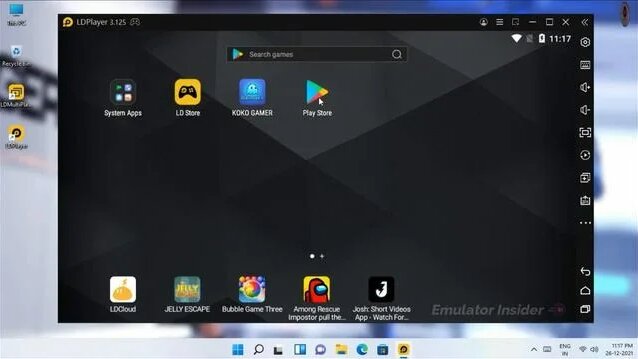
1. LDPlayer Best Overall for Low-End Gaming
Minimum Specs: 2GB RAM, dual-core CPU, no dedicated GPU required
LDPlayer is consistently one of the most optimized emulators for budget machines. Its Eco Mode reduces CPU and RAM usage significantly, making it usable on older laptops that would choke on BlueStacks. It supports Android 9 and runs titles like Free Fire and PUBG Mobile at playable frame rates on integrated graphics.
Pros:
- Eco Mode cuts memory consumption
- Fast APK sideloading support
- Supports keyboard and mouse mapping for mobile games
- Regular updates with low-end optimizations
Cons:
- Still benefits from VT being enabled
- Occasional ads in the launcher
Ideal for budget gamers in South and Southeast Asia looking to play Free Fire or COD Mobile without upgrading hardware.
2. MuMu Nebula Best for No-VT, No-GPU Systems
Minimum Specs: 1GB RAM, single-core CPU, no VT, no GPU
Developed by NetEase, MuMu Nebula is currently the only mainstream Android emulator that runs without VT enabled and without a dedicated GPU. It uses a different rendering path that relies entirely on software, making it the go-to choice for users who can’t or won’t enter BIOS to enable virtualization.
Performance won’t match hardware-accelerated emulators, but for basic app use, light gaming, or WhatsApp and social media access on an extremely old machine, it gets the job done.
Pros:
- Zero VT requirement no BIOS changes needed
- Ultra-lightweight footprint
- Works on Windows 7 systems
- Safe and legitimate (NetEase is a verified publisher)
Cons:
- Lower FPS on graphic-heavy games
- Fewer customization options vs competitors
If you’ve ever seen the error “Please enable VT in BIOS” MuMu Nebula is your fix.
3. BlueStacks 5 Best for 4GB Systems and App Compatibility
Minimum Specs: 4GB RAM, Intel/AMD processor, VT recommended
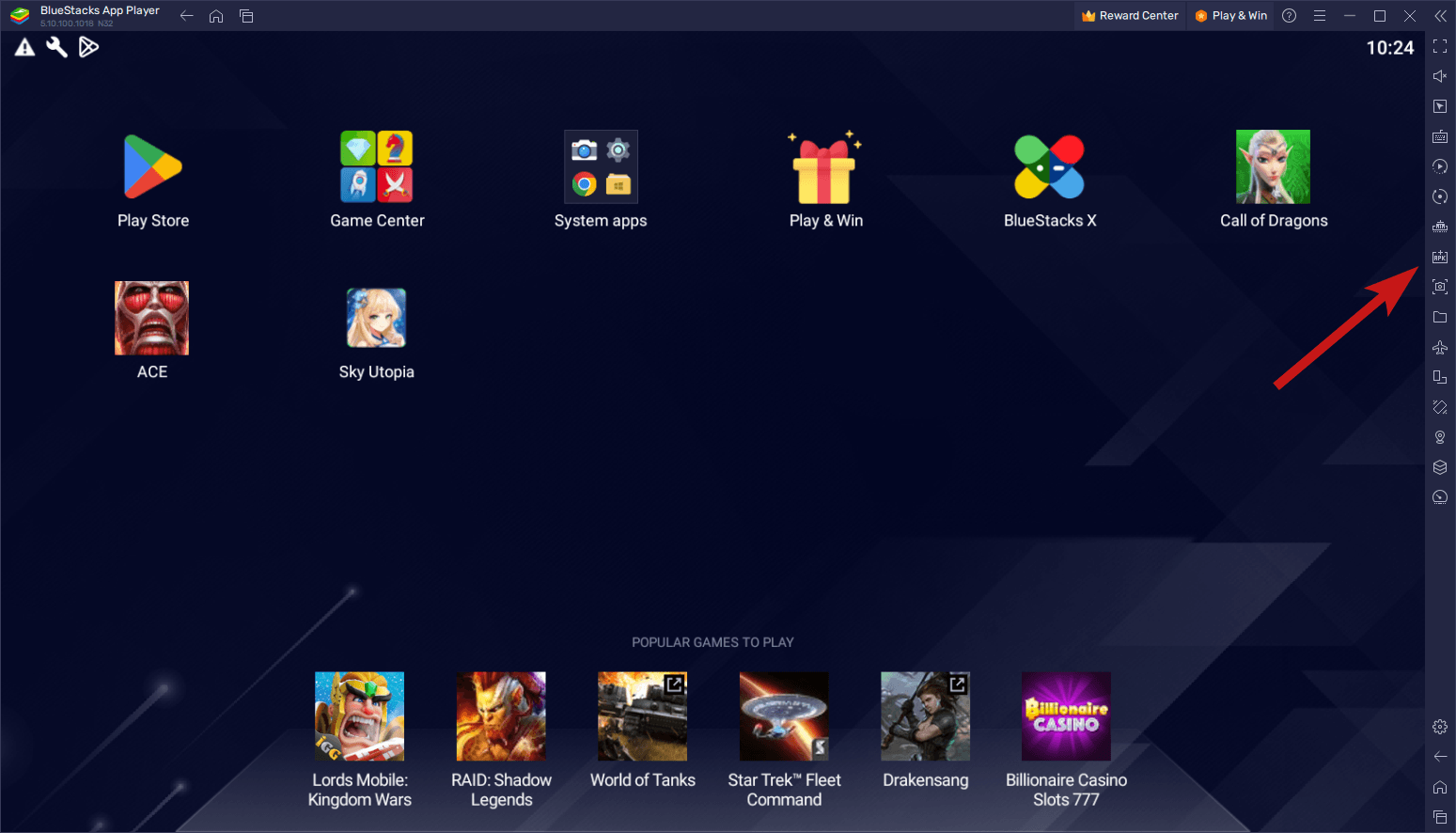
BlueStacks is the most widely used Android emulator globally. BlueStacks 5 dropped significant weight compared to version 4, reducing RAM usage while improving launch speeds. For anyone with 4GB RAM and VT enabled, it delivers the broadest app and game compatibility of any emulator on this list.
It also supports multi-instance, meaning you can run two Android sessions simultaneously useful for developers or users managing multiple accounts.
Pros:
- Massive app compatibility with Google Play integrated
- Multi-instance support
- Strong keyboard macro and key mapping tools
- Active development and frequent updates
Cons:
- Not ideal below 4GB RAM
- Requires VT for stable performance
- Has ads in the free version
If you want to install APK files on your PC using an emulator, BlueStacks remains the most plug-and-play solution. Learn more: How to Install APK on PC Using an Emulator
4. GameLoop Best for PUBG Mobile and COD Mobile
Minimum Specs: 2GB RAM, dual-core CPU, no VT required for basic use
Made by Tencent specifically for their mobile titles, GameLoop is pre-optimized for PUBG Mobile and Call of Duty Mobile. It handles ARM-to-x86 binary translation better than most general-purpose emulators for these specific games often delivering smoother FPS than other emulators running the same title on the same hardware.
Pros:
- Built-in game optimization for Tencent titles
- Doesn’t require VT for basic functionality
- Lightweight compared to BlueStacks for gaming
Cons:
- Limited outside of Tencent games
- Less useful for general Android app access
5. NoxPlayer (Lite Mode) Best for Versatility
Minimum Specs: 2GB RAM, dual-core CPU, VT optional
NoxPlayer supports multiple Android versions including Android 7 and Android 9 which is rare and valuable, especially for developers testing backward compatibility or users running older apps that break on newer Android builds. Its Lite Mode reduces background processes and is genuinely usable on 2GB machines.
It also has strong APK sideloading support. If you’re dealing with apps that aren’t on the Play Store, NoxPlayer handles this cleanly. See also: How to Install APK on Android Without Play Store 2026 Guide
Pros:
- Multi-version Android support (7 and 9)
- Script recording for automation
- Rooting support for advanced users
Cons:
- Slightly heavier than MuMu Nebula on very old machines
6. MEmu Play Best for App Testing on Budget PCs
Minimum Specs: 2GB RAM, dual-core, VT optional
MEmu Play sits in a sweet spot between gaming and productivity. It supports Android 9, runs reasonably well without VT, and is a solid choice for developers who need a quick testing environment without setting up the full Android Studio AVD. For professional testers on a budget machine, MEmu offers enough configurability screen resolution, CPU core allocation, RAM assignment to simulate real device conditions.
Pros:
- Good developer testing tools
- Custom CPU and RAM allocation
- Runs well on mid-range low-end hardware
Cons:
- FPS drops in heavy games on very old hardware
- Interface feels dated compared to LDPlayer
How to Run Emulators Faster on a Low-End PC
Even the lightest emulator will struggle if your system isn’t configured correctly. Follow these steps to squeeze maximum performance out of any emulator:
Step 1 — Enable VT in BIOS (if supported) Restart your PC, enter BIOS (usually F2 or Del), find Virtualization Technology under CPU settings, and enable it. This single step can double emulator performance.
Step 2 — Allocate the right RAM Inside emulator settings, set RAM allocation to no more than 50% of your total RAM. On a 4GB system, assign 1.5–2GB to the emulator.
Step 3 — Switch to OpenGL rendering In graphics settings, switch from DirectX to OpenGL if your integrated GPU doesn’t support DirectX 11+.
Step 4 — Enable Eco Mode LDPlayer and BlueStacks both have an Eco Mode that throttles background CPU usage. Enable it when not actively playing.
Step 5 — Close background apps Browser tabs, Discord, and background updaters eat into the RAM your emulator needs. Close everything before launching.
Step 6 — Use an SSD if possible Emulators stored on an HDD suffer long load times. Even a cheap 120GB SSD dramatically improves boot and app launch speeds.
Step 7 — Keep your display driver updated Outdated Intel HD Graphics drivers are one of the most common causes of emulator crashes. Update via Intel’s website or Device Manager.

⚠️ Laptop tip: Always plug into power when running an emulator. Battery-saver mode throttles your CPU and directly tanks FPS.
Common Mistakes When Using Emulators on Old PCs
Most users make these errors without realising it:
- Running multiple instances on 2GB RAM — Even LDPlayer will crash. Stick to one instance only.
- Ignoring the Hyper-V conflict — If you use Docker or WSL2, Hyper-V may block VT access for your emulator. Disable Hyper-V in Windows Features when gaming.
- Installing APKs from random sites — Compromised APK files are a real malware risk inside an emulator environment. If your APK fails to install, check this first: Why APK File Is Not Installing on Android
- Leaving resolution at 1080p — On low-end hardware, drop emulator resolution to 720p. The FPS gain is immediate.
- Running on battery power — CPU throttling in battery mode cuts performance by 30–50% on most budget laptops.
Are Android Emulators Safe to Use?
The core emulators BlueStacks, LDPlayer, MuMu Nebula, NoxPlayer, MEmu, and GameLoop are published by verified organizations and are safe to download from their official websites.
The risks come from downloading emulators from unofficial mirror sites and sideloading APKs from unverified sources. Always use a trusted APK downloader: APK Downloader for Android Apps
If an APK install throws a Parse Error, it usually means the file is corrupted or incompatible with the Android version your emulator is running. Fix Parse Error on Android
Alternatives to Android Emulators for Low-End PCs
If emulators still don’t work for your machine, these options are worth knowing:
Bliss OS (Dual Boot) Install Android directly onto your PC as a separate OS. It runs natively on your hardware with zero emulation overhead. Best for users comfortable with dual-boot setups.
Waydroid (Linux Only) If you run Ubuntu or another Linux distro, Waydroid is a container-based Android layer that’s incredibly lightweight. It uses Linux kernel features instead of emulation, giving near-native performance. Reference: Waydroid Official Site
Cloud Phone Services Stream a remote Android session to your browser. No local CPU usage at all. Quality depends on your internet connection, but it’s a viable option for very old machines.
You can also run Android apps directly on Windows 11 without an emulator in some cases: Install APK on Windows 11 Without Emulator
FAQs
What is the best Android emulator for a low-end PC?
LDPlayer is the best overall pick for low-end PCs with 2GB+ RAM. For systems with 1GB RAM or no VT support, MuMu Nebula is the top choice. Both are free, safe, and actively maintained in 2026.
Which Android emulator works without VT?
MuMu Nebula is currently the only major emulator that runs without VT enabled in BIOS. GameLoop also has basic no-VT functionality for Tencent games like PUBG Mobile.
Can I run an Android emulator on 2GB RAM?
Yes. LDPlayer in Eco Mode and NoxPlayer Lite both run on 2GB RAM. Avoid BlueStacks on 2GB it needs at least 4GB for stable performance.
What happened to Windows Subsystem for Android?
Microsoft officially discontinued WSA in March 2025. It is no longer available for new installations. Users should switch to LDPlayer, MuMu Nebula, or BlueStacks.
Which emulator is best for PUBG Mobile on a weak PC?
GameLoop, made by Tencent, is optimized specifically for PUBG Mobile and COD Mobile. It performs better than general-purpose emulators on low-end hardware for these titles.
Is it safe to sideload APK files inside an Android emulator?
It is safe if you use trusted sources. Always download APKs from reputable platforms. An emulator does not protect you from malicious APK files. Learn how to install unknown apps safely
Does LDPlayer require VT to be enabled?
LDPlayer works without VT but performs significantly better with it. Enabling VT in BIOS takes less than two minutes and delivers a major FPS improvement for gaming.
Conclusion
The best Android emulator for your low-end PC depends entirely on your hardware. Use this quick decision path:
- 1GB RAM, no VT → MuMu Nebula
- 2GB RAM, gaming → LDPlayer (Eco Mode)
- 2GB RAM, apps + versatility → NoxPlayer Lite
- 4GB RAM, full compatibility → BlueStacks 5
- PUBG Mobile / COD Mobile only → GameLoop
- App development on budget PC → MEmu Play
Pick the right tool for your specs, apply the optimization steps, and you’ll be running Android smoothly no hardware upgrade needed.
For further reading on Android emulation standards, see the official documentation: Android Emulator Google Developer Docs