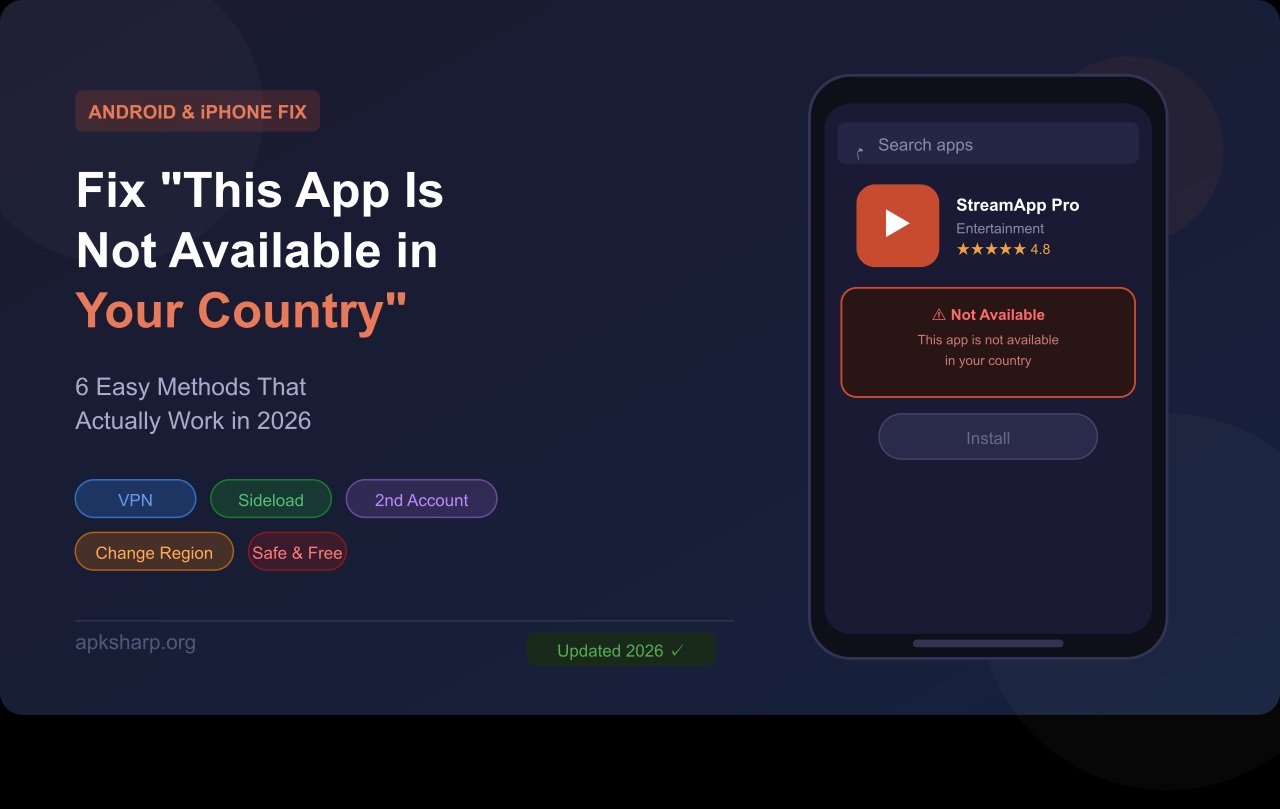
You just searched for an app, tapped install and boom. “This app is not available in your country.” If you’ve ever hit this wall, you’re not alone. Millions of users worldwide see this exact message every day, whether they’re on Android or iPhone. The good news? This app is not available in your country error is almost always fixable and in most cases, you don’t need any technical skills to do it. In this guide, we’ll walk you through every working method for 2026, cover both Android and iOS, and help you pick the safest fix for your situation.
This error appears when an app isn’t distributed in your Google Play or App Store region due to licensing rules, legal restrictions, or developer targeting. Fixes include changing your store country, using a VPN, creating a secondary account, sideloading an APK (Android only), or contacting the developer directly.
What “This App Is Not Available in Your Country” Actually Means
When you see this message on Google Play or the Apple App Store, your device isn’t broken and the app hasn’t been deleted. It simply means the app hasn’t been made available in the region tied to your store account.
Your app store checks availability based on the country linked to your Google Account or Apple ID not your physical GPS location. So even if you’re physically sitting in the US, if your account is registered to a country where the app isn’t distributed, you’ll still see this error.
This is called geo-restriction a deliberate limitation set by the app developer or enforced due to local laws, licensing agreements, or content regulations in your country.
If you’re wondering how apps get distributed in the first place, check out this guide on the difference between APK and Play Store it explains exactly how Google manages app availability by region.
Why Apps Get Blocked in Certain Countries

Knowing the why behind the error helps you choose the right fix faster. There are six main reasons:
Developer targeting: The developer chose to launch only in specific markets common for beta apps, early-access releases, or products that haven’t completed local compliance checks yet.
Licensing and content rights: Streaming apps like Hulu or BBC iPlayer are only licensed in certain countries. Distributing them elsewhere would violate content agreements.
Legal and regulatory restrictions: Some apps are actively banned by local governments. VoIP apps are blocked in parts of the UAE and Saudi Arabia. Many Western apps were removed from Russia following 2022 sanctions.
Payment infrastructure: Apps requiring specific local billing methods may not launch in markets where those systems don’t exist yet.
Staggered rollout: Many developers release in the US or EU first, then expand globally. You might just be early.
Account region mismatch: You moved countries but your Google Account or Apple ID still shows your old region. This is one of the most overlooked causes and has a simple fix.
📌 Note for users in India, Pakistan, Nigeria, Turkey, and Africa: You’ll see this error more often than Western users not because of anything wrong on your end, but because many developers prioritize Western markets during initial launches.
Android Fixes Google Play Store
Android gives you more flexibility than iOS. Here are four working methods, from lowest to highest complexity.
Method 1 — Change Your Google Play Store Country
This is the most official and permanent solution. Google lets you change your Play Store country once every 12 months, as long as you have a valid payment method in the target country.
Steps:
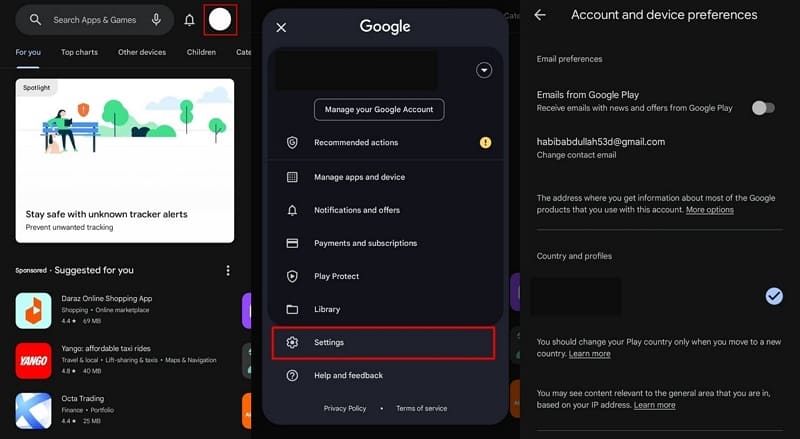
- Open Google Play Store → tap your profile icon (top right).
- Go to Settings → General → Account and device preferences.
- If Google detects a new country, you’ll see: Switch to the [Country] Play Store.
- Add a local payment method and confirm.
- Wait up to 48 hours for the switch to fully apply.
For the official steps directly from Google, see the Google Play Help page on changing your country.
⚠️ Warning: Switching countries can affect existing subscriptions. Apps bought in your old region may stop working. Review active subscriptions before switching.
If you want to install apps without going through the Play Store at all, this complete guide on how to install APK on Android without Play Store covers everything step by step.
Method 2 — Use a VPN to Download the App
A VPN masks your IP address so Google thinks you’re in a different country. This is the most popular quick fix for one-time downloads.
Steps:
- Install a reliable VPN NordVPN, ExpressVPN, or Surfshark work best in 2026.
- Connect to a server in the country where the app is available.
- Clear Play Store cache: Settings → Apps → Google Play Store → Storage → Clear Cache.
- Force-stop Play Store, reopen it, and search for the app.
- Download it the app stays installed even after you disconnect the VPN.
💡 Tip: If the app still doesn’t appear, clear the cache after connecting the VPN. Play Store can hold old region data for a few minutes.
Looking for the best way to download APK files directly? This APK downloader guide for Android apps has the safest options listed.
Method 3 — Create a Secondary Google Account
No VPN, no region changes on your main account this is the safest method for regular use.
Steps:
- Create a new Google Account at accounts.google.com use a different email.
- Set the country to your target region during setup.
- On your Android device: Settings → Accounts → Add Account → sign in.
- Open Play Store → switch to the new account via the profile icon.
- Download the app it installs on your device and stays accessible from your main account.
Method 4 — Sideload the APK File
APK sideloading lets you install an app directly from its file, bypassing the Play Store entirely. This works on any Android device.
Steps:
- Go to a trusted source: APKMirror, APKPure, or F-Droid (for open-source apps).
- Download the correct APK for your Android version and device architecture.
- Enable installs: Settings → Security → Install Unknown Apps → allow your browser.
- Open the APK file from your Downloads folder and tap Install.
- Disable “Install Unknown Apps” again after installation.
Before you sideload, make sure you understand how to enable this setting safely here’s a detailed guide on how to install unknown apps on Android without putting your device at risk.
If your APK isn’t installing after downloading, check this troubleshooting guide on why APK files don’t install on Android it covers the most common reasons and fixes.
Some apps come as XAPK files instead of regular APKs. If that’s the case, here’s how to install XAPK files on Android without any errors.
⚠️ Safety Warning: Only use APKMirror, APKPure, or F-Droid. Random APK sites frequently carry malware. Never install APKs from sources you can’t verify. You can also browse APKMirror directly it verifies every file against the developer’s official certificate.
iPhone & iPad Fixes — Apple App Store
iOS is more restricted than Android there’s no sideloading for regular users. Your only real options involve your Apple ID settings.
Method 1 — Change Your Apple ID Country/Region
Steps:
- Open Settings → tap your name.
- Tap Media & Purchases → View Account.
- Tap Country/Region → Change Country or Region.
- Select your target country, agree to the terms.
- Add a valid payment method or choose None for free apps only.
Apple’s official guide on changing your Apple ID country or region walks through the full process with screenshots.
⚠️ Warning: This removes access to your existing purchases and may cancel active subscriptions like Apple Music or iCloud+. Use the secondary Apple ID method below if you want to keep both regions active.
Method 2 — Create a New Apple ID for Target Region
This is the recommended iPhone method zero risk to your main account.
Steps:
- Go to appleid.apple.com and create a new Apple ID with a different email.
- Set the country to your target region (e.g., United States).
- Choose None as payment method works for all free apps.
- Open the App Store → scroll down → tap your Apple ID → Sign Out.
- Sign in with the new Apple ID → download the app.
- Sign back in with your original Apple ID when done.
Method 3 — VPN on iPhone (Runtime Access Only)
Important: A VPN does NOT change your App Store region on iPhone. The store is tied to your Apple ID, not your IP address. A VPN alone won’t make region-locked apps appear in your App Store.
However, if an app is already installed but blocks content based on your IP (like streaming services), a VPN connected to the right country will unlock that content inside the app.
For actually downloading region-locked apps on iPhone use the Apple ID method above.
Which Method Is Right for You?
| Your Situation | Best Method | Platform | Risk |
|---|---|---|---|
| Need one app, keep main account safe | Secondary account | Android / iOS | Low |
| Permanently moved to new country | Change Play Store / Apple ID country | Android / iOS | Low |
| Traveling, need app quickly | VPN + cache clear | Android | Medium |
| Free app, no account changes | APK sideload (APKMirror) | Android only | Medium |
| Need US-only apps from outside US | US secondary account | Android / iOS | Medium |
| In China no Google Play | APK sideload / Huawei AppGallery | Android | Medium |
| Corporate/MDM-managed device | Contact IT admin | Any | Low |
| Developer testing geo-locked apps | Internal Testing Track | Android | Low |
You Live There But Still See the Error

This is a common and frustrating situation you’re physically in the right country, yet the error still appears. Here’s why:
Your account region doesn’t match your location. Store regions are set at account creation and don’t auto-update when you move. If your Google Account was created in Pakistan or India, your Play Store still reflects that country even after you relocate.
Your payment method overrides your location. Google Play uses your primary payment method’s billing country to determine your region not GPS. A card from a different country can override your physical location.
The app has a specific country exclusion. Some apps are available almost everywhere except certain countries. Being physically present doesn’t override this restriction.
Play Store propagation delay. If you recently updated your region, it can take up to 48 hours to fully sync across Google’s servers.
Fix: Check Google Account → Payments & subscriptions → verify billing country matches your current location. For Apple ID: Settings → [Your Name] → Media & Purchases → Country/Region.
Sometimes this kind of issue comes with a parse error too. If you’re seeing one alongside the region error, here’s how to fix a parse error on Android quickly.
B2B & Developer Use Cases
Testing Geo-Restricted Apps as a Developer
Google Play Console allows developers to restrict distribution by country. If you need to test your own app in a restricted region, use the Internal Testing Track in Google Play Console it bypasses geo-restrictions for all invited testers regardless of their physical location.
For testing third-party apps, the secondary account or APK sideload method works best.
Enterprise MDM-Managed Devices
If your company uses Microsoft Intune, Jamf, or VMware Workspace ONE, the restriction may have nothing to do with your app store region. MDM policies can block specific apps entirely, independent of store settings. No consumer workaround will bypass MDM. Contact your IT department and request the app be whitelisted.
Expanding Your Own App’s Availability
If users are reporting this error for your app, open Google Play Console → Store Presence → Countries / Regions and check if you’ve accidentally excluded any regions. Expanding availability takes minutes and propagates within hours.
If you’ve built an app and are distributing it via APK, here’s how users can update an APK without losing their data useful to share with your users.
Alternative App Stores Worth Knowing
| Store | Best For | Devices | Notes |
|---|---|---|---|
| Samsung Galaxy Store | Samsung device users | Samsung Android | Pre-installed; some apps exclusive here |
| Huawei AppGallery | Huawei / Honor users | Huawei Android | Essential for China no Google Play |
| Amazon Appstore | Fire tablets + Android | Android | Good for some US-only apps |
| F-Droid | Open-source apps | Android | Free, verified browse at f-droid.org |
| APKMirror | Specific APK versions | Android | Verified APK repository apkmirror.com |
If you want to run Android apps on your computer instead, here’s how to install APK on PC using an emulator works even on older machines.
For older or budget computers, check out the best Android emulators for low-end PC some run surprisingly well even on basic hardware.
Legal & Safety Considerations
Is Bypassing Geo-Restrictions Illegal?
In most countries no. It’s a Terms of Service issue, not a criminal one. Google and Apple can suspend accounts showing suspicious activity, but criminal prosecution for downloading a region-locked app has not been documented in any major jurisdiction.
However, VPN legality varies by country:
| Region | VPN Legal Status |
|---|---|
| USA, UK, EU, Canada, Australia, India | Fully legal |
| UAE, Saudi Arabia | Legal personally; commercial use needs license |
| China | Only government-approved VPNs allowed |
| Russia | Restricted registered VPNs only |
| North Korea, Belarus, Turkmenistan | Effectively banned |
⚠️ If you’re in China or Russia, using a commercial VPN carries real legal risk. Know your local laws before proceeding.
Can You Get Banned?
Bans are rare but possible especially with repeated region-switching. The safest mitigation: always use a secondary account for region-specific apps to keep your main account clean.
Common Mistakes to Avoid
- Switching Play Store country more than once a year — Google locks you out of future switches.
- Downloading APKs from random websites — these are the number one source of Android malware. Use APKMirror or F-Droid only.
- Using a VPN on iPhone expecting App Store to unlock — it won’t. The store is Apple ID-based, not IP-based.
- Not checking subscriptions before switching regions — you risk losing paid subscriptions and purchase history.
- Trying consumer methods on MDM corporate devices — it won’t work. Talk to IT.
- Using a free VPN — free VPNs log your data and have unreliable servers. Use a paid provider.
FAQs
Why does Google Play say this app isn’t available in my country?
Because the app developer hasn’t enabled distribution in the region linked to your Google Account, or local laws restrict it. Your physical location doesn’t matter your account’s country setting does.
How do I fix “app not available in your country” without a VPN?
Create a secondary Google Account (Android) or a new Apple ID (iPhone) set to the country where the app is available. Download the app from that account no VPN needed.
Can I change my Google Play country more than once a year?
No. Google allows one Play Store country change every 12 months. For multi-region access, use a secondary Google Account instead of switching your primary account back and forth.
Does changing Play Store country affect my subscriptions?
Yes some subscriptions may pause or cancel when you switch. Review all active subscriptions before making the change to avoid unexpected losses.
Is it illegal to use a VPN to download geo-restricted apps?
In most countries it’s a Terms of Service issue, not a legal one. However, VPNs are restricted in China, Russia, and a few other countries. Always check your local laws first.
Why do I see this error even though I live in that country?
Your account’s region not your physical location determines app availability. If your account was created in another country, update the region manually in your Google Account or Apple ID settings.
Conclusion
The “this app is not available in your country” error sounds permanent but it almost never is. In nearly every case, the root cause is a mismatch between your store account’s region and where the app is distributed. And that’s fixable.
Quickest fix on Android: VPN + Play Store cache clear app stays installed after you disconnect. Safest long-term fix: Secondary Google Account or Apple ID set to the target region. For iPhone: New Apple ID is your only real option VPNs don’t affect the App Store. On corporate devices: Skip the workarounds talk to your IT team.
Pick the method that fits your situation, your device, and your risk tolerance and you’ll be past this error in minutes.