To enable install unknown apps on Android, you need to allow your phone to install APK files from outside the Google Play Store. By default, Android blocks these installations to protect users from potentially harmful software.
An APK (Android Package Kit) is the file format Android uses to install applications the same way Windows uses .exe files. When you download an app directly from a website or transfer it from another device, Android treats it as an “unknown” source and blocks it unless you explicitly grant permission.
This feature is useful for developers testing unreleased apps, users installing region-locked or Play Store-removed apps, and anyone who relies on third-party app stores like the Samsung Galaxy Store, Xiaomi GetApps, or trusted repositories like APKMirror.
Why Android Blocks Unknown Sources by Default
Google built this restriction into Android’s security model for good reason. Apps distributed outside the Play Store bypass Google’s malware scanning, policy checks, and developer verification process.
Google Play Protect Android’s built-in security system continuously scans installed apps and warns you about suspicious behavior. You can read more about how it works in the official Google Play Protect documentation. Its protection is strongest for Play Store apps sideloaded APKs from unverified sources are statistically more likely to carry malware, spyware, or hidden adware.
That said, the restriction isn’t a blanket ban. It’s a permission gate and you stay in full control.
How the Setting Changed: Android 7 vs Android 8 and Later
This is one of the most confusing points for users, and most guides get it wrong.
| Android Version | Setting Location | Type |
|---|---|---|
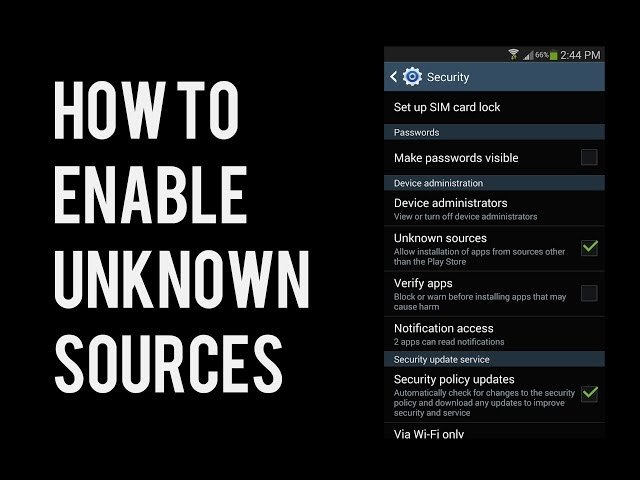
| Android 7.0 and below | Settings → Security → Unknown Sources | Global toggle |
| Android 8.0 and above | Settings → Apps → [Specific App] → Install Unknown Apps | Per-app permission |
Android 8.0 (Oreo) fundamentally changed how this works. Instead of one global switch, Android now requires you to grant permission per app. So if you want your browser to install an APK, you grant that specific browser permission. If you want a file manager to do it, you grant the file manager permission separately.
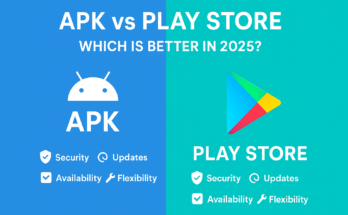
To understand the full difference between APK installations and Play Store app delivery, read: Difference Between APK and Play Store
This per-app model is significantly more secure and often more confusing for users who expect one toggle.
How to Enable Install Unknown Apps Step by Step (Android 8 to 15)
Standard Android (Google Pixel, Android One, Nokia)
- Open Settings
- Tap Apps (or “Apps & Notifications” on older builds)
- Tap the three-dot menu (top right) → Special App Access
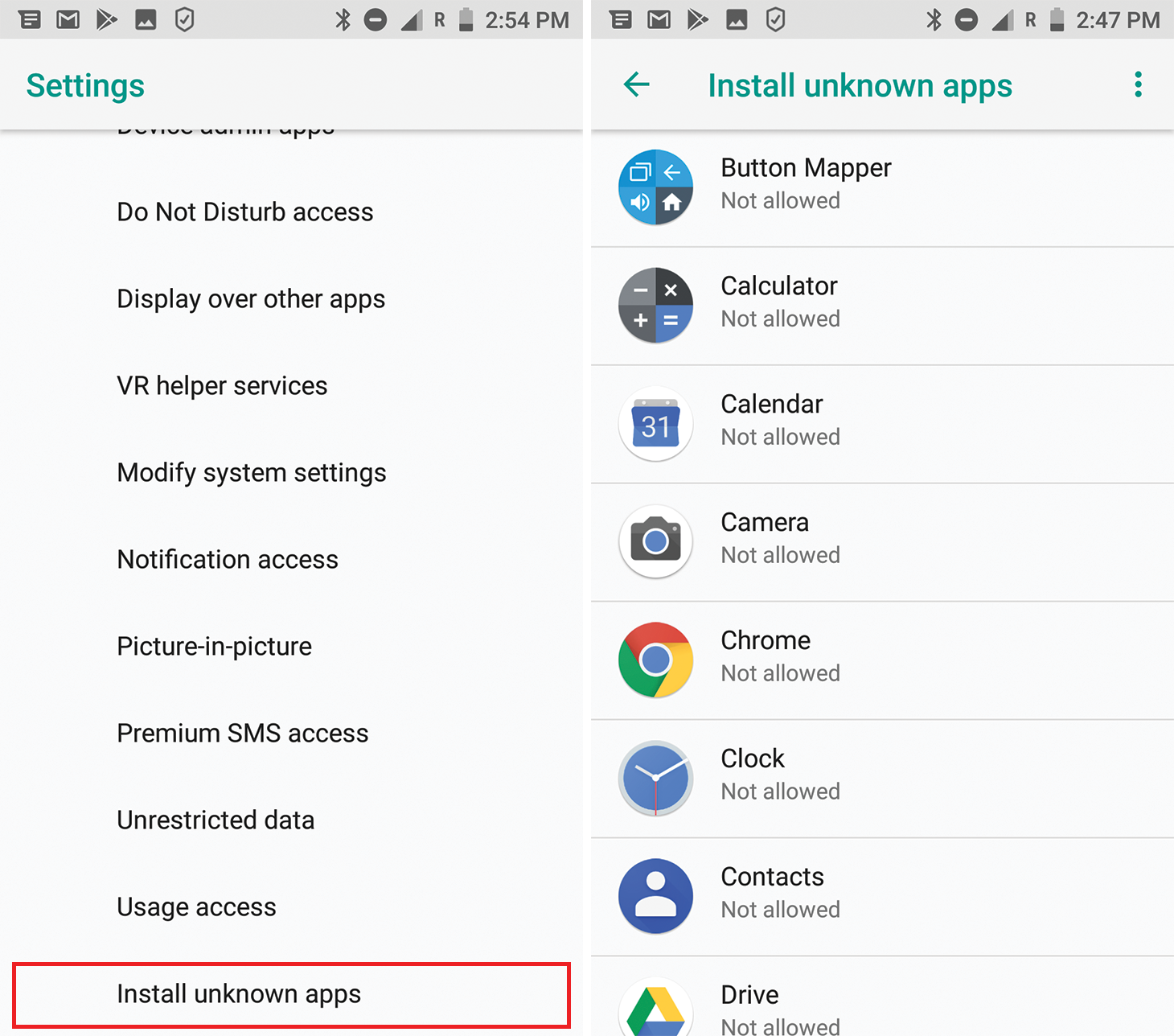
- Select Install Unknown Apps
- Find the app you’ll use to install the APK (e.g., Chrome, Files, or your file manager)
- Toggle Allow from this source to ON
- Go back, open the APK file, and proceed with installation
Samsung One UI (Galaxy S, A, M Series)
Samsung’s One UI buries this setting slightly differently:
- Open Settings
- Tap Biometrics and Security (or just Security on older One UI)
- Scroll to Install Unknown Apps
- Select the app you’re using to install (e.g., Samsung Internet, My Files, Chrome)
- Enable Allow from this source
On Samsung Galaxy S24 / S25 running One UI 6 or 7, the path may show under Settings → Security → More Security Settings → Install Unknown Apps.
Xiaomi MIUI / HyperOS (Redmi, POCO, Mi Series)
Xiaomi adds an extra layer:
- Open Settings
- Tap Privacy Protection → Special Permissions
- Tap Install Unknown Apps
- Select the relevant app and enable the permission
Alternatively, when you tap an APK directly, MIUI may prompt you with a pop-up asking to allow installation from that source. You can allow it directly from that prompt.
Note: Some MIUI versions also require you to disable “MIUI Optimization” under Developer Options for certain APK installs to proceed.
OnePlus OxygenOS / Oppo ColorOS / Realme UI
These three share very similar Android skins:
- Open Settings
- Go to Security (or Privacy on newer builds)
- Tap More Security Settings → Install Unknown Apps
- Enable for the relevant app
On ColorOS 14 (Oppo/Realme), you may find this under Settings → Other Settings → Privacy → Install Unknown Apps.
Android Version Quick Reference Table
| Android Version | Path Summary |
|---|---|
| Android 8 / 9 | Settings → Apps → Special App Access → Install Unknown Apps |
| Android 10 / 11 | Settings → Apps → Menu → Special App Access → Install Unknown Apps |
| Android 12 / 13 | Settings → Privacy → Special App Access → Install Unknown Apps |
| Android 14 | Settings → Privacy → Special Permissions → Install Unknown Apps |
| Android 15 | Settings → Apps → Special App Access → Install Unknown Apps |
For the complete step-by-step walkthrough of installing apps outside the Play Store, visit our full guide: How to Install APK on Android Without Play Store – 2026 Guide
Is It Safe to Enable Install Unknown Apps?
The honest answer: it depends entirely on where the APK is coming from.
APK Source Risk Levels
| Source | Risk Level | Notes |
|---|---|---|
| Google Play Store | ✅ Very Low | Verified, scanned, policy-checked |
| APKMirror | 🟡 Low | Mirrors Play Store APKs, cryptographically verified |
| APKPure | 🟡 Low-Medium | Generally reliable but less strict |
| Developer’s official website | 🟡 Low-Medium | Verify SSL and domain authenticity |
| Random APK download sites | 🔴 High | No verification, common malware vector |
| Shared via WhatsApp/Telegram | 🔴 High | No origin tracking, easily modified |
| Cracked/modded APK sites | 🔴 Very High | Malware injection is standard practice |
Google Play Protect continues running even after you enable unknown sources. It will attempt to scan sideloaded APKs, though its effectiveness is lower for non-Play Store apps. Learn more from the Android Security Overview by Google.
One important note: some banking apps and enterprise apps detect whether “Install Unknown Apps” is enabled and may restrict access or display warnings. This is a security policy decision by the app developer, not a device malfunction.
Looking for safe and verified APK files? Visit our APK Downloader for Android Apps guide to find trusted sources.
Should You Enable It? A Simple Decision Framework
Ask yourself these three questions:
- Do I trust the source? If yes, and if the APK comes from an official developer site or a verified mirror proceed.
- Is this a one-time install? If yes enable the setting, install, then disable it immediately after.
- Is the app a cracked/modded version? If yes do not proceed. The security and legal risks are not worth it
How to Disable Unknown Sources After Installing
This step is critically important and barely mentioned in most guides.
Once your installation is complete:
- Go back to Settings → Apps → Special App Access → Install Unknown Apps
- Find the app you granted permission to
- Toggle Allow from this source back to OFF
This single habit significantly reduces your long-term security exposure. There’s no reason to leave any app with this permission permanently unless it’s a trusted store like Samsung Galaxy Store or Amazon Appstore.
Troubleshooting: Common Problems and Fixes
“Install Unknown Apps” Option is Greyed Out or Missing
This typically means one of the following:
- Your device is managed by an organization. If it’s a work phone or school device, Mobile Device Management (MDM) policy may have disabled this setting. Contact your IT administrator.
- Parental controls are active. Check Settings → Digital Wellbeing or Google Family Link settings.
- Restricted user profile. On Android tablets with multiple user profiles, the guest or restricted profile may not have this permission.
App Still Won’t Install After Enabling
- Make sure you granted permission to the correct app the one opening the APK file
- Check storage space insufficient storage can silently fail installs
- Try downloading the APK again a corrupted file won’t install
- Some apps require Android 10+ or specific hardware
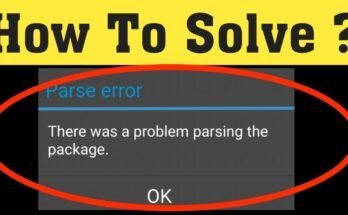
If your APK still refuses to install after all these steps, our dedicated fix guide covers every scenario in detail: Why APK File Not Installing on Android
Banking App Stopped Working
Some financial apps run “integrity checks” that detect sideloaded apps. The fix is simple revoke unknown app permissions after your install is complete, then restart the banking app.

Enterprise, BYOD, and MDM Restrictions
If you’re using a corporate-managed Android device, IT administrators can enforce policies through Android Enterprise that completely disable the ability to install apps outside approved channels.
In BYOD (Bring Your Own Device) environments, some companies use MDM software like Microsoft Intune or VMware Workspace ONE. These can detect enabled unknown sources permissions and flag or quarantine the device from corporate networks.
If you’re a developer testing enterprise apps, always use a personal test device rather than a managed work device to avoid policy conflicts. You can learn more about Android’s package visibility rules in the Android Developer Guide.
Alternative: Sideloading via ADB (Android Debug Bridge)
If you’re a developer or advanced user, ADB sideloading lets you install APKs from a computer without enabling the “Install Unknown Apps” toggle on the device itself.
Basic process:
- Enable Developer Options → USB Debugging on your phone
- Connect to PC and run:
adb install yourapp.apk
This method bypasses the per-app permission model entirely and is ideal for testing builds or restoring apps. Want to run Android apps directly on your computer instead? Read: Install APK on PC Using an Emulator
Global Context: Why Sideloading Matters Differently Worldwide
In South Asia, Southeast Asia, and the Middle East, sideloading is far more common than in Western markets. Budget device brands like Xiaomi, Realme, and Oppo dominate these regions, and many users rely on APKs for apps that are geo-restricted or unavailable locally.
In China, Google Play is entirely absent sideloading and alternative app stores are the standard installation method for most users.
In Europe, the EU’s Digital Markets Act (DMA) now legally requires Google to allow third-party app stores and sideloading on Android making this setting more mainstream than ever. Full context here: EU Digital Markets Act

Frequently Asked Questions
1. Where is the “Install Unknown Apps” setting on Android?
On Android 8 and later, go to Settings → Apps → Special App Access → Install Unknown Apps. Select the app you want to grant permission to, then toggle it on.
2. Is it safe to enable install unknown apps on Android?
It depends on the APK source. Trusted sources like APKMirror are low risk. Random download sites and modded APKs carry significant malware risk. Always disable the setting after installing.
3. Why is “Install Unknown Apps” greyed out on my phone?
Your device is likely managed by an organization via MDM policy, parental controls are active, or you’re on a restricted user profile.
4. Does Google Play Protect still work after enabling unknown sources?
Yes. Play Protect continues scanning apps including sideloaded ones, though its detection is less comprehensive for non-Play Store apps.
5. Why did my banking app stop working after sideloading?
Some banking apps run integrity checks and restrict access if unknown sources permission is active. Revoke the permission after your install and restart the banking app.
Conclusion
Enabling “Install Unknown Apps” on Android is straightforward once you understand that the setting works on a per-app basis from Android 8 onward. The key steps are: find the right path for your Android version or OEM skin, grant permission only to the specific app handling your install, and revoke that permission immediately after you’re done.
The security risk is real but manageable. Stick to verified APK sources, keep Google Play Protect enabled, and treat this setting as a temporary permission rather than a permanent switch. Whether you’re installing a developer build, a region-locked app, or a corporate tool, this guide covers every device, every Android version, and every use case.
Looking for safe APK files to get started? Browse our APK Downloader for Android Apps or explore the full Install Unknown Apps on Android guide for more detail.