How do I Open an APK on my Cell Phone?
If you have ever downloaded an Android app outside of the Google Play Store, you may have come across a file with the .apk extension. Many users often ask, how do I open an APK on my cell phone? The process is not complicated, but it does require a few specific settings and precautions.
APK stands for Android Package Kit. It is the file format Android uses to distribute and install applications. When you download an app from the Play Store, your phone handles the APK file automatically in the background. However, when you download it manually from a website, you need to install it yourself.
In this complete guide, you will learn exactly how do I open an APK on my cell phone safely, what settings to change, common mistakes to avoid, and how to troubleshoot issues if something goes wrong.
What Is an APK File?
Before learning how do I open an APK on my cell phone, it is important to understand what an APK file actually is.
An APK file contains:
App code
Resources and images
Certificates
App permissions
Manifest file
In simple words, it is the full installation package of an Android application. Just like .exe files are used to install programs on Windows computers, APK files are used to install apps on Android phones.
Is It Safe to Open APK Files?
Safety depends on where the APK file comes from.
If you download APK files from trusted and well-known websites, the risk is lower. However, downloading from unknown sources can expose your device to malware, spyware, or harmful software.
Before you proceed with how do I open an APK on my cell phone, make sure:
The website is reputable
The file matches the app you want
You scan the file with antivirus software
You check user reviews if available
Being cautious can protect your personal data and device security.
How Do I Open an APK on My Cell Phone? Step-by-Step Guide
Now let’s get into the main process.
Step 1: Download the APK File
First, download the APK file using your phone’s browser. After downloading, the file will usually appear in your Downloads folder.
Don’t forget the location where the file is saved.
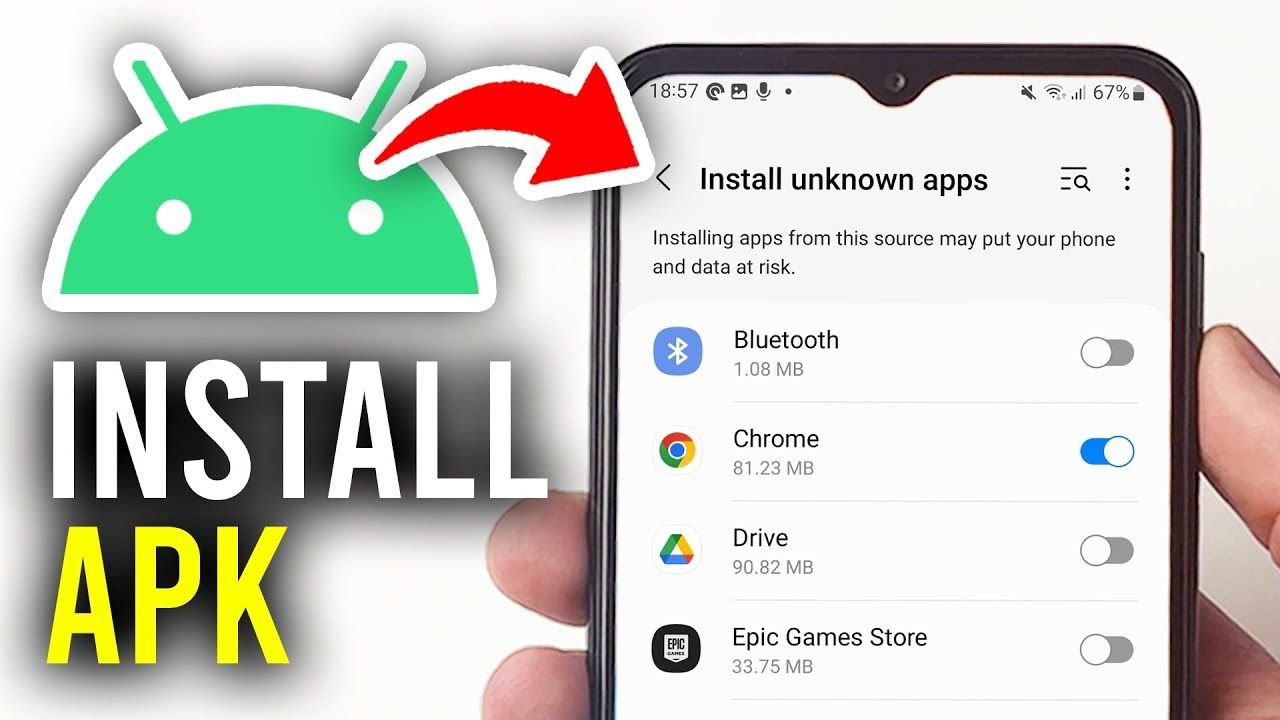
Step 2: Enable Install from Unknown Sources
By default, Android blocks installation from outside the Play Store. To open and install an APK file, you must allow installation from unknown sources.
Follow these steps:
Go to Settings
Tap Security or Privacy
Select Install unknown apps
Choose the browser or file manager you used
Enable Allow from this source
On newer Android versions, permission is granted per app instead of globally.
This step is necessary if you are wondering how do I open an APK on my cell phone without errors.
Step 3: Locate the APK File
Open your File Manager app.
Go to the Downloads folder or wherever you saved the file. Tap the APK file once.
Your phone will show a prompt asking whether you want to install the application.
Step 4: Install the APK
Tap Install.
Wait for the installation process to complete. This usually takes a few seconds.
Once done, you can tap Open to launch the app or Done to return to your home screen.
That’s it. This is the full answer to how do I open an APK on my cell phone in the simplest way possible.
Why Won’t My APK File Install?
Sometimes users follow all steps but still face problems. If you tried how do I open an APK on my cell phone and it failed, here are common reasons:
1. App Not Compatible
The APK may require a higher Android version than your phone supports.
2. Corrupted File
The download might have been incomplete. Try downloading it again.
3. Storage Space Issue
Check if your phone has enough free storage.
4. Security Restrictions
Make sure installation from unknown sources is enabled for the correct app.
How to Update an App Using APK
You can also update apps manually using APK files.
Download the newer version of the same app and install it. If it matches the existing app signature, Android will update it without deleting your data.
This is useful when the Play Store update is not available in your region.
How to Check If an APK Is Safe
Before installing, consider the following:
Check File Size
Verify the file size against the official version, if available.
Scan with Antivirus
Use a mobile antivirus app to scan the APK file before installing.
Verify App Permissions
During installation, review the permissions the app requests. If a simple calculator app asks for camera and contacts access, that is suspicious.
Being careful ensures that when you ask how do I open an APK on my cell phone, you are doing it safely.
Can I Open APK Files on iPhone?
No. APK files are built for Android, not other platforms.
iPhones use a completely different system and file format. You cannot install APK files on iOS devices unless you are using an Android emulator, which is uncommon on iPhones.
Do I Need an APK Installer App?
In most cases, no.
Android phones already have a built-in package installer. You simply tap the APK file and follow the prompts.
However, some third-party installer apps offer extra features like managing multiple APK versions or batch installations.
For basic users, the default installer is enough when learning how do I open an APK on my cell phone.
Advantages of Installing APK Files
There are several benefits to manually installing APK files:
Access apps not available in your region
Install older versions of apps
Get early access to updates
Install modified apps (use with caution)
However, always balance benefits with security risks.
Disadvantages of Installing APK Files
There are also some downsides:
Increased security risk
No automatic updates
Possible compatibility issues
Risk of fake or modified apps
Understanding both sides helps you make better decisions.
Troubleshooting Installation Errors
If installation fails, try these fixes:
Restart your phone
Clear cache of Package Installer
Re-download the APK file
Check Android version compatibility
Disable Play Protect temporarily (only if necessary)
Most problems can be fixed easily with these steps.
Final Thoughts
Many Android users eventually ask, how do I open an APK on my cell phone? The answer is simple once you understand the process. You need to download the file, enable installation from unknown sources, and manually install it using your file manager.
While installing APK files gives you more control and flexibility, it also requires responsibility. Always download from trusted sources, scan files before installation, and pay attention to app permissions.
If done carefully, opening and installing APK files on your Android phone is safe and straightforward. Now that you fully understand how do I open an APK on my cell phone, you can confidently install apps outside the Play Store whenever necessary.