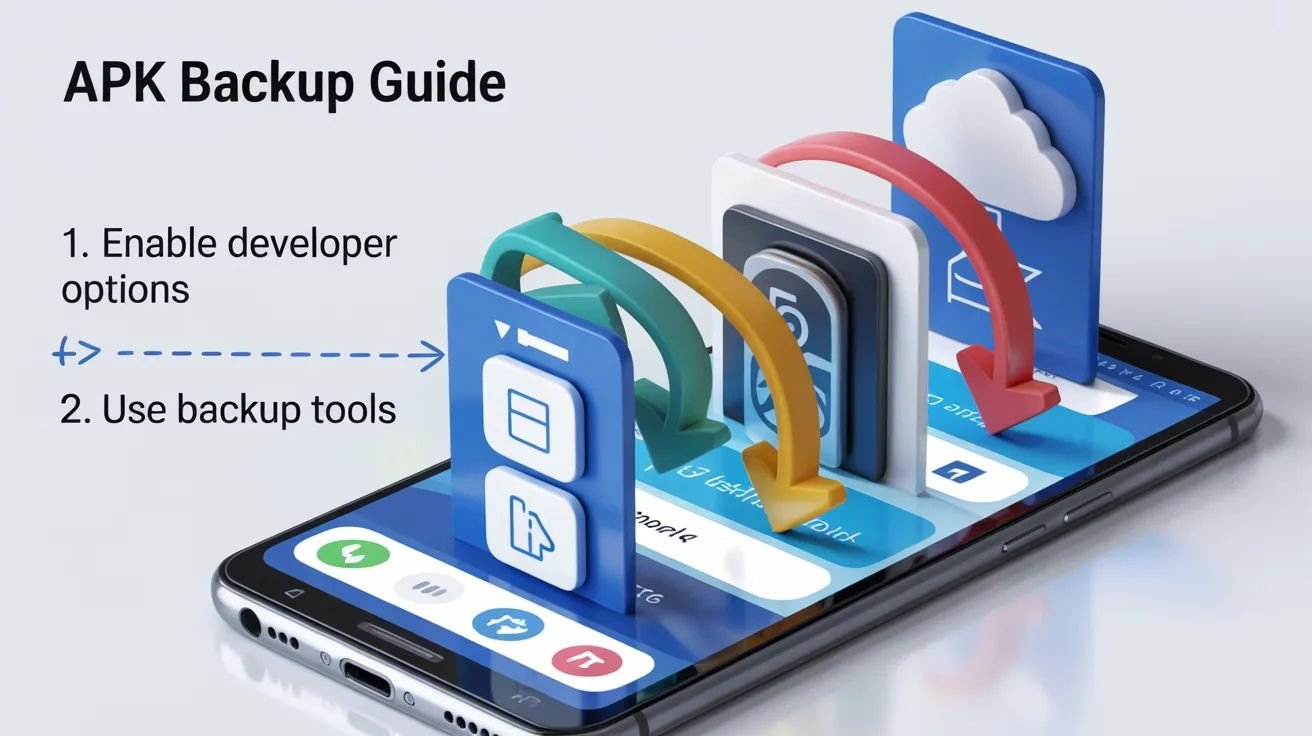
How to Back Up APK Apps
Backing up applications on Android devices has become increasingly important as users rely on smartphones and tablets for work, entertainment, and productivity. Many Android users install applications using APK files, also known as Android Package Kit files, to access older versions, beta builds, or region-restricted apps. However, unexpected system crashes, device resets, software updates, or accidental deletions can result in permanent loss of important applications. For this reason, learning how to properly back up APK apps is essential for maintaining data security and ensuring quick reinstallation when needed.
A proper APK backup allows users to preserve the installation package of an app so it can be restored without downloading it again from the Play Store. This is particularly useful when an app is removed from the store, becomes region restricted, or receives updates that remove desired features. Understanding safe and effective Android app backup methods ensures that your applications remain accessible even after device changes or factory resets.
This complete guide explains how to back up APK apps manually, how to back up installed applications, how to protect app data, and how to store backup files securely without risking device security or performance.
Understanding APK Backup and App Data Backup
Before creating a backup, it is important to understand the difference between backing up an APK file and backing up app data. An APK backup saves only the installation package of the application. This means you can reinstall the app later without downloading it again. However, it does not include login credentials, saved settings, media files, or in-app progress.
An app data backup, on the other hand, includes user settings, account data, saved files, and preferences. Backing up both the APK file and its associated data ensures a complete restoration experience.
Many users mistakenly believe that saving the APK file alone preserves everything. In reality, full restoration requires both the installation package and the related app data directory.
Why Backing Up APK Apps Is Important
There are several reasons why backing up APK apps is beneficial. First, some applications are removed from the Play Store due to policy changes or licensing issues. Having an APK backup ensures you can continue using the app even if it is no longer publicly available.
Second, updates sometimes remove features or introduce compatibility issues. By maintaining an older APK version, users can downgrade if necessary. This is particularly common with AI video editing apps, gaming applications, and productivity tools where updates may alter the interface or increase system requirements.
Third, device resets or switching to a new smartphone can lead to data loss. With a proper Android APK backup, reinstalling your preferred apps becomes faster and more convenient.
Finally, in areas with slow or limited internet access, keeping an offline backup of important apps reduces dependency on re-downloading large installation files.
How to Back Up APK Apps Using File Manager
One of the simplest ways to back up APK apps is by using the device’s built-in file manager. When an APK file is downloaded manually, it is usually stored in the Downloads folder. If you still have the original installation file, you can copy it to a secure backup location such as an external SD card, USB drive, or cloud storage service.
For apps installed directly from the Play Store, the APK file is not normally accessible in the Downloads folder. In this case, a dedicated APK extractor tool is required to retrieve the installed app’s package and create a backup copy.
Copying the APK file to external storage ensures it remains safe even if the device storage is wiped during a factory reset.
Using APK Extractor Tools for Backup
When the original APK file is no longer available, an APK extractor application can generate a backup from installed apps. These tools scan the device, locate installed applications, and create a copy of their installation package.
Once extracted, the backup APK file can be stored on internal storage, external storage, or uploaded to secure cloud platforms. This method ensures that even apps installed years ago can be preserved for future use.
However, it is important to download APK extractor tools from trusted sources to avoid introducing malware into the device.
Backing Up App Data Along with APK
If you want a complete restoration, backing up app data is necessary. Android devices offer built-in Google backup services that automatically sync certain app data, call logs, Wi-Fi passwords, and device settings to your Google account.
For more advanced users, third-party backup tools can create local backups of app data. These backups can later be restored after reinstalling the APK file. However, some advanced data backup features may require additional permissions.
Backing up both the APK file and its related data ensures that after reinstallation, the app functions exactly as before without requiring manual configuration.
Storing APK Backups Securely
After creating a backup, secure storage is essential. Storing APK files only on internal storage may not be safe if the device is lost, damaged, or reset. Moving backups to cloud storage platforms or external drives provides additional protection.
Using encrypted cloud storage enhances security and prevents unauthorized access. Additionally, organizing backups by app name and version number helps avoid confusion when restoring specific builds.
Regularly reviewing and updating your backup collection ensures you always have the most stable and compatible versions available.
Restoring APK Apps from Backup
Restoring an APK backup is straightforward. After transferring the APK file back to the device, enable installation from unknown sources in the security settings. Open the APK file and install it as you would during the initial installation process.
If you have backed up app data separately, restore the data after installation to regain previous settings and saved progress. Always verify that the restored version is compatible with your current Android operating system.
Testing the restored app ensures that the backup was successful and complete.
Security Considerations When Backing Up APK Apps
While backing up APK apps is useful, it must be done carefully. Avoid storing backups of modified or unofficial APK versions. These files may contain hidden malicious code that can compromise your device when reinstalled.
Only back up apps from trusted developers. Additionally, regularly scan stored APK files with antivirus software to ensure they remain safe.
Managing backups responsibly protects your device from malware threats, data breaches, and performance issues.
Common Problems During APK Backup
Users sometimes face challenges when backing up APK apps. Certain system apps cannot be extracted due to Android security restrictions. Some backup tools may fail if storage permissions are not granted properly.
Incompatibility between Android versions can also cause restoration issues. An app backed up from a newer Android version may not function properly on an older device.
Ensuring compatibility and using reliable backup tools reduces the risk of such issues.
Best Practices for APK Backup Management
Maintaining a structured backup system is important for long-term device management. Keep backups organized in clearly labeled folders. Include version numbers in file names to avoid confusion.
Avoid storing duplicate versions unless required. Periodically review your backup collection and remove outdated files that are no longer needed.
Keeping your Android storage optimized improves performance and reduces clutter while ensuring that essential applications remain secure and accessible.
FAQs
Q1: What is an APK backup?
An APK backup is a saved copy of an app’s installation package that allows you to reinstall the app without downloading it again.
Q2: Does backing up an APK include app data?
No, an APK backup includes only the installation file. App data must be backed up separately.
Q3: Is it safe to back up APK files?
Yes, if the APK is from a trusted source and stored securely.
Q4: Can I restore APK apps after a factory reset?
Yes, as long as you saved the APK file and backed up app data separately.
Q5: Do I need internet to restore an APK backup?
No, APK restoration can be done offline once the file is available on your device.
Conclusion
Learning how to back up APK apps is essential for Android users who value flexibility, security, and control over their applications. By creating proper APK backups, preserving app data, and storing files securely, users can protect themselves from accidental loss, unwanted updates, or app removals from the Play Store.
A well-managed backup strategy ensures that your favorite applications remain accessible, functional, and secure regardless of device changes or software updates. Regularly updating your backup files and maintaining organized storage will keep your Android device efficient and prepared for any situation.

![An educational graphic showing a smartphone with file management icons to illustrate [How to Remove APK Files Safely] from an Android device.](https://apksharp.org/wp-content/uploads/2026/03/How-to-Remove-APK-Files-Safely--348x215.jpg)
![An illustrative graphic with arrows showing the step-by-step process of how to safely [Install APK on Tablet Android ] from external sources.](https://apksharp.org/wp-content/uploads/2026/02/Install-APK-on-Tablet-Android--348x215.jpg)
