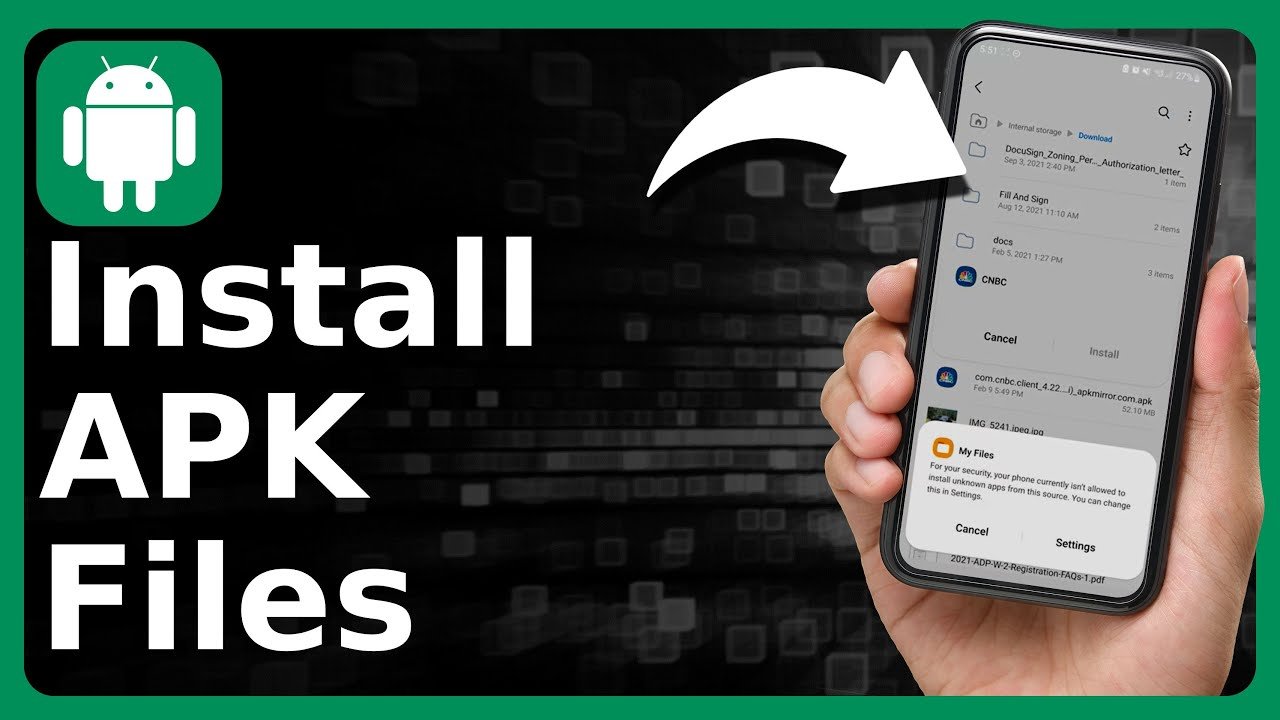
Installing APK files on Android is something many people hear about but feel unsure to try. Some users worry about security. Others get confused by settings like “unknown apps” or errors like “app not installed.” The truth is, installing APK files is very normal on Android and completely safe if you do it the right way.
This guide explains how to install APK files on Android step by step in the simplest way possible. Everything is written clearly, without technical confusion. By the end, you will know what APK files are, why people use them, when you should install them, and how to avoid mistakes.
What Is an APK File?
An APK file is the standard file format Android uses to install apps. APK stands for Android Package Kit.
Whenever you install an app from the Google Play Store, your phone downloads an APK file and installs it automatically. You just don’t see the file.
When you install an APK manually, you are doing the same thing — just without the Play Store.
In simple words:
APK file = app installer
Installed app = final result
APK files are part of the Android OS and are officially supported by Android itself.
You can learn more about how APK files can contain viruses and how to stay safe here: https://apksharp.org/can-apk-files-contain-viruses/.
Why People Install APK Files on Android
People install APK files for many normal reasons. It does not mean they are doing anything wrong or unsafe.
Here are common situations where APK installation is useful:
The app is not available in your country
The app was removed from the Play Store
You want an older version of an app
Google Play Store is not working
You want to test an app before official release
Your device does not support Play Store
Many developers, students, and regular Android users install APK files daily.
Is It Safe to Install APK Files on Android?
Yes, installing APK files can be safe, but safety depends on where the file comes from and how careful you are.
When APK Installation Is Safe
The APK is downloaded from a trusted website
The app permissions make sense
Google Play Protect is enabled
The APK is not modified or cracked
When APK Installation Is Risky
The file comes from unknown websites
The app asks for unnecessary permissions
The APK claims to be “mod” or “hacked”
The app handles sensitive data like banking
Android blocks APK installation by default to protect users. It does not mean APK files are dangerous. It just wants you to confirm your decision.
What to Check Before Installing an APK File
Before installing any APK file, do a quick check. This step alone can save you from problems.
Simple Safety Checklist
Download from trusted sites only
Check app name and version
Look at file size
Read user reviews if available
Scan with antivirus apps
Check requested permissions
If anything feels strange, don’t install the file.
How to Install APK Files on Android Step by Step
This is the exact process you should follow. The steps are simple and safe.
Step 1: Download the APK File
Open your browser and download the APK file from a trusted source.
After downloading:
The file will be saved in the Downloads folder
Wait for the download to complete fully
Do not open incomplete files.
Step 2: Allow APK Installation on Android
Android does not allow manual app installation by default.
To enable it:
Open Settings
Go to Security or Privacy
Tap Install unknown apps
Choose the browser or file manager you used
Turn on Allow from this source
This does not unlock your phone fully. It only allows one app to install APK files.
Step 3: Open the APK File
Now follow these steps:
Open Files or Downloads
Tap on the APK file
A warning message will appear
Tap Install to continue.
Step 4: Finish Installation
The app will install within a few seconds.
After installation:
Tap Open to launch the app
Or tap Done to exit
Your app is now installed successfully.
How to Install APK on Different Android Versions
Android settings may look different, but the process is the same.
| Android Version | Where to Enable APK Install |
|---|---|
| Android 13 | Settings → Privacy → Install unknown apps |
| Android 12 | Settings → Security → Install unknown apps |
| Android 11 | Settings → Security → Unknown sources |
| Android 10 and below | Settings → Security → Unknown sources |
If you cannot find the option, use the search bar inside Settings.
Common APK Installation Errors and How to Fix Them
Sometimes APK installation fails. This is common and usually easy to fix.
“App Not Installed” Error
This error appears when Android cannot complete the installation.
Possible reasons and fixes:
Free up phone storage
Download the APK again
Remove old version of the app
Check Android version compatibility
“Parse Error” on Android
This error means the app is not compatible.
Fix:
Download the correct APK version
Make sure it supports your Android version
“Installation Blocked” Message
This happens when permission is not enabled.
Fix:
Go back to Settings
Enable “Allow from this source”
APK vs Google Play Store: Which Is Better?

Both APK installation and Play Store apps have their own benefits.
| Feature | APK Files | Play Store |
|---|---|---|
| Safety | Depends on source | Verified automatically |
| Updates | Manual | Automatic |
| Availability | Global | Region limited |
| Control | Full control | Limited control |
For most users, the Play Store is best. APK files are useful when Play Store is not an option.
When You Should Avoid Installing APK Files
Do not install APK files if:
You don’t trust the source
The app asks for strange permissions
The APK claims to unlock paid features
The app handles banking or personal data
In such cases, Play Store apps are safer.
Best Tools to Help Install APK Files
You usually don’t need extra tools, but these can help:
Files by Google – Easy file access
Android Package Installer – Default system tool
Antivirus apps – Extra security
Avoid apps that ask for full device control.
Can APK Files Harm Your Android Phone?
APK files are not harmful by default. Harm only comes from unsafe files.
A dangerous APK can:
Show unwanted ads
Track your activity
Steal personal information
Slow down your phone
This is why source checking and permission review are important.
How to Update Apps Installed Using APK Files
APK-installed apps do not update automatically.
To update:
Download a newer APK version
Install it over the old app
Or uninstall and reinstall
Some apps may later appear on Play Store and update normally.
Can You Delete APK Files After Installation?
Yes, deleting APK files after installation is safe.
Once the app is installed:
The APK file is no longer needed
Deleting it saves storage space
The app will keep working
What Is a Split APK?
Some apps use split APK files.
Split APK means:
App is divided into multiple files
Used for better performance
Requires special installers
If you see multiple APK files, use trusted installers only.
Legal Status of APK Files
APK files are legal if:
The app is free
The APK is not modified
You are not bypassing payment
Pirated APKs are illegal and unsafe.
FAQs
What is an APK file on Android?
An APK file is the installation file Android uses to install apps manually.
Are APK files safe to install?
Yes, if downloaded from trusted sources and checked carefully.
Why won’t my APK install?
Common reasons include compatibility issues, low storage, or permission problems.
Can APK files update automatically?
No, APK-installed apps must be updated manually.
Can iPhone install APK files?
No, APK files work only on Android devices.
Is it safe to delete APK files?
Yes, deleting APK files after installation is safe.
What does “unknown apps” mean?
It means apps installed outside the Google Play Store.
Conclusion
Installing APK files on Android is not dangerous when done correctly. By understanding what APK files are, enabling the right settings, and choosing trusted sources, you can install apps safely without damaging your phone. Always take a moment to check permissions and avoid unknown websites.
When used wisely, APK installation gives Android users more freedom and control over their devices.

![An educational graphic showing a smartphone with file management icons to illustrate [How to Remove APK Files Safely] from an Android device.](https://apksharp.org/wp-content/uploads/2026/03/How-to-Remove-APK-Files-Safely--348x215.jpg)
