When downloading apps outside the Play Store, it’s common to come across APK files. Sometimes, however, instead of getting a direct APK, users end up with a ZIP file. This situation often confuses people who expect a simple installation process but are faced with an unfamiliar format. Fortunately, there are reliable ways to handle this issue and get the application running smoothly on your device.
Why APK Files Show Up as ZIP
An APK is technically a type of archive file, much like a ZIP. Both formats compress data and store multiple files within one container. Since APK and ZIP share structural similarities, some systems mistakenly recognize an APK as a ZIP after downloading. This often happens due to incorrect file extensions, browser handling, or misconfigured servers hosting the file.
Another reason is that developers sometimes compress APKs into ZIPs for faster uploads and downloads. While it makes sense for distribution, it leaves users unsure about what to do next.
How to Handle APKs Saved as ZIP
If you’ve downloaded a ZIP that should be an APK, the simplest step is renaming the file extension. For example, if the file is labeled as “app.zip,” you can rename it to “app.apk.” This usually corrects the issue and allows Android to recognize the package as an installable application.
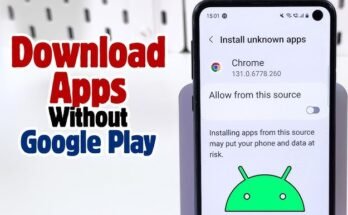
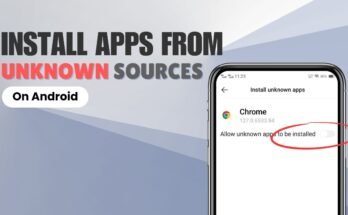
On some devices, renaming might not be available directly through the default file manager. In that case, a third-party file manager app or connecting the phone to a PC can solve the problem. Once renamed, tapping the APK will initiate the installation process, provided you’ve enabled the option to install apps from unknown sources.
Extracting ZIP Archives
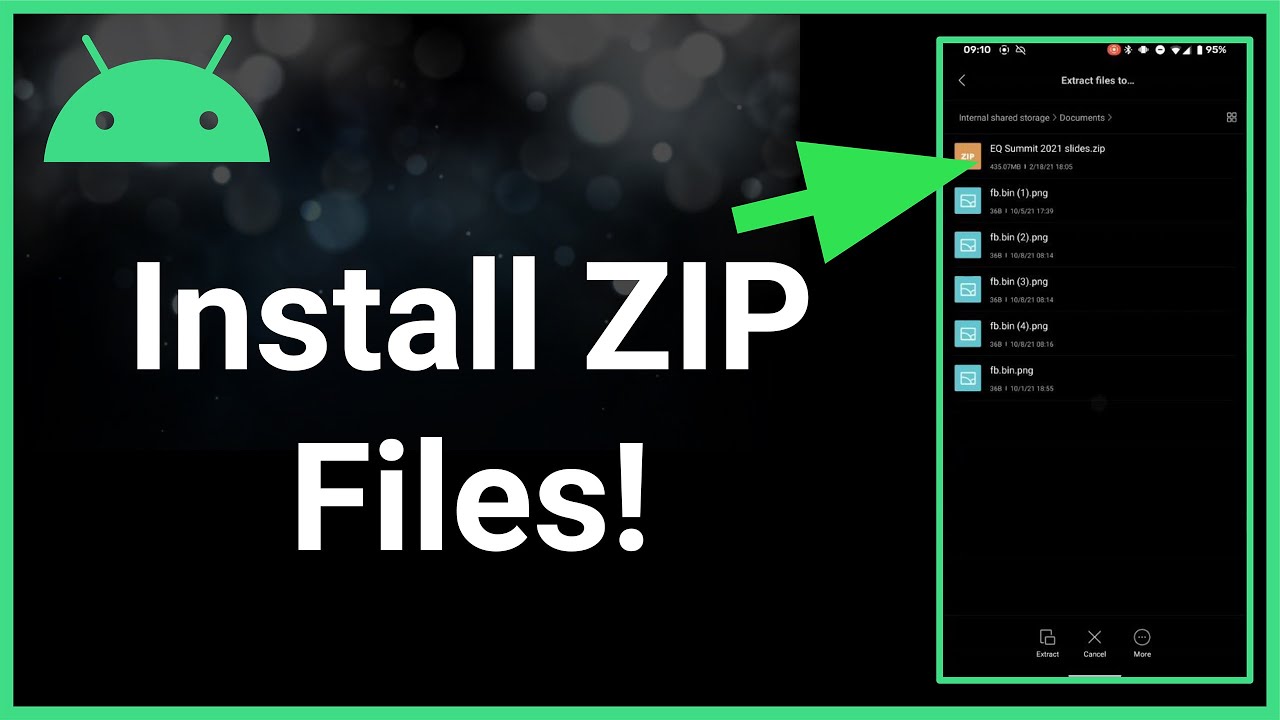
Sometimes, the file you download is a genuine ZIP archive containing the APK inside. In this scenario, renaming won’t work because the APK is bundled within the compressed folder. To fix this, you’ll need to extract the contents.
On Android, apps like ZArchiver or RAR can open ZIP files and let you access what’s inside. Once extracted, look for the APK file, which usually has the .apk extension. After locating it, proceed with installation by tapping the file.
If you’re on a computer, simply right-click the ZIP, select “Extract,” and then transfer the APK to your Android device. This ensures you’re installing the correct file rather than a compressed archive.
Security Considerations
Whenever downloading files outside of trusted platforms, caution is necessary. APKs that appear as ZIPs could be safe, but there’s also a chance they’ve been modified. Always source your downloads from reputable websites and avoid suspicious links. Before installing, scanning the APK with mobile antivirus software adds an extra layer of protection.
Enabling app installation from unknown sources should only be temporary. Once you’ve installed the APK, disabling the option again reduces risks from other files or downloads.
Steps for Installing an APK from a ZIP
- Check the extension – If the file appears as .zip but should be .apk, try renaming it.
- Extract if necessary – If renaming doesn’t work, extract the ZIP and look for the APK inside.
- Enable installations – Go to your phone settings and allow installation from unknown sources.
- Install the APK – Tap the file and follow the prompts.
- Disable permissions – After installation, revert your security settings.
When to Use a PC
In some cases, managing these files directly on Android can be tricky. Using a computer often makes the process easier. After downloading the ZIP, extract it on your PC and transfer the APK via USB cable. This approach reduces the risk of mismanaging file extensions and ensures you know exactly what you’re installing.
Final Thoughts on File Conversion
The next time you encounter a file labeled differently, don’t panic. Whether the APK appears as a ZIP due to system recognition errors or because it’s intentionally compressed, the solution is straightforward. Renaming, extracting, and installing can be done in minutes with the right tools. For anyone facing this confusion, the process of handling .APK Files Download as .ZIP? Here’s How to Install Them becomes much clearer with these simple steps.