,Android is built for openness. Unlike any other major mobile platform, it lets you install apps directly without going through an official store. This process is called sideloading, and it’s one of the most useful things you can do with an Android device.
Whether you’re accessing a region-locked app, rolling back to an older version, deploying a private enterprise tool, or setting up a Huawei phone that shipped without Google Play this guide walks you through every method, every device, and every common problem. Safely and correctly.
What Is an APK File?
An APK short for Android Package Kit is the installation file format Android uses for all applications. Think of it like a .exe on Windows or a .dmg on macOS. When you install an app from the Play Store, Android processes an APK behind the scenes. Sideloading just means doing that step yourself, manually.
Every APK contains the app’s compiled code, resource files, a manifest listing its permissions and requirements, and a cryptographic signature from the developer. That signature is what makes verification possible and what separates safe APKs from dangerous ones.
Why Would You Install an App Without the Play Store?
There are more legitimate reasons than most people realize:
- Region-locked apps Streaming services, banking apps, or regional tools that aren’t available in your country’s Play Store
- Removed apps Apps that were pulled from the store but are still needed
- Beta and pre-release versions Getting early access before an official rollout
- Enterprise and private apps Company-internal tools that aren’t distributed publicly
- Version rollback Reverting to an older version when a recent update broke something important
- Devices without Google Play Huawei phones post-2019 and Amazon Fire tablets don’t come with the Play Store at all
- Privacy-focused alternatives Apps on F-Droid that prioritize open-source and zero tracking
- India’s official government apps mAadhaar, DigiLocker, and UMANG are all officially distributed as direct APKs from government (.gov.in) domains
If you’re in China, this is simply the norm. Google Play is unavailable there, so third-party APK stores and direct installs are the standard way Android apps are distributed.
Before You Start: The One Setting You Need to Change
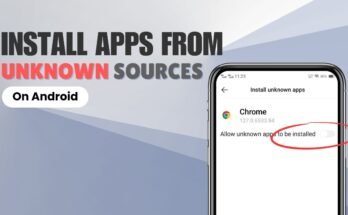
Android blocks APK installations from outside the Play Store by default. Before anything else, you need to grant permission to the app you’ll use to open the APK usually your browser or file manager.
On Android 8.0 and later:

- Open Settings
- Go to Apps (or Apps & Notifications)
- Find and tap your browser or file manager
- Tap Install Unknown Apps (or Install Other Apps)
- Toggle Allow from this source to ON
On Android 7.0 and earlier:
- Open Settings
- Go to Security
- Find Unknown Sources and toggle it ON
- Confirm the warning dialog
One important note most guides skip: turn this back off after your installation is complete. Leaving it permanently on is a security risk. It takes ten seconds to disable and it matters.
Method 1: Direct Install via File Manager (The Standard Way)
This works for the vast majority of users. No PC required just your phone and a trusted download source.
- Open your browser and go to a trusted APK source (more on this below)
- Search for the app by name verify the developer name, version number, and file size
- Tap Download the .apk file saves to your Downloads folder
- Pull down your notification bar and tap the downloaded file, or open your File Manager and navigate to Downloads
- Tap the APK file
- Review the permissions listed on the install screen if anything looks excessive, stop and reconsider
- Tap Install and wait for it to complete
- Tap Open to launch, or Done to exit
- Go back to Settings and disable the Install Unknown Apps permission you granted in step one
The whole process takes under two minutes on any Android phone running version 8.0 or later.
Method 2: Transfer from PC or Mac via USB
Useful when you’re working with a large file, have slow mobile data, or need to deploy an APK to multiple devices.
On Windows:
- Connect your device via USB and select File Transfer (MTP) from the notification
- Open File Explorer → your device → Internal Storage → Download
- Drag the APK into the Download folder
- On the device, open File Manager, navigate to Downloads, and follow the steps above
On Mac:
- Install Android File Transfer (free at android.com/filetransfer)
- Connect via USB, select File Transfer mode
- Drag the APK into the Download folder shown in Android File Transfer
- Then install from the device as described in Method 1
Method 3: ADB Install (For Developers and IT Teams)

ADB Android Debug Bridge is a command-line tool that lets you install APKs directly from a computer without touching the device’s screen. It’s the standard method for developers testing builds and IT teams deploying enterprise apps at scale.
What you need:
- Android SDK Platform Tools (free from developer.android.com)
- USB Debugging enabled: Settings → About Phone → tap Build Number 7 times → Developer Options → USB Debugging ON
- A data-capable USB cable
Connect and verify:
adb devices
Your device should appear as “device” not “unauthorized.”
Install the APK:
adb install /path/to/your-app.apk
Reinstall over existing version:
adb install -r /path/to/your-app.apk
A “Success” message confirms the install. If you see INSTALL_FAILED_VERSION_DOWNGRADE, uninstall the current version first and retry.
Method 4: Third-Party App Stores
If you want a more familiar store-like experience, several alternatives to Google Play handle updates and discovery automatically.
| Store | Best For | Safety Level |
| F-Droid | Open-source and privacy-focused apps | Very High |
| Amazon Appstore | Fire tablet users, Amazon ecosystem | High |
| APKPure | Version history, region-locked apps | Medium-High |
| Huawei AppGallery | Huawei device owners globally | High |
| Aptoide | Power users, modding community | Medium |
F-Droid is widely trusted among privacy advocates because every app in its repository is built directly from auditable source code no hidden modifications possible.
Where to Safely Download APKs
This is the most important part of the entire process. The installation method doesn’t matter nearly as much as where you get the file.
Tier 1 — Use these:
- APKMirror (apkmirror.com) Verifies every APK’s cryptographic signature against the Play Store original. A tampered file is automatically rejected. Widely considered the gold standard for safe APK downloads.
- F-Droid (f-droid.org) All apps built from source code. Fully auditable.
- Official developer websites Telegram, Firefox, VLC, and many others distribute their own APKs directly. Go straight to the source.
- GitHub Releases For open-source tools, the developer’s own GitHub releases page is reliable and community-audited.
Never use:
- Random websites that appeared in a Google search
- APKs shared via Telegram groups, WhatsApp, or Discord
- Sites offering “premium apps for free” these are either pirated (illegal) or malware-infected (dangerous), usually both
Before installing any APK from an unfamiliar source, upload the file to VirusTotal (virustotal.com). It scans the file against 70+ antivirus engines in about 30 seconds. This single step catches the vast majority of malicious APKs before they ever reach your device.
Device-Specific Notes

Huawei (Post-2019)
Huawei phones released after May 2019 ship without Google Mobile Services due to US trade restrictions meaning no Play Store, no Gmail, no Google Maps pre-installed. The primary alternative is the Huawei AppGallery, which has a growing international catalog. For apps not available there, sideloading from APKMirror works well. Go to Settings → Security → More Settings → Install Unknown Apps to enable it.
Keep in mind: apps that depend on Google Play Services may install but not function correctly without a GMS workaround.
Amazon Fire Tablets
Fire OS is Android-based but ships without Google Play. The most reliable approach is sideloading the Google Play Store itself using a documented four-APK method. In order, you install: Google Account Manager, Google Services Framework, Google Play Services, and then Google Play Store all downloaded from APKMirror. The order is non-negotiable for this to work.
Enable Apps from Unknown Sources first: Settings → Security & Privacy → Apps from Unknown Sources → ON.
Samsung, Xiaomi, OnePlus
The setting path varies by Android skin. On Samsung One UI, it’s Settings → Biometrics & Security → Install Unknown Apps, On Xiaomi MIUI, it’s Settings → Privacy → Special Permissions → Install Unknown Apps (some MIUI versions also require disabling MIUI Optimization in Developer Options) ,On OnePlus OxygenOS, it’s Settings → Privacy → Special App Access → Install Unknown Apps.
Common Errors and What They Mean
Parse Error There is a Problem Parsing the Package This means Android can’t read the APK. Usually it’s one of four things: the file downloaded incompletely, the APK is built for a different CPU architecture (most modern phones need arm64-v8a), the APK requires a newer Android version than your device runs, or the filename was altered. Re-download the file and check the source page for architecture and version requirements.
App Not Installed Often caused by a signature conflict an older version of the same app installed with a different certificate. Go to Settings → Apps, uninstall the existing version, then try again. Can also be caused by insufficient storage.
Blocked by Play Protect Tap More Details then Install Anyway if you trust the source. If you want to prevent this warning going forward, you can temporarily disable Play Protect scanning under Play Store → Play Protect → Settings. Re-enable it immediately after Play Protect is your ongoing malware monitor for all installed apps.
Android 14 and Restricted Settings: What Changed
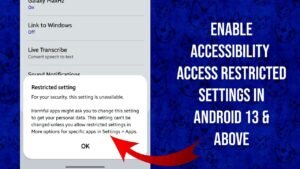
Most guides don’t mention this. Starting with Android 13 and expanded in Android 14, Google introduced a feature called Restricted Settings. It blocks sideloaded apps from accessing certain sensitive permissions specifically Accessibility Services, Notification Listener access, and Device Administrator privileges even if the user tries to grant them manually.
This mainly affects automation tools like Tasker, notification managers, and some enterprise apps. Standard apps browsers, games, productivity tools are completely unaffected.
If you hit this issue, the workaround is: Settings → Apps → [the app] → tap the three-dot menu → Allow Restricted Settings → then grant the permission normally.
Is Sideloading Legal?
Yes, everywhere. Android sideloading is legal globally and is a built-in, documented platform feature. In the EU, the Digital Markets Act (effective March 2024) formally enshrines the right to install apps from outside official stores on gatekeeper platforms.
What is illegal is using APKs to obtain paid software for free that’s copyright infringement regardless of the installation method. This guide has nothing to do with that.
After You Install: Two Things to Do Right Now
First, go back to Settings and turn off the Install Unknown Apps permission you granted to your browser or file manager. This is a habit worth building every install, every time.
Second, know that sideloaded apps won’t auto-update through Google Play. Set a reminder to manually check for new versions every 30–60 days. If you installed via APKPure, F-Droid, or Aptoide, their client apps handle updates automatically.
FAQs
Q: Does installing an APK void my Android warranty?
No. Sideloading APK files is a supported Android feature and does not affect your warranty. Warranty concerns arise from bootloader unlocking or rooting not from installing APK files.
Q: What is the safest website to download APKs?
APKMirror is the most trusted source for general apps because it cryptographically verifies every file against the Play Store original. For open-source apps, F-Droid is the gold standard. For apps with an official website (like Telegram or Firefox), download directly from the developer.
Q: Can I install APKs without enabling Unknown Sources?
No. Android requires this permission to be granted to the installing app before any sideloading can proceed. MDM tools used in enterprise environments bypass this at a system level, but for personal devices the toggle is mandatory.
Q: What is the difference between APK and XAPK?
An APK is a single-file package. An XAPK bundles an APK with OBB expansion files typically used by large games that need additional assets like maps or audio packs. XAPKs require a dedicated installer like the APKPure app or manual file extraction.
Q: Why is my APK showing a Parse Error?
The file is either corrupted, built for a different CPU architecture, targeting a newer Android version than your device, or was renamed incorrectly. Re-download from the original source and check the compatibility notes on the download page.
Q: How do I update apps I installed via APK?
You have to do it manually download the new version from the same source and install over the existing app. Your data is preserved. If you’re using a client app like F-Droid or APKPure, their built-in updaters handle this automatically.
Q: Can I install APKs on Android TV?
Yes. Go to Settings → Device Preferences → Security & Restrictions → Unknown Sources and enable it for your preferred install method. For a smoother experience, ADB over Wi-Fi works without needing a USB connection on most Android TV devices.
Q: Is sideloading APKs safe?
It’s safe when you use verified sources and follow basic verification steps specifically scanning the file on VirusTotal before installing and reviewing permissions during install. The risk comes entirely from unverified sources, not from the act of sideloading itself.
Conclusion
Installing APKs on Android without the Play Store is straightforward, legal, and when done correctly completely safe. The process takes under two minutes using the file manager method, and the golden rule is simple: stick to Tier 1 sources like APKMirror, F-Droid, or official developer pages, scan the file on VirusTotal if you’re unsure, and disable the Unknown Sources permission again after you’re done.
Whether you’re a first-time user unlocking one region-locked app, or an IT admin deploying builds across an enterprise fleet via ADB, the same principles apply: verify the source, review the permissions, restore your security settings. Everything else is just the path you take to get there.