How to Use APKs on Steam Deck
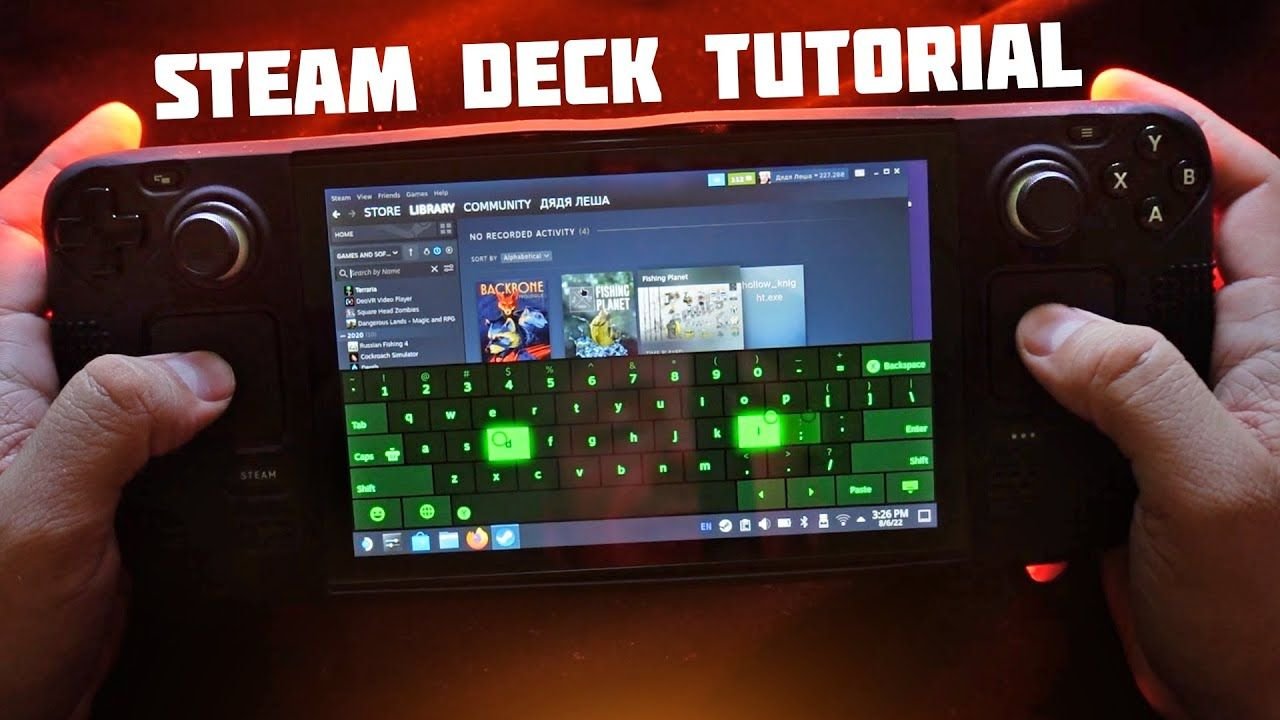
The Steam Deck was designed as a portable gaming device, but anyone who has used it for more than a few days quickly realizes that it is basically a small Linux computer in handheld form. Because of that flexibility, users often experiment with software beyond Steam games.
One of the most common questions people ask is how to use APKs on Steam Deck. Since APK files belong to the Android ecosystem, they are not meant to run on SteamOS directly. However, with the right setup, you can create an Android environment inside your device and run those apps without replacing your operating system.
If you are curious about using mobile apps or Android games on your Deck, this guide will walk you through everything clearly and realistically.
Why APK Files Do Not Open by Default
An APK file is an Android application package. It contains the app’s program files, assets, and required permissions. On an Android phone, you simply tap the file and install it.
The Steam Deck does not run Android. That means the system does not recognize APK files as executable programs.
So if you try to open one directly, nothing useful happens.
To understand how to use APKs on Steam Deck, you need to understand one thing first: you must run Android inside SteamOS instead of replacing SteamOS itself.
Two
There are two main approaches:
Using Waydroid (container-based Android)
Using a traditional Android emulator
Both methods create a virtual Android environment. The difference is how they handle system resources.
Waydroid runs Android inside a container, which usually performs better. Emulators simulate Android hardware entirely, which can use more power and memory.
For most users, Waydroid is the smoother experience.
Method One: Using Waydroid
If you are serious about learning how to use APKs on Steam Deck efficiently, Waydroid is the recommended method.
Step 1: Switch to Desktop Mode
Start by pressing the Steam button.
Access the Power menu and click on Switch to Desktop Mode.
After a few moments, your Steam Deck will enter a Linux desktop interface. This is where you install additional software.
Step 2: Prepare the System
SteamOS has a read-only file system by default. To install certain system-level components, you may need to temporarily disable that restriction.
This involves using the terminal. If you are new to Linux commands, take your time and double-check each step before proceeding.
Once the system is writable, you can install required dependencies.
Step 3: Install Waydroid
Download and install Waydroid using the Linux package manager.
After installation, you must initialize it. During initialization, the program downloads a minimal Android image and prepares the container.
This step may take several minutes.
Step 4: Launch Android Environment
Once initialized, launch Waydroid.
You will now see an Android-style interface running in a window on your desktop. It behaves like a tablet.
At this point, your Steam Deck can run Android apps inside this container.
Step 5: Install Your APK
Now comes the simple part.
To install an APK file:
• Drag the APK into the Waydroid window
or
• Use a terminal command to install it
The app will then appear inside the Android app drawer.
This is the most efficient way to understand how to use APKs on Steam Deck without replacing the system.
Method Two: Using an Emulator
If Waydroid feels too technical, you can use an emulator instead.
Popular options include Android Studio’s emulator and Genymotion.
An emulator creates a virtual Android device on your Steam Deck. Inside that virtual device, you can install APK files normally.
The steps are:
Install the emulator in Desktop Mode
Create a virtual Android device
Boot the virtual device
Install APK by dragging it into the emulator
This method is easier for beginners but may consume more system resources.
Performance Expectations
Let’s set realistic expectations.
The Steam Deck has strong hardware for a handheld device, but running Android inside Linux adds overhead.
Lightweight apps such as messaging apps or simple games usually work fine.
High-performance Android games may struggle depending on optimization.
If you are exploring how to use APKs on Steam Deck for productivity apps or light entertainment, performance should be acceptable.
For heavy mobile gaming, results will vary.
Controls and Input Adjustments
Most Android apps are designed for touchscreens. The Steam Deck uses physical controls and trackpads.
You may need to customize input settings.
Steam allows controller mapping, so you can assign touch gestures to buttons or trackpads.
If using Waydroid in Desktop Mode, mouse-style input works immediately.
For gaming apps, expect to spend some time adjusting controls for comfort.
Security Tips
When installing APK files, always think about safety.
Download APKs only from trusted sources.
Avoid:
• Modified or cracked applications
• Unknown websites
• Files that request excessive permissions
Even though Linux-based systems are generally secure, malicious APK files can still cause problems inside the Android container.
If you are researching how to use APKs on Steam Deck, security should be part of the plan.
Storage Considerations
Android containers and emulators take up space.
The Android image itself can use several gigabytes. Apps add additional storage requirements.
Make sure your internal SSD or microSD card has enough free space before installing large Android games.
Can You Install Full Android Instead?
Some advanced users choose to install Android directly onto the Steam Deck through dual boot setups.
This approach is more complex and not necessary for most people.
It may affect system updates and requires deeper technical knowledge.
For beginners, using Waydroid or an emulator is much safer and easier to manage.
Common Issues and Fixes
App Does Not Install
Make sure the Android environment is properly initialized.
App Crashes
Some apps depend on Google Play Services. If missing, compatibility problems may occur.
Lag
Lower emulator resolution and close background apps.
Waydroid Not Starting
Check system compatibility and kernel modules.
Is It Worth Doing?
Whether learning how to use APKs on Steam Deck is worth it depends on your goals.
If you want access to specific Android apps that are unavailable elsewhere, it can be useful.
If you are trying to turn your Steam Deck into a full Android gaming console, it may not fully replace a dedicated Android device.
Think of this setup as an expansion feature rather than a core function.
Final Thoughts
The Steam Deck is far more flexible than many people realize. While it does not run Android apps natively, it can host an Android environment using tools like Waydroid or emulators.
Understanding how to use APKs on Steam Deck requires patience and a basic willingness to explore Linux features. Once configured, however, it becomes surprisingly practical.
You can run messaging apps, streaming tools, lightweight games, and experimental software without replacing SteamOS.
As long as you follow security best practices and set realistic performance expectations, using APK files on your Steam Deck can be a worthwhile addition to your setup.