Installing an APK file on Android is a straightforward process of downloading the file, enabling a security setting called “Install unknown apps” for your browser or file manager, and then tapping the file to install it. This process, known as sideloading, lets you install apps from outside the Google Play Store. While simple, it requires mindful attention to security, as apps from unofficial sources haven’t been examined by Google’s security teams.
Quick Summary:
To install an APK, you need to first allow installations from “unknown sources”. For modern Android versions (8.0 Oreo and later), this is a per-app permission. Go to Settings > Apps & Notifications > Special app access > Install unknown apps, then select your browser (like Chrome) or file manager and toggle “Allow from this source”. Then, download your APK, find it in your “Downloads” folder, tap it, and hit “Install”. For safety, only use trusted sources like APKMirror and disable the “Allow from this source” setting after you’re done.
How to Install APK File on Android: Complete Step-by-Step Process
As of 2025, the Google Play Store was a walled garden with more than 2.3 million apps. But what if the app you want isn’t in the garden? Maybe it’s a beta version, an app not available in your region, or a trusted open-source project distributed directly by its developers. This is where APK files come in. An APK (Android Package Kit) is the standard file format for all Android applications it’s the box everything comes in.
Learning to manually install APK files safely is a superpower for any Android user. It grants you freedom and control. However, with great power comes great responsibility. In simple words, this guide will walk you through the installation of Android APKs step-by-step, provide you with essential safety information, and assist you in resolving common issues.
What Is an APK File and Why Install APK File on Android?

Think of an APK file as a ready-to-assemble kit for an app. Just like a furniture flat-pack contains all the boards, screws, and instructions, an APK file contains all the necessary code, resources, assets, and certificates required for an app to install and run on your Android device.
So, why go through the extra steps of a manual APK installation? Here are the most common and legitimate reasons:
Access Geo-Restricted Apps: Some apps or games are released only in certain countries.
Try Beta Versions: Get early access to new features before the official public rollout.
Install Older Versions: If a new app update has a bug or an unwanted change, you can revert.
Apps Outside the Play Store: Many legitimate apps, including open-source projects and alternative app stores like F-Droid, are distributed directly via APK.
How to Install APK File on Android Safely: Security Best Practices

Sideloading APK files from random websites is the digital equivalent of eating street food from a questionable vendor. It might be fine, or it might leave you with a nasty case of digital food poisoning (malware). Google Play Protect provides a base layer of security, but your first line of defense is you.
To build your safety checklist, follow these rules before you download a single file:
Source is Everything: Only download from websites you absolutely trust. Reputable sources include the official website of the app developer or well-known, curated libraries like APKMirror, where every upload is manually reviewed.
Check Reviews and Reputation: If you’re using a third-party app store or site, search for its reputation online. What are other users saying?
Scrutinize Permissions: During installation, the screen will show what the app wants access to (your contacts, location, etc.). Ask yourself if the permissions make sense for the app’s function. A simple flashlight app shouldn’t need your contacts.
Keep “Unknown Sources” Disabled by Default: Only enable the permission for your browser or file manager right before you install an APK, and turn it off again afterward. This is a fantastic habit.
Use a Security App: Consider a reputable mobile security solution that can scan APK files before you open them. Kaspersky reports that its software blocks millions of mobile malware attacks quarterly.
Step-by-Step Guide: How to Install APK File on Android
Ready to proceed? Let’s break down the Android APK installation guide into two clear phases: granting permission and executing the install.
Step 1: Enable Installation Permission to Install APK File

This is the essential security gate you must open. The process changed significantly with Android 8.0 (Oreo). The old, global “Unknown Sources” switch was replaced with a smarter, per-app permission system. This means you grant permission to your browser or file manager to install apps, not to your device as a whole.
For Android 8.0 (Oreo) and Newer:
Open your device’s Settings.
Go to Apps & Notifications (may be called just “Apps”).
Tap Special app access or Advanced > Special app access.
Select Install unknown apps.
You’ll see a list of apps. Select the app you’ll use to install the APK (e.g., Chrome, Firefox, or your File Manager/Files app).
Toggle “Allow from this source” to the ON position.
For Older Android Versions (7.0 Nougat and Below):
Go to Settings.
Navigate to Security (might be under “Lock screen and security”).
Find and check the box for Unknown sources.
Confirm the warning prompt.
Best Practice: The exact menu names (like “Special app access”) can vary slightly depending on your phone manufacturer (Samsung, Xiaomi, etc.). If you get stuck, use the search bar at the top of your Settings app—type “install unknown apps” to find the right menu instantly.
Step 2: Download and Install APK File

Now for the easy part.
Download: Using your now-authorized browser, navigate to a trusted source and download the APK file. It will typically land in your “Downloads” folder.
Locate: Open your device’s File Manager (often called “Files” or “My Files”). Navigate to the “Downloads” folder.
Tap & Install: Tap on the APK file. You’ll see an installation screen detailing the app’s permissions.
Review and Confirm: Scroll through the permissions. If everything looks reasonable, hit “Install.”
Launch: Once the installation bar finishes, you can tap “Open” or find the app’s icon in your app drawer.
Mission complete! Don’t forget to go back to Settings > Install unknown apps and toggle the permission OFF for the app you used. This re-secures your phone.
Different Methods to Install APK File on Android
While the file manager method above is the most common, you have options. The best choice depends on where your APK file is stored.
| Method | Best For | Complexity | Key Tools Needed |
| File Manager | APKs already on your phone or downloaded via browser. | Easiest | Android File Manager, “Install unknown apps” enabled for it. |
| ADB (Android Debug Bridge) | Developers, power users, or batch-installing apps from a PC. | Advanced | A computer with ADB installed, USB cable, Developer Options & USB Debugging enabled on phone. |
| USB/OTG Drive | Transferring large APK files from another device without cloud or internet. | Intermediate | USB OTG (On-The-Go) cable, a USB flash drive, File Manager app. |
According to Microsoft’s 2025 data on tech support queries, over 85% of users who sideload apps stick to the basic File Manager method, as it requires no extra hardware or advanced technical knowledge.

Troubleshooting: Common Problems When Installing APK File
Sometimes, the installation fails. Don’t panic. Here are the most common culprits and how to fix them:
“Install Blocked” or “Can’t Open File”: You forgot Phase 1! Double-check that you’ve enabled “Allow from this source” for the specific app (browser or file manager) you’re using to open the APK file.
“App Not Installed”: This is vague but common. It often means:
Corrupted File: The APK didn’t download properly. Delete it and download it again.
Insufficient Storage: Your phone is out of space. Clear some cache or files.
Incompatible App: The APK might be built for a different processor architecture (ARM vs. ARM64) or an Android version that’s too new or too old for your device.
“Parse Error”: This almost always means the APK file is corrupted. Re-download it from a reliable source.
As discussed in the r/AndroidHelp subreddit community, the “App Not Installed” error is the most frequent headache. The consensus fix is always to try a fresh download from a mirror link first, as network timeouts during download are a prime cause.
Where to Safely Install APK File from: Trusted Sources
This guide empowers you to install apps outside Google Play, but it’s crucial to address the elephant in the room: the risks. Google’s recent algorithm updates for Play Protect emphasize stricter scrutiny of apps that request excessive permissions, a common red flag in malicious APKs.
Installing APKs from shady sources can expose you to:
Malware and Spyware: Designed to steal your data, passwords, or banking info.
Ransomware: Locks your device or files until you pay a fee.
Pirated or “Cracked” Apps: These are illegal, often unstable, and almost always a security risk. They violate copyright and fund malicious activity.
The philosophical framing here is about trust and transparency. When you sideload, you become the curator and security auditor. You are placing trust directly in the app developer and the distributor, bypassing Google’s (imperfect) gatekeepers. This requires a more active and informed approach to using your technology.
Final Safety Checklist Before You Tap “Install”
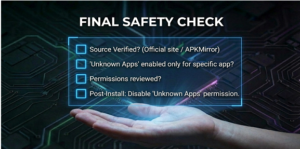
My APK is from a trusted, verifiable source (e.g., official developer site, APKMirror).
I have enabled “Install unknown apps” specifically for my browser or file manager.
I have reviewed the app permissions, and they make sense.
I have enough storage space on my device.
My plan is to disable the “unknown apps” permission after installation.
FAQs on Installing APK Files in 2026
1. Is it still safe to install APKs in 2026?
Yes, if you are careful. Safety still depends on the download source. New for 2026 in some regions is a developer verification requirement, where a verified developer must register apps to install. Always use trusted sources like APKMirror and keep Google Play Protect enabled.
2. Why won’t my APK install? I keep getting “App not installed.”
This common error has a few likely fixes:
Corrupted file: Delete it and download it again.
Not enough storage: Free up space on your device.
Incompatible app: The APK might be for a different Android version or phone chip. Try finding the correct version.
Conflicting app: If you have an older version of the app installed, uninstall it first.
3. What’s the “Parse Error: There was a problem parsing the package”?
This almost always means the APK file is corrupted. The solution is to delete the file and re-download it from a trusted source. It can also happen if you accidentally try to install an Android App Bundle (.aab) file, which is not installable directly.
4. I enabled “Unknown Sources,” but it’s still blocked. What’s wrong?
On modern Android (version 8.0+), you don’t enable a global switch. You must grant permission to the specific app you’re using to install.
Go to Settings > Apps > Special app access > Install unknown apps.
Select your browser (e.g., Chrome) or file manager (e.g., Files).
Toggle “Allow from this source” to ON.
5. Where can I safely download APK files?
Only use these trusted sources to minimize risk:
Official developer websites (e.g., Epic Games Store).
Verified repositories like APKMirror, which checks files against official versions.
Open-source platforms like F-Droid.
Avoid sites with excessive ads or ones offering “cracked” paid apps, as they are high-risk for malware.
Conclusion
You now have the complete picture. Installing APK files on Android is a powerful tool that opens up a wider world of software. The step-by-step process is simple: enable a permission, download, and tap. The real skill lies in doing it safely.
Your next steps:
Start Safe: For your first try, visit a reputable site like APKMirror and download a well-known, free app you already have (like a weather app). This lets you practice the process with minimal risk.
Build the Habit: Always, always toggle the “Install unknown apps” permission off after you’re done. Make this as routine as locking your front door.
Stay Curious and Cautious: The world of APKs is vast. Explore new apps, support independent developers, but let a healthy skepticism be your constant companion.
By following this guide, you’re not just following instructions, you’re developing a more profound, responsible, and empowered relationship with your Android device. Happy (and safe) sideloading!