To install an APK on PC using an emulator, download BlueStacks or LDPlayer, install and launch it, then drag your APK file into the emulator window or go to the emulator menu and select “Install APK.” The whole process takes under five minutes.
Whether you want to run a mobile game on a bigger screen, test an app you’ve been building, or access an Android app that simply doesn’t exist on desktop installing an APK file through an Android emulator is the most reliable method available in 2026.
This guide covers everything: what an APK is, which emulator to choose based on your needs, three distinct installation methods, Mac Apple Silicon instructions (a section most guides skip entirely), troubleshooting, and safety best practices.
What Is an APK File?
An APK short for Android Package Kit is the file format Android uses to distribute and install apps. It works like an .exe on Windows or a .dmg on Mac. The file contains all the code, assets, and resources an app needs to run.
APK files carry the .apk extension and are essentially compressed archives. You’ll typically download them directly from sources like APKMirror, a developer’s website, or export them from an existing Android device. Because they’re installed outside the Google Play Store a process called sideloading your emulator needs to allow installation from unknown sources, which most do by default.
Why Use an Emulator Instead of a Real Android Device?
There are several practical reasons someone chooses to run an APK through an emulator on PC rather than a physical phone:
- No Android device required — useful if you don’t own one or it’s unavailable
- Larger screen and keyboard support — especially valuable for mobile gaming
- App testing for developers — test builds quickly without deploying to a device
- Access region-locked apps — emulators can sometimes bypass geographic restrictions
- Older APK versions — test legacy versions that aren’t available on current Play Store
For developers specifically, emulators also offer snapshot features, screen recording, and the ability to simulate different Android versions capabilities a real phone doesn’t offer as easily.
System Requirements Before You Start
Before downloading any emulator, confirm your PC meets the minimum requirements. Most modern emulators require virtualization support, which is enabled in your system BIOS.
| Requirement | Minimum | Recommended |
|---|---|---|
| OS | Windows 10 64-bit / macOS 11 | Windows 11 / macOS Ventura+ |
| RAM | 4 GB | 8 GB or more |
| Storage | 10 GB free | 20 GB+ |
| GPU | DirectX 11 compatible | Dedicated GPU |
| Virtualization | Intel VT-x or AMD-V enabled | Enabled in BIOS |
If your emulator won’t launch or runs at a crawl, the first thing to check is whether virtualization is enabled in your BIOS/UEFI settings. On most systems, this is under Advanced CPU settings labeled as “Intel Virtualization Technology” or “SVM Mode.”
Choosing the Right Emulator for Your Use Case

Not every emulator is built the same. Here’s a practical comparison of the four most widely used options in 2026:
| Emulator | Best For | Android Version | Free? | macOS Support |
|---|---|---|---|---|
| BlueStacks 10 | Gaming, general use | Android 9 / 11 / 13 | Free (with ads) | Yes (Intel + Apple Silicon) |
| LDPlayer 9 | Gaming on low-end PCs | Android 9 / 13 | Fully free | No |
| NoxPlayer | General + rooting support | Android 9 | Free | Yes (Intel) |
| MEmu Play | Productivity + multi-instance | Android 9 | Free | No |
Download BlueStacks from bluestacks.com and LDPlayer from ldplayer.net — always use official sources to avoid bundled malware.
Gaming on a mid-to-high-end PC? BlueStacks 10 is the most performance-optimized choice with the largest game compatibility library.
Low-end PC or limited RAM? LDPlayer 9 is lighter on resources and extremely popular in South and Southeast Asia for titles like Free Fire and Mobile Legends.
Mac user on Apple Silicon (M1/M2/M3)? BlueStacks 10 now offers native ARM support, making it the only major emulator fully optimized for Apple Silicon as of 2026. NoxPlayer runs via Rosetta 2 but can be unstable on M-chip Macs.
Developer testing? Android Studio’s built-in emulator (AVD Manager) or Genymotion offers far more control, API simulation, and Android version flexibility than consumer emulators.
Method 1: Install APK via Drag and Drop (Easiest)
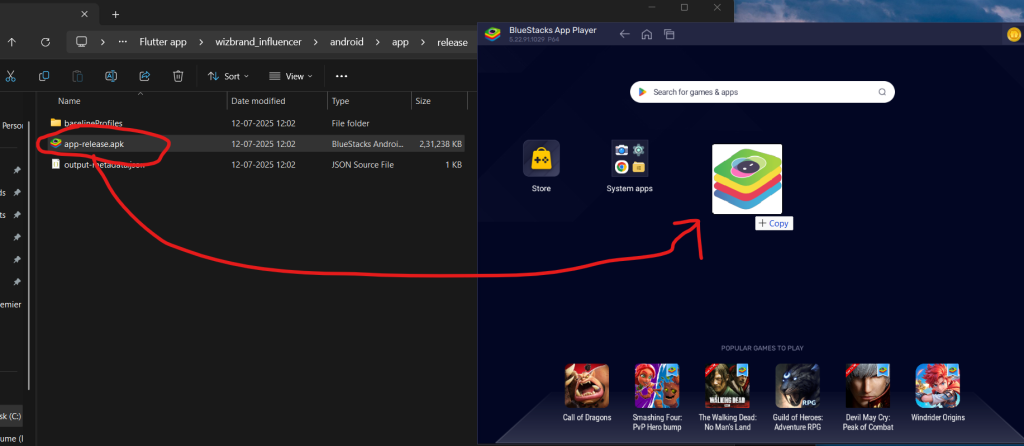
This is the fastest method and works on BlueStacks, LDPlayer, NoxPlayer, and MEmu.
- Download your emulator from its official website and complete the installation
- Launch the emulator and wait for the Android home screen to load fully
- Download your APK file to your PC from a trusted source
- Drag the APK file from your desktop or folder directly into the emulator window
- Wait for the install prompt the emulator will ask to confirm installation
- Tap Install on the Android prompt that appears
- Find the app in your emulator’s app drawer and launch it
⚠️ Note: If dragging doesn’t trigger an install, try Method 3 (file manager) instead. Some emulator versions handle drag-and-drop differently depending on the build.
Method 2: Install APK via the Emulator Menu
All major emulators include a built-in option to browse for and install APK files directly from your PC’s file system.
- Open your emulator and look for a sidebar or toolbar icon (usually a folder or phone icon)
- Select “Install APK” from the menu in BlueStacks, this appears in the side toolbar
- A Windows/macOS file browser will open
- Navigate to where your APK is saved and select it
- Click Open the emulator will begin installing automatically
- Once complete, the app icon will appear on your home screen
This method is more reliable than drag-and-drop on older emulator versions and on Macs.
Method 3: ADB Command-Line Install (For Developers)
ADB Android Debug Bridge is a command-line tool that lets you communicate directly with an Android emulator or device. It’s part of the Android SDK Platform Tools and is the most reliable method for developers, especially when dealing with large APKs or automation workflows.
For full ADB command reference and advanced options, visit the official Android Debug Bridge documentation by Google.
Setup:
- Download Android SDK Platform Tools from the official Android developer site
- Extract the folder and open a terminal/command prompt inside it
- Make sure your emulator is running
Download Android SDK Platform Tools from the official Android developer site, extract the folder, and open a terminal inside it.
Enable ADB in the emulator (if needed): In BlueStacks: Settings → About → Enable ADB (Android Debug Bridge) In LDPlayer: Settings → Other settings → Enable ADB
Connect and install:
adb connect 127.0.0.1:5555
adb devices
adb install /path/to/yourapp.apk
Once you run adb install, the APK installs silently no on-screen prompt required. You’ll see Success in the terminal when it’s done.
ADB is significantly more reliable than GUI methods when installing APKs repeatedly during a development cycle or when the drag-and-drop method fails with no clear error.
Installing APK on Mac (Including Apple Silicon M1/M2/M3)
This is the section most guides completely skip and it’s one of the most-searched topics for Mac users in 2026.
For Intel Macs: BlueStacks 10, NoxPlayer, and MEmu all run without issues. Use Method 1 or Method 2 above the process is identical to Windows.
For Apple Silicon Macs (M1 / M2 / M3): The ARM-based architecture of Apple Silicon requires emulators to either offer native ARM builds or run through Rosetta 2 translation.
- BlueStacks 10 now ships a dedicated Apple Silicon build. Download from the BlueStacks website, select the macOS (Apple Silicon) version, and install it like any Mac app. APK installation works via both the menu method and drag-and-drop.
- NoxPlayer runs via Rosetta 2 on M-chip Macs but may exhibit occasional instability. It works for general use but isn’t recommended for resource-intensive games.
- LDPlayer and MEmu do not currently support macOS.
If you’re on an M1/M2/M3 Mac and BlueStacks feels heavy, an alternative worth exploring is Waydroid (Linux-based, requires additional setup via virtual machine) or using Apple’s own iOS apps for cross-platform titles available on the Mac App Store.
How to Enable Unknown Sources on an Emulator
Most modern emulators (BlueStacks 10, LDPlayer 9) allow APK sideloading by default, so this step is often unnecessary. However, if you encounter an “installation blocked” message, here’s how to resolve it:
- Go to Settings inside the emulator (the Android Settings app)
- Navigate to Security or Privacy
- Find Unknown Sources or Install Unknown Apps
- Toggle it on, or select the app/browser you’re installing from and enable it
On newer Android versions within emulators (Android 12+), the setting is per-app rather than a global toggle.
Troubleshooting: APK Not Installing on Emulator
| Problem | Likely Cause | Fix |
|---|---|---|
| “App not installed” error | APK architecture mismatch (ARM vs x86) | Use an ARM-compatible APK or enable ARM translation in emulator settings |
| Install gets stuck at 0% | Corrupted APK file | Re-download APK from a trusted source |
| “Parse error” | Incomplete download or wrong Android version | Check Android version requirement of the APK |
| App installs but crashes | DRM or device certification check failing | Some apps block emulators by design no workaround |
| “Installation blocked” | Unknown sources disabled | Follow the Unknown Sources steps above |
| ADB connection refused | ADB not enabled in emulator | Enable ADB in emulator settings before connecting |
| Emulator crashes during install | Insufficient RAM or virtualization issue | Close other programs, ensure VT-x/AMD-V is enabled in BIOS |

The most common issue is ARM vs x86 architecture mismatch. Many APKs are compiled for ARM processors (used in real Android phones), while emulators typically run on x86 hardware. BlueStacks 10 and LDPlayer 9 both include built-in ARM translation layers, but this isn’t always enabled by default. Check your emulator’s settings for an “ARM Translation” or “Compatibility” option.
Is It Safe to Install APK Files on Your PC?
The short answer: it depends entirely on where the APK comes from.
Emulators themselves are safe BlueStacks, LDPlayer, and NoxPlayer are legitimate software used by tens of millions of people globally. The risk lies in the APK file, not the emulator.
Safe practices:
- Only download APKs from known, reputable sources: APKMirror, APKPure, the app developer’s official website
- Before installing, verify the SHA-256 hash of the APK matches the value published by the developer
- Upload suspicious APKs to VirusTotal (virustotal.com) before running it scans files against 70+ antivirus engines simultaneously
- Avoid APK sites that require you to disable antivirus or complete surveys before downloading
Upload suspicious APKs to VirusTotal before running — it scans your file against 70+ antivirus engines instantly and is completely free.
Legal considerations: Sideloading APK files is legal in most countries. You own the right to install software on your own device. However, some app Terms of Service (particularly mobile games like PUBG Mobile or Genshin Impact) explicitly prohibit use on emulators, which may result in your account being banned not a legal issue, but a practical one worth knowing.
DRM-protected apps including most banking apps and Netflix actively detect emulator environments and will refuse to run. This is a deliberate security measure, not a bug you can fix.
Alternatives to Android Emulators
If a traditional emulator isn’t working for your use case, these alternatives are worth considering:
Before jumping to emulators, it helps to understand what APK files are and how they behave on a PC. Check out our step-by-step breakdown: How to Open APK Files on PC
Windows Subsystem for Android (WSA) Available on Windows 11, WSA lets you run Android apps natively without a separate emulator. It’s built into the OS and tends to perform better with lower overhead. The setup is more involved, but for regular use on Windows 11, it can replace BlueStacks entirely.
Learn more about setting up Windows Subsystem for Android directly from Microsoft’s official documentation.
Genymotion Aimed squarely at developers and QA testers, Genymotion offers precise Android version control, cloud instances, and automation API support. It’s paid (with a free personal tier) but far superior to consumer emulators for professional app testing.
Waydroid A Linux-based solution that runs Android in a container. Requires a Linux environment (or VM), but offers excellent performance and is entirely open source. Increasingly popular in developer circles in 2026.
FAQs
Can I install any APK on an emulator?
Most APKs work, but apps using Google’s Play Integrity API like banking apps actively block emulators. APKs compiled only for ARM may also need ARM translation enabled in your emulator settings.
Is BlueStacks safe to use in 2026?
Yes. BlueStacks is legitimate software used by over 500 million users globally. Some antivirus tools may flag it as a false positive due to virtualization techniques not an actual threat.
Why does my emulator say “App not installed”?
Usually an architecture mismatch (ARM APK on x86 emulator), incomplete download, or Android version conflict. Re-download the APK and check your emulator’s Android version settings.
Can I install APK on a Mac without an emulator?
Not natively. macOS doesn’t support APKs. Use BlueStacks for Mac (Apple Silicon supported), or connect a physical Android device via ADB.
Is sideloading APK files illegal?
No. Sideloading is fully legal. Some apps restrict it in their Terms of Service, but that’s contractual not a legal issue.
Conclusion
Installing an APK on your PC using an emulator is a straightforward process once you know the right tool for your situation. For most users, BlueStacks 10 remains the easiest starting point on both Windows and Mac including Apple Silicon. LDPlayer 9 is the go-to for anyone on older or lower-powered hardware.
Choose the install method that fits your workflow: drag-and-drop for speed, the built-in menu for reliability, or ADB if you’re working in a development environment. Always verify your APK source before installing, and use VirusTotal for any file you’re not 100% confident about.
If you run into errors, the troubleshooting table covers the most common causes. Most failures trace back to architecture mismatches or corrupted downloads both fixable within minutes.