Yes, you can install APK on Windows 11 without an emulator in 2026. The best method is ADB (Android Debug Bridge) sideloading using Google’s Android Platform Tools. Enable Developer Mode, install ADB, and run one command no BlueStacks, no NoxPlayer required.
If you’ve been searching for a working way to install APK on Windows 11 without an emulator, you’ve probably run into outdated guides that still recommend Windows Subsystem for Android (WSA) a feature Microsoft officially shut down in March 2025. This guide gives you the real, working method for 2026: ADB sideloading, which is lightweight, free, and works on every edition of Windows 11 worldwide.
No BlueStacks. no NoxPlayer. no emulator at all.
What Is APK Sideloading and Why It Matters in 2026
APK stands for Android Package Kit. It’s the file format Android uses to package and distribute apps similar to how .exe works on Windows. Sideloading simply means installing an APK outside of an official app store like Google Play.
On Windows 11, sideloading lets you run Android apps directly on your PC without launching a heavy emulator that eats your RAM and slows your system.
This matters especially for:
- Developers who need to test Android apps quickly on a PC
- Casual users in regions where certain apps aren’t available on the Microsoft Store
- Budget laptop users (common in India, Pakistan, Southeast Asia) who can’t afford the performance hit of a full emulator
Want to understand the difference between APK and Play Store apps first? Read: APK vs Play Store What’s the Difference?
What Happened to Windows Subsystem for Android (WSA)?
WSA was Microsoft’s official feature that allowed Windows 11 to run Android apps natively. Launched in 2021 alongside Amazon Appstore support, it was the cleanest solution available at the time.
In March 2025, Microsoft officially discontinued WSA. All existing installations stopped working on updated systems. Microsoft confirmed it would not be replaced by any official tool.
This is the gap most competitor guides have completely missed. If you followed a 2023 or 2024 guide and WSA installation failed now you know why.
Methods Comparison: What Actually Works in 2026
| Method | Needs Emulator | Works in 2026 | Difficulty | Best For |
|---|---|---|---|---|
| ADB Sideloading | No | Yes | Medium | Developers + All Users |
| ApkOnPC | No | Yes | Easy | Casual GUI Users |
| WSATools | No | Very Limited | Easy | Legacy WSA Only |
| BlueStacks / NoxPlayer | Yes | Yes | Easy | Emulator-OK Users |
| WSA (Microsoft) | No | Discontinued | — | No Longer Available |
Winner for 2026: ADB Sideloading works on Windows 11 Home, Pro, and Enterprise, in every country and region.
Method 1: Install APK on Windows 11 Using ADB (Best Method No Emulator)
SGE Answer: ADB sideloading is the most reliable way to install APK on Windows 11 without an emulator in 2026. It uses Google’s official Android Platform Tools and requires Developer Mode to be enabled on Windows 11.
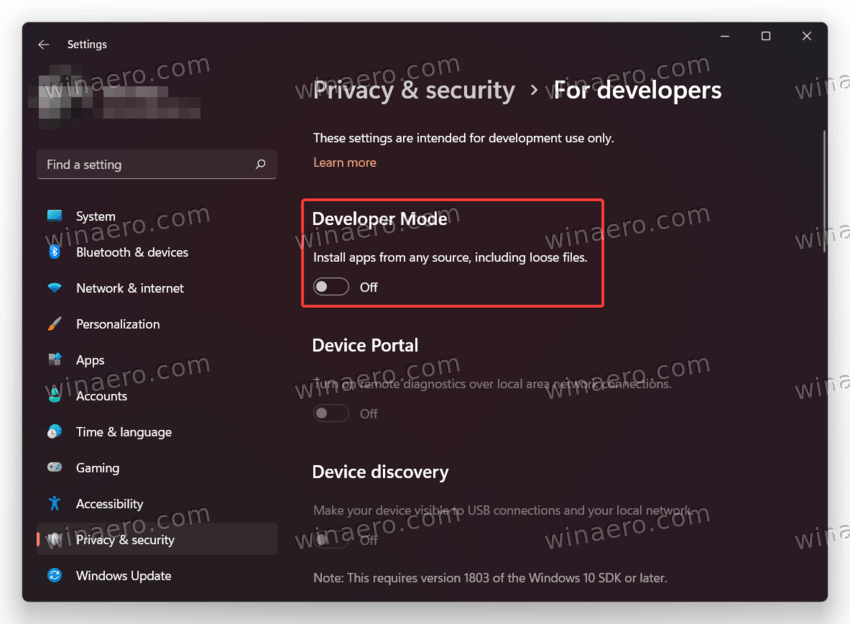
Step 1 Enable Developer Mode on Windows 11
- Open Settings
- Go to System → For Developers
- Toggle Developer Mode to ON
- Confirm the dialog if prompted
This unlocks sideloading permissions on your Windows 11 system.
Step 2 Download Android Platform Tools (ADB)
- Visit the official Google page:
developer.android.com/studio/releases/platform-tools - Click Download SDK Platform Tools for Windows
- Extract the ZIP file to a folder recommended path:
C:\platform-tools
This package contains adb.exe, which is the core command-line tool you’ll use.
Do NOT download ADB from random third-party sites. Always use the official Google source to avoid tampered versions.
Step 3 Connect Your Android Device
If you’re sideloading onto a physical Android phone:
- On your phone, go to Settings → About Phone
- Tap Build Number seven times to unlock Developer Options
- Go to Settings → Developer Options
- Enable USB Debugging
- Plug your phone into your Windows 11 PC via a data USB cable (not a charge-only cable)
Step 4 Open Command Prompt Inside Platform Tools
- Open the
C:\platform-toolsfolder in File Explorer - Click the address bar at the top
- Type
cmdand press Enter
A Command Prompt window opens directly inside your platform-tools folder. This ensures Windows finds adb.exe without needing extra PATH configuration.
Step 5 Verify ADB Detects Your Device
Type this command and press Enter:
adb devicesYou should see your device listed with a serial number. If your phone shows a popup asking “Allow USB Debugging?” tap Allow.
If nothing appears, check your cable, re-enable USB Debugging, or try a different USB port.
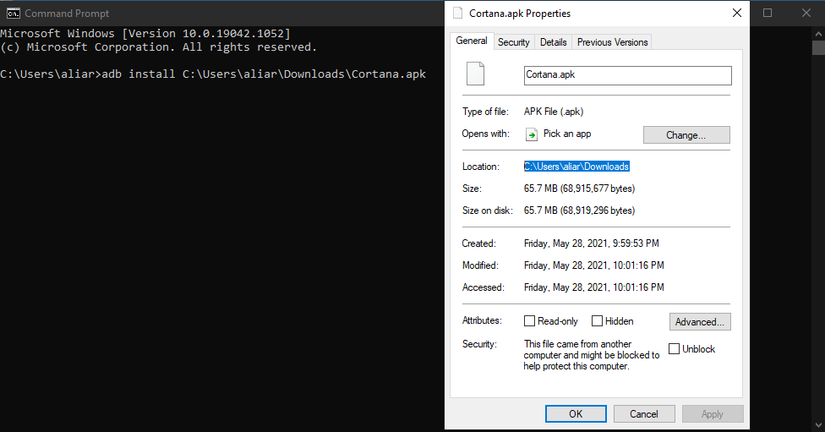
Step 6 Install Your APK File
Move your APK file to a simple path for example: C:\apks\myapp.apk
Then run:
adb install C:\apks\myapp.apkWhen you see “Success” in the terminal, the app is installed on your device.
For split APK bundles (APKS format), use:
adb install-multiple file1.apk file2.apkHaving trouble installing? Check: Why APK File Not Installing on Android Fixes
Method 2: ApkOnPC Lightweight Tool for Casual Users (No Full Emulator)
ApkOnPC is a third-party tool that provides a simple graphical interface for APK installation on Windows, without running a full Android emulator in the background.
Good for: Non-technical users who find the command line uncomfortable Drawback: Third-party software verify the download source before installing
⚠️ Always confirm any third-party tool against reviews on trusted tech publications like XDA Developers or Tom’s Guide before downloading.
Who Should Use Which Method?
| User Type | Best Method |
|---|---|
| Android developer testing builds | ADB Sideloading |
| Everyday user, comfortable with CMD | ADB Sideloading |
| Casual user, prefers GUI | ApkOnPC |
| Needs full Android environment | BlueStacks (accept trade-off) |
| IT admin / enterprise deployment | ADB with scripted batch install |
Prefer using an emulator instead? Read: How to Install APK on PC Using an Emulator
Trusted APK Sources Safety Checklist Before You Download
The biggest risk in APK sideloading isn’t the process itself it’s where you download the APK from. Malicious APKs can carry spyware, adware, or ransomware.
Always use these verified sources:
- APKMirror — Developer-uploaded, cryptographically verified
- APKPure — Community-maintained, widely trusted
- F-Droid — Open-source apps only, fully audited
- Official developer website — Always the safest option
Never download APKs from:
- Random forum posts or comment threads
- File-sharing sites like MediaFire or MEGA (unless direct from a verified developer)
- Sites with aggressive pop-up ads or download redirects
- Unverified Telegram channels
Legal Note: APK sideloading is legal in most countries when used with apps you own or free/open-source software. Distributing or installing pirated apps via APK is illegal regardless of platform. Verify local digital regulations if you’re unsure.
Need a trusted place to get your APK files? See: Best APK Downloader for Android Apps
Troubleshooting Common ADB Errors
“ADB is not recognized as an internal or external command”
You did not open CMD inside the platform-tools folder, or ADB isn’t in your system PATH.
Fix: Always open Command Prompt directly inside C:\platform-tools as shown in Step 4.
“Failure [INSTALL_FAILED_USER_RESTRICTED]”
Developer Mode isn’t fully active, or the device is blocking unknown sources.
Fix: Re-check Settings → System → For Developers and confirm Developer Mode is ON.
“No devices/emulators found”
ADB cannot detect your Android device.
Fix: Re-enable USB Debugging, try a different data cable, then run:
adb kill-server
adb start-server
adb devices
App Installs But Won’t Open
The APK architecture may not match your environment (ARM64 vs x86).
Fix: Download the correct architecture variant from APKMirror, which lists ARM64, ARM, and x86 builds separately.
Seeing a parse error instead? Read: How to Fix Parse Error on Android
Installing XAPK Files on Windows 11 (Split APK Format)
Some apps come as .xapk files a bundle format that contains multiple APK splits plus an OBB data file. Standard ADB install won’t work for these directly.
For XAPK files, use:
- APKPure App (desktop version) handles XAPK extraction automatically
- Manual extraction: Rename
.xapkto.zip, extract, then useadb install-multiplefor each split APK
Full guide here: How to Install XAPK Files on Android
Does ADB Work on All Windows 11 Editions and Regions?
Yes completely. ADB sideloading works identically on:
- Windows 11 Home
- Windows 11 Pro
- Windows 11 Enterprise
And it functions the same way whether you’re in the USA, India, Pakistan, Germany, the Philippines, or anywhere else in the world. Microsoft Store regional restrictions have zero impact on ADB functionality.
Frequently Asked Questions
Q1: Can I install APK on Windows 11 without any emulator in 2026?
Yes. ADB sideloading using Google’s Android Platform Tools is the best method. It requires no emulator and works on all Windows 11 editions.
Q2: Is Windows Subsystem for Android (WSA) still available?
No. Microsoft officially discontinued WSA in March 2025. It no longer functions on updated Windows 11 systems.
Q3: Is ADB sideloading safe?
ADB itself is an official Google tool and completely safe. The only risk is the APK source always use verified sources like APKMirror or the official developer website.
Q4: What replaced WSA on Windows 11?
There is no official Microsoft replacement. ADB sideloading is the most reliable community-standard alternative in 2026.
Q5: Will sideloading APKs slow down my Windows 11 PC?
No. ADB runs only during installation and does not stay active in the background. It has no ongoing performance impact on your system.
Q6: What if my APK won’t install after following all steps?
Most failures are caused by architecture mismatch, corrupted APK files, or Developer Mode not being fully active. See the troubleshooting section above or visit: Why APK File Not Installing on Android
Conclusion
Installing APK on Windows 11 without an emulator is completely possible in 2026 and faster than most people expect. WSA is gone, but ADB sideloading replaces it cleanly with no performance cost and no bloated software required.
Your 60-second action checklist:
- ✅ Go to Settings → System → For Developers → Enable Developer Mode
- ✅ Download Android Platform Tools from
developer.android.com - ✅ Extract to
C:\platform-tools - ✅ Open CMD inside that folder
- ✅ Enable USB Debugging on your Android device
- ✅ Run
adb install yourfile.apk - ✅ Only download APKs from APKMirror, APKPure, or official developer pages
Whether you’re a developer testing a build or a casual user trying to run an app your region doesn’t support this method works, it’s free, and it takes under 10 minutes to set up.