Can you update an APK without losing data? Yes install the new APK directly over the existing app without uninstalling it first. Android preserves all app data automatically, as long as the new APK is signed with the same keystore. Uninstalling first will erase everything.
If you want to update APK without losing data, you are not alone this is one of the most searched questions in the Android community, and the answer is simpler than most people think.
Whether you are a casual Android user trying to preserve your game progress, a developer pushing a new build to testers, or an IT admin managing dozens of enterprise devices the fear of data loss during an APK update is completely valid. One wrong step and your saved preferences, login sessions, and local databases are gone.
The good news: Android is designed to protect your data during updates. But there are specific conditions that must be true for that protection to hold. Break one of those conditions especially by installing from a different signing key or uninstalling the app first and you lose everything.
This guide covers every method to install APK over existing app without losing data, explains exactly when data gets wiped and why, and walks you through practical solutions for every type of user.
🔗 New to sideloading? Read our guide: How to Install APK on Android Without Play Store
How Android Handles APK Updates: The Default Behaviour
When you install a newer APK directly over an installed app called an overwrite install or in-place APK upgrade Android does not touch the app’s private data directory at /data/data/[package.name]/. That directory holds:
- Shared preferences (settings, login tokens)
- SQLite databases (local app data)
- App-specific cache and files
- OBB expansion files (for games)
As long as the new APK has the same package name and is signed with the same keystore, Android treats it as a standard update identical to how the Google Play Store updates work and all data survives untouched.
When Android DOES Delete App Data
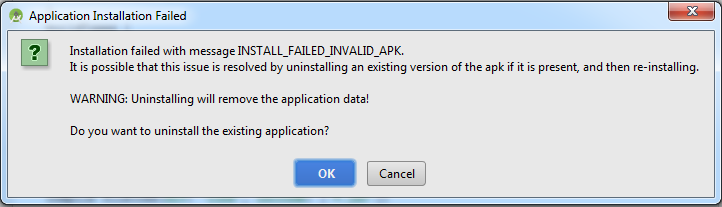
⚠️ Warning: Data is erased in three situations: (1) you uninstall before reinstalling, (2) the new APK has a different signing key, (3) you force-replace without the correct ADB flag. Know your scenario before proceeding.
| Scenario | Data Preserved? | Reason |
|---|---|---|
| Overwrite install (same key) | ✅ Yes | Standard update behaviour |
| Uninstall, then reinstall | ❌ No | Data directory wiped on uninstall |
| APK with different signing key | ❌ No | Signature mismatch forces uninstall |
| ADB install -r (same key) | ✅ Yes | -r flag = replace existing app |
| ADB install without -r | ⚠️ May fail | Depends on Android version |
🔗 Getting an install error? See: Why APK File Not Installing on Android
Why Signing Keys Are the #1 Hidden Cause of Data Loss
This is the concept almost nobody explains clearly and it is responsible for the majority of unexpected data wipes.
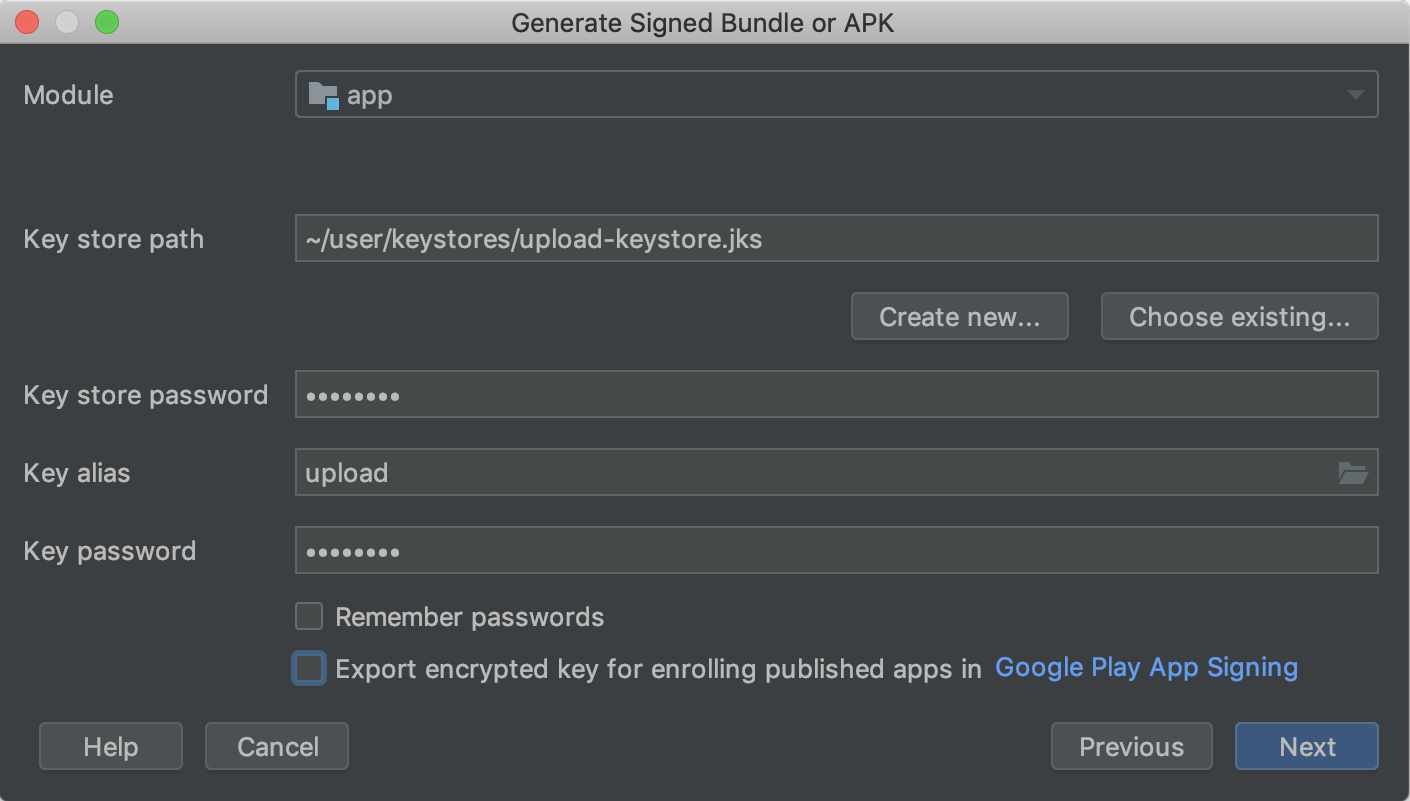
Every APK is digitally signed by its developer using a private key stored in a .jks or .keystore file. When you try to install a newer version, Android compares the signing certificate of the new APK to the one already installed.
If they match → update proceeds, data safe. If they don’t match → Android forces you to uninstall first → all data erased.
Real-World Situations Where This Causes Data Loss
- A mod creator re-signed the APK with a different certificate than the original
- You are switching from a Play Store version to a manually downloaded APK
- A developer regenerated their signing key between releases
- An enterprise IT team used a different signing profile on a new build
💡 Pro Tip: Before updating, verify signing certificates with:
keytool -printcert -jarfile yourapp.apk. If the SHA-256 fingerprint matches the installed version, your data is safe.
🔗 Understand the difference: APK vs Play Store — What’s Different?
Method 1: Standard Overwrite Install Best for Most Users
This is the simplest approach. It works on all Android devices Samsung Galaxy, Xiaomi MIUI, Huawei HMS, OnePlus, and Android TV no PC required.
Step-by-Step
- Download the new APK from a trusted source such as APKMirror, the developer’s official website, or F-Droid.
- Do NOT uninstall the existing app. Leave it on your device.
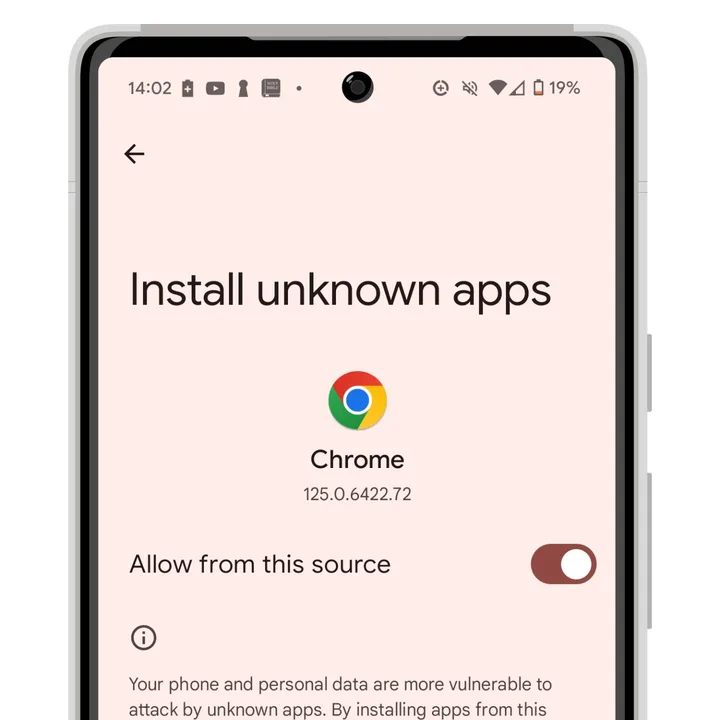
- Enable “Install unknown apps” for your file manager. On Android 8+: Settings → Apps → [File Manager] → Install unknown apps → Allow.
- Open the APK file using your file manager. Tap Install.
- Watch the prompt. If Android asks you to uninstall first stop. That means a signature mismatch exists.
- Open the app and confirm your data, progress, and settings are intact.
📱 Xiaomi / MIUI Note: MIUI’s built-in security scanner may block the install. Tap “Continue installing” if you trust the source, or disable MIUI Optimization under Developer Options.
🔗 Having trouble enabling unknown apps? Read: How to Install Unknown Apps on Android
Method 2: ADB install -r Command Best for Developers
Android Debug Bridge (ADB) is Google’s official command-line tool for managing Android devices. It offers the most precise method to update APK without uninstalling and is the preferred approach for developers and power users.
Download Android SDK Platform Tools
Prerequisites
- ADB installed on your PC (part of Android SDK Platform Tools free from developer.android.com)
- USB Debugging enabled: Settings → Developer Options → USB Debugging
- Device listed in
adb devices
The Command
adb install -r /path/to/yourapp.apkThe -r flag means “replace existing application” it overwrites the installed app and leaves all data untouched.
Step-by-Step
- Open Terminal (macOS/Linux) or Command Prompt (Windows)
- Confirm device:
adb devicesyour serial number must appear - Run:
adb install -r /full/path/to/app.apk - Watch for: “Success” in the output
- If you see
INSTALL_FAILED_UPDATE_INCOMPATIBLEsignature mismatch detected
For developers managing multiple devices at once:
adb devices | tail -n +2 | cut -sf -1 | xargs -I % adb -s % install -r app.apk🔗 Using an emulator instead? Guide here: Install APK on PC Using an Emulator
Method 3: Google Play In-App Update API For App Developers

If you distribute your app through the Play Store, the Google Play Core Library provides the In-App Update API the cleanest, most seamless update mechanism available. Data is always preserved because it runs as a standard Play update.
| Flow Type | How It Works | Best For |
|---|---|---|
| Immediate | Full-screen overlay until update completes | Critical security patches |
| Flexible | Background download, user installs when ready | Feature updates |
Reference: Android Developer Documentation In-App Updates (developer.android.com/guide/playcore/in-app-updates)
Note: This method is not available for APKs outside the Play Store ecosystem. For sideloaded apps, use Method 1 or Method 2.
Method 4: APKUpdater and Third-Party Update Managers
For users in regions where Google Play is restricted such as mainland China, Iran, or on Huawei devices with HMS third-party update managers are essential for keeping sideloaded APKs updated without data loss.
APKUpdater
Open-source app that scans your installed apps, checks APKMirror, APKPure, F-Droid, and Aptoide for updates, and performs overwrite installs directly. Data safe for apps with matching signatures.
F-Droid
Free and open-source repository for FOSS apps. Manages updates identically to the Play Store overwrite install, data preserved. Best choice for privacy-focused users.
ShizuTools / Shizuku
Provides a privileged API layer that enables silent APK installs and updates without root access. Preferred in enterprise and developer environments.
Need a reliable APK source? See: Best APK Downloader for Android Apps
How to Back Up App Data Before Updating an APK
Even when an overwrite install should be safe, a backup before updating is smart practice especially for game save data or apps with critical local data.
Option A: Android Auto-Backup (Android 6.0+)
Go to Settings → Google → Backup and enable auto-backup. Backs up app data to Google Drive automatically. Limitation: Developers can opt out, so not all apps are covered.
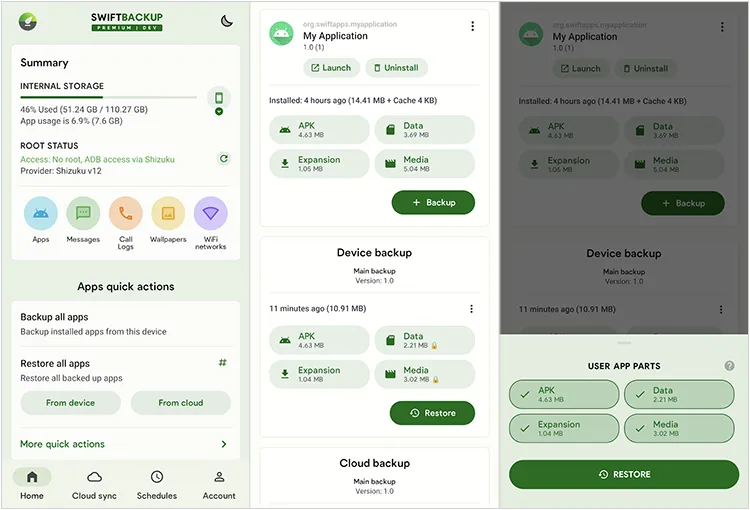
Option B: Swift Backup (Recommended)
One of the cleanest modern backup tools. Supports partial backup without root, and full data backup with root. Exports to local storage, Google Drive, or Dropbox.
Option C: Titanium Backup (Root Required)
Gold standard for rooted devices. Backs up and restores the complete data directory of any app shared preferences, SQLite databases, and external data. Essential for modded game saves.
Option D: ADB Backup (Limited on Android 11+)
adb backup -f app_backup.ab -apk com.your.package.nameProgressively restricted in newer Android versions. Useful for Android 10 and below.
APK Update Method Comparison
| Method | Technical Level | Data Safe? | PC Needed? | Best For |
|---|---|---|---|---|
| Overwrite Install (Manual) | Beginner | ✅ Yes (same key) | No | Everyday users |
| ADB install -r | Intermediate | ✅ Yes (same key) | Yes | Developers, power users |
| Play Store / In-App API | None | ✅ Always | No | Play-distributed apps |
| APKUpdater | Beginner | ✅ Yes (same key) | No | Heavy sideloaders |
| F-Droid | Beginner | ✅ Yes | No | FOSS / privacy users |
| ShizuTools | Advanced | ✅ Yes | No (setup only) | Enterprise / silent install |
| Uninstall + Reinstall | Beginner | ❌ Data lost | No | When data loss is OK |
Device-Specific Notes
Samsung Galaxy (One UI)
Standard overwrite install works without extra steps. Samsung DeX follows the same flow. Secure Folder apps are isolated handle them separately.
Xiaomi / Redmi / POCO (MIUI / HyperOS)
MIUI’s antivirus may flag third-party APKs. If prompted, tap “Continue installing” if you trust the source. Disable MIUI Optimization under Developer Options if needed.
Amazon Fire TV Stick
ADB over Wi-Fi is supported. Enable ADB debugging in Fire TV settings, then:
adb connect [device-ip]
adb install -r yourapp.apk
All app data preserved. Alternatively use the Downloader app for overwrite installs directly on the device.
Android TV / Google TV
No native file manager. Use FX File Explorer or the Downloader app, or push via ADB. Data preservation rules are identical to phone Android.
Chromebook
Works in developer mode via overwrite install or ADB. APKs install into the Android subsystem not the Linux container (Crostini).
🔗 Need to install XAPK files? Read: How to Install XAPK Files on Android
Enterprise and MDM: APK Updates at Scale
For IT admins managing device fleets, MDM platforms handle APK updates silently at scale. Platforms like Microsoft Intune, VMware Workspace ONE, SOTI MobiControl, and Jamf push updates as overwrite installs to all enrolled devices data preserved on each device, provided the signing certificate is consistent across builds.
🏢 Enterprise Note: GDPR and regional data regulations require that APK updates handling personal data do not inadvertently trigger data erasure without user notice. Maintain a single, version-controlled signing keystore to prevent cross-version signature mismatches.
Troubleshooting Common APK Update Errors
| Error | Cause | Fix |
|---|---|---|
| INSTALL_FAILED_UPDATE_INCOMPATIBLE | Signature mismatch | Backup data → uninstall → reinstall new APK |
| INSTALL_FAILED_ALREADY_EXISTS | Package conflict (older Android) | Use adb install -r |
| INSTALL_FAILED_VERSION_DOWNGRADE | New APK has lower version code | Use adb install -r -d |
| “Uninstall existing version” prompt | Different signing key | Find APK signed with original key |
| Install blocked by MIUI | MIUI security scanner | Trust source or disable MIUI Optimization |
| “Unknown sources” not allowed | Device policy restriction | Enable in Settings → Apps → file manager |
🔗 Still getting a parse error? See: How to Fix Parse Error on Android
Pre-Update Safety Checklist
Before you update any APK, run through this:
- Confirm the new APK is signed with the same key as the installed version
- Download from a verified source (APKMirror, F-Droid, official developer site)
- Scan the APK with VirusTotal or Google Play Protect before installing
- Back up app data using Swift Backup, Titanium Backup, or Android auto-backup
- Do NOT uninstall the existing app before installing
- Verify the package name matches (Settings → Apps → App info)
- Confirm adequate storage space for the new APK
- Keep a copy of the old APK as a rollback option
Android Version Differences That Affect APK Updates
| Android Version | Key Change |
|---|---|
| Android 6.0 | Runtime permissions app may re-request after update |
| Android 8.0 | “Install unknown apps” became per-app setting |
| Android 10 | Scoped storage introduced limited external storage access |
| Android 11 | Tighter storage enforcement; preserveLegacyExternalStorage flag added |
| Android 12 | APK Signature Scheme v3.1 and key rotation supported |
| Android 13 | Per-media-type permissions replace READ_EXTERNAL_STORAGE |
| Android 14 | Partial media access (Selected Photos Access) added |
| Android 15+ | Continued APK signing security hardening |
Frequently Asked Questions
Q1: Does updating an APK delete app data?
No installing a new APK directly over the existing app preserves all data automatically. Data is only deleted if you uninstall first, or if the new APK has a different signing certificate.
Q2: Can I update a modded APK without losing game progress?
Yes, but only if the new mod APK uses the same signing key. Mod creators sometimes change keys between releases, which forces an uninstall and wipes data. Always back up save data with Titanium Backup before updating any modded app.
Q3: What is the ADB command to update APK without losing data?
adb install -r /path/to/yourapp.apk the -r flag replaces the existing app without touching its data. USB Debugging must be enabled on your device first.
Q4: Why does Android say “uninstall existing version” when I try to update?
This happens when the new APK has a different signing certificate than the installed version. Android cannot overwrite it for security reasons. You must uninstall first which will erase data unless you can source the APK signed with the original key.
Q5: Is APKMirror safe for APK updates?
Yes APKMirror verifies every APK’s signature against the Play Store original and rejects modified files. It is the most trusted third-party APK source. Always scan with VirusTotal regardless of source.
Q6: What happens to shared preferences and SQLite databases after an APK update?
Both are stored in the app’s private data directory and remain completely untouched during a standard overwrite install. The only risk is if the new app version includes a non-backward-compatible database migration that is an app-level issue, not an OS issue.
Q7: How do I update a sideloaded APK on Fire TV without losing data?
Connect via ADB over Wi-Fi: adb connect [device-ip] → adb install -r yourapp.apk. All app data is preserved. Alternatively, use the Downloader app to download and install the new APK as an overwrite directly on the Fire TV.
Conclusion
Updating an APK without losing data is entirely achievable and it is the default outcome when you follow the right steps. The core rule is simple: install the new APK over the existing app, never uninstall first, and make sure the signing key matches.
Everyday users can do it in under a minute with a file manager. Developers get maximum control with adb install -r. Enterprise teams use MDM platforms to push updates silently at scale.
The most dangerous risk signing key mismatch is completely avoidable with a quick pre-install check. And with a backup in place, even worst-case scenarios are recoverable.
Pick the method that fits your situation, run the checklist, and your data stays exactly where it belongs.