Whether you just received a mysterious .apk file on WhatsApp, you’re a developer trying to distribute your first app, or an IT admin managing enterprise software deployment understanding what an app package file is will save you time, protect your device, and help you make smarter decisions.
What Exactly Is an App Package File?
An app package file is a single distributable file that bundles all the components of a mobile or desktop application. Instead of copying dozens of folders and files manually, the entire application its compiled code, images, fonts, database schemas, permissions, and digital signature is packed into one file.
When you tap “Install,” your operating system unpacks that file, verifies its authenticity, and places everything in the right location on your device.
What’s Inside an App Package File?
Most people assume an app package is just an executable. It’s actually much more structured than that.
Here’s what a typical app package contains:
| Component | Description |
|---|---|
| Manifest file | Declares app name, permissions, version, entry point |
| Compiled code | DEX files (Android), compiled Swift/ObjC (iOS), .NET assemblies (Windows) |
| Resources | Images, icons, fonts, strings, layouts |
| Assets | Raw files like audio, video, HTML used within the app |
| Libraries | Native .so or .dll files for additional functionality |
| Digital signature / Certificate | Proves the package is from a verified developer |

Major App Package File Formats Explained
This is where most guides fall short. There isn’t just one type of app package every major platform uses its own format.
Android Package Formats
APK — Android Package Kit The most widely known format. An APK is the standard installation file for Android apps. You can install APKs directly from outside the Google Play Store a process known as sideloading. APKs use the .apk extension and are essentially ZIP archives you can inspect with any archive tool.
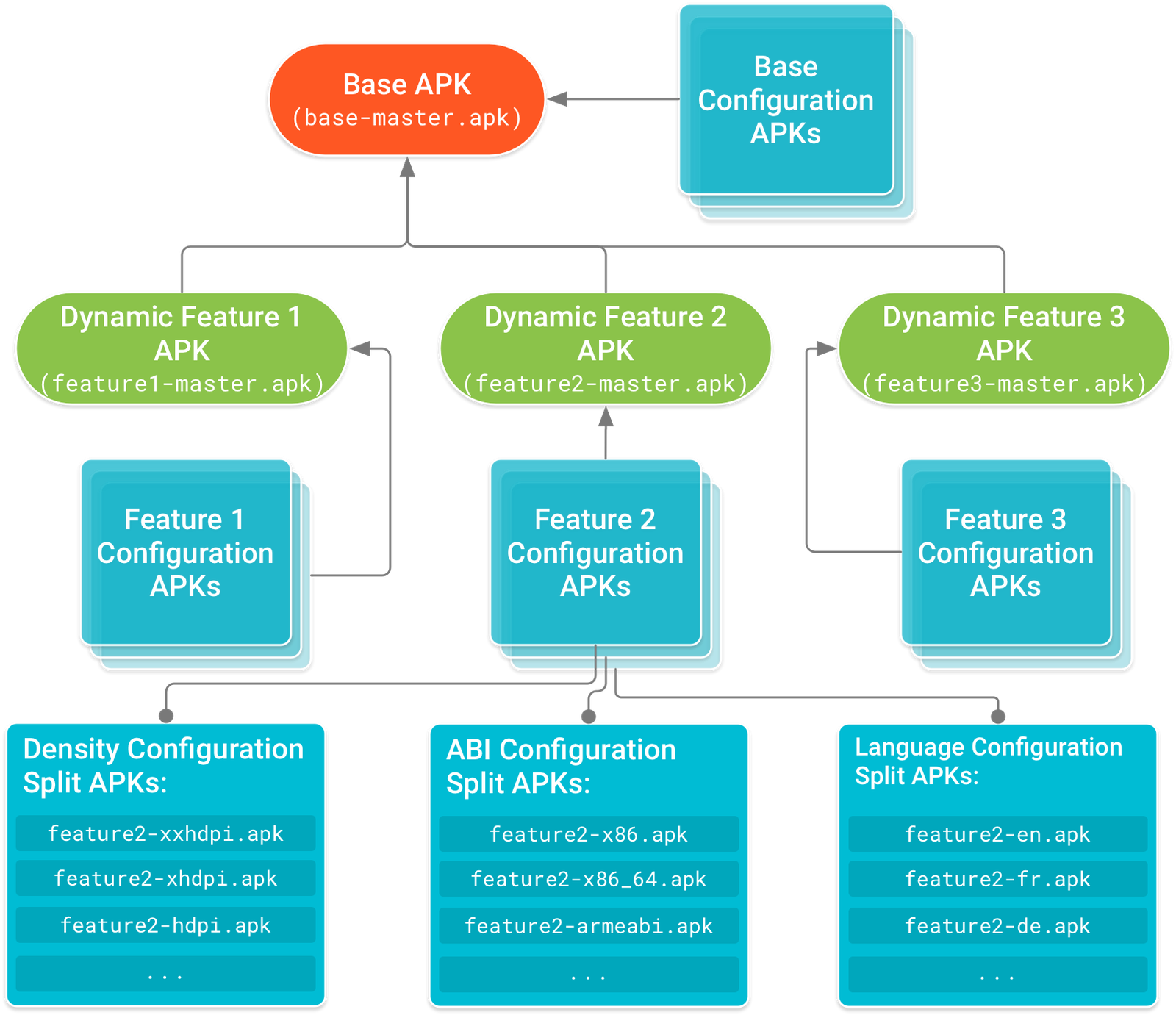
AAB — Android App Bundle Introduced by Google as the modern replacement for APK on the Play Store. An AAB (.aab) doesn’t install directly on devices Google Play dynamically builds and delivers a customized APK from it based on the user’s device specs. This reduces download size significantly.
XAPK An extended APK format (.xapk) that bundles the base APK together with additional OBB data files. Common with large games. Tools like APKPure and XAPK Installer are needed to install these.
iOS App Package Format
IPA — iOS App Store Package Apple uses the .ipa format for all iOS and iPadOS apps. IPA files can only be installed on Apple devices and require a valid developer certificate or Apple’s authorization. Unlike Android, iOS restricts sideloading heavily though this is changing in the EU due to the Digital Markets Act.
Windows App Package Formats
APPX and MSIX Windows 10 and Windows 11 use .appx and .msix formats for app distribution through the Microsoft Store and enterprise deployments. MSIX is the modern evolution of APPX, offering better installation reliability and cleaner uninstalls.
Desktop & Linux Formats
| Format | Platform | Notes |
|---|---|---|
.pkg / .dmg | macOS | PKG installs silently; DMG is a disk image |
.deb | Ubuntu/Debian Linux | Installed via apt package manager |
.rpm | Fedora/Red Hat Linux | Installed via dnf or yum |
.exe / .msi | Windows (legacy) | Traditional Windows installers |
Complete Format Comparison Table
| Format | Platform | Installable Directly? | Store Used | Sideloadable? |
|---|---|---|---|---|
| APK | Android | Yes | Google Play | Yes |
| AAB | Android | No (Play only) | Google Play | No |
| XAPK | Android | With tool | Third-party | Yes |
| IPA | iOS/iPadOS | With restrictions | App Store | Limited |
| APPX | Windows | Yes | Microsoft Store | Yes |
| MSIX | Windows | Yes | Microsoft Store | Yes |
| PKG | macOS | Yes | Mac App Store | Yes |
| DEB | Linux (Debian) | Yes | apt repos | Yes |
How to Install an App Package File
Installing an APK on Android
If you’ve downloaded an APK and want to install it outside the Play Store, here’s how:
- Go to Settings → Apps → Special App Access → Install Unknown Apps
- Select the browser or file manager you used to download the APK
- Toggle “Allow from this source” on
- Open your file manager and tap the APK file
- Tap Install when prompted
- Wait for installation to complete, then tap Open
Related guide: How to Install APK on Android Without Play Store (2026 Guide)
Installing an XAPK File on Android
XAPK files include extra data and require a dedicated installer:
- Download an XAPK installer app
- Open the installer and browse to your
.xapkfile - Grant the necessary permissions
- Tap install and let it handle both the APK and OBB data
Step-by-step walkthrough: How to Install XAPK Files on Android
Installing an APK on PC
You can run Android APKs on a Windows PC using an emulator:
- Download an Android emulator (BlueStacks, LDPlayer, etc.)
- Install and launch the emulator
- Drag and drop the APK into the emulator window or use the “Install APK” button
- The app will appear in the emulator’s app drawer
Full guide: Install APK on PC Using an Emulator
For low-end PCs, lighter emulators work better: Best Android Emulators for Low-End PC
Is an App Package File Safe to Install?
This is the most important question and one most guides barely touch.
App package files from official stores (Google Play, App Store, Microsoft Store) go through security scanning and review. Files from outside these stores carry varying levels of risk.
Security Checklist Before Installing Any Package File
- Download only from trusted sources (official website, reputable APK sites)
- Check the file’s digital signature matches the developer
- Compare the package name with the official app listing
- Scan with a mobile antivirus before installing
- Check permissions the app requests does it make sense?
- Read user reviews on the source platform
- Never install APKs sent via WhatsApp, email, or unknown links
- Avoid APKs that ask for SMS, contacts, or admin access without clear reason
See also: Install Unknown Apps on Android What You Should Know
Common App Package File Errors and Fixes
Installing package files doesn’t always go smoothly. Here are the most common errors and what they mean:
| Error | Likely Cause | Fix |
|---|---|---|
| “App not installed” | Corrupted file or storage issue | Re-download the file |
| Parse error | Incompatible Android version or broken APK | Check version compatibility |
| “Package appears to be invalid” | Unsigned or tampered APK | Get file from official source |
| Installation blocked | Unknown sources not enabled | Enable in settings |
| App not available in your country | Region-locked content | See regional workarounds |
Fix parse errors: Parse Error on Android Causes and Solutions
APK not installing?: Why APK File Not Installing on Android
App blocked by region?: App Is Not Available in Your Country

How Developers Create App Package Files
For developers, packaging an app is the final step before distribution.
Android (APK/AAB):
- Build using Android Studio with Gradle
- Sign the APK with a keystore file using jarsigner or Android Studio’s built-in signing wizard
- For Play Store: generate an AAB instead of APK
- Automate with Fastlane for CI/CD pipelines
iOS (IPA):
- Build and archive using Xcode
- Requires an Apple Developer account ($99/year)
- Sign with a provisioning profile and certificate
- Submit via Transporter or Xcode’s Organizer
Windows (MSIX):
- Package using Visual Studio or the MSIX Packaging Tool
- Sign with a trusted code signing certificate
- Distribute via Microsoft Store or enterprise sideload
Understanding signing: Android App Signing Explained
Enterprise App Distribution
IT administrators in corporate environments often deploy apps without using public app stores. This is common in healthcare, finance, and education sectors.
Within Windows environments, IT teams typically deploy MSIX packages through Microsoft Intune or SCCM. Android enterprise solutions, such as VMware Workspace ONE, take a different approach by pushing APKs directly to managed devices. To handle similar needs on iOS, organizations rely on Apple’s Device Enrollment Program (DEP) paired with custom provisioning profiles. While often ignored by consumer-facing guides, these workflows are essential for modern B2B operations.
APK Files and Regional Considerations
App package files aren’t just a technical topic geography plays a role too.
Sideloading APKs is extremely common across India and Southeast Asia, driven by a need for data-saving tools and regional streaming platforms. Because Google Play is unavailable in China, the entire Android ecosystem there thrives on third-party stores utilizing the APK format. Meanwhile, the EU’s Digital Markets Act is forcing a shift in Apple’s ecosystem, making IPA sideloading accessible to European users for the first time.
Useful Tools for Working With App Package Files
| Tool | Purpose | Platform |
|---|---|---|
| APKTool | Decompile and inspect APK files | Windows/Mac/Linux |
| jadx | Decompile APK to readable Java/Kotlin | Windows/Mac/Linux |
| Android Studio | Build and sign APK/AAB | Windows/Mac/Linux |
| Xcode | Build and sign IPA | macOS only |
| MSIX Packaging Tool | Create Windows MSIX packages | Windows |
| MT Manager | Edit APK files on Android | Android |
| ZArchiver / MiXplorer | Open and explore APK contents | Android |
FAQs
Q1: What is an app package file used for?
An app package file is used to install an application on a device. It bundles all app components code, resources, and configuration into one distributable file that an operating system can read and deploy.
Q2: Is an app package file the same as a ZIP file?
Structurally, yes most app packages like APK and IPA are ZIP-based archives. You can rename an APK to .zip and open it with any archive tool to see its contents.
Q3: Can app package files contain viruses?
Yes. Malicious APKs in particular are a common attack vector. Only install package files from official sources or verified developers. Always scan unknown files before installing.
Q4: What is the difference between APK and AAB?
An APK installs directly on Android devices and supports sideloading. An AAB is uploaded to Google Play, which then generates optimized APKs for each device. You cannot install an AAB directly on a phone.
Q5: What app package format does iPhone use?
iPhones use the IPA format (.ipa). These files can only be installed through the App Store, Xcode, or specific enterprise/developer methods sideloading IPA files on iOS is significantly more restricted than on Android.
Q6: What happens if I install an unsigned app package?
Most modern operating systems will block unsigned packages by default. On Android, you may see “Package appears to be invalid.” On Windows, an unsigned MSIX will trigger a security warning or fail silently without developer mode enabled.
Q7: Where are APK files stored on Android after download?
Downloaded APKs are typically stored in the Downloads folder on your internal storage. You can locate them using any file manager app and reinstall or share them from there.
Conclusion
An app package file is the delivery vehicle for every app you’ve ever installed whether from Google Play, the App Store, or directly from a developer’s website. Understanding the format your device uses, what’s inside that file, and how to handle it safely puts you in control of your software.
For Everyday Users: Always verify the source before installing any package file outside an official store.
For Developers: Prioritize code signing and utilize AABs for Play Store submissions to ensure security. Furthermore, automating your packaging workflow can save significant time during deployment.
For IT Admins: MSIX and MDM-based APK deployments offer a reliable, scalable alternative for enterprise distribution. These methods allow for seamless management without relying on public marketplaces.