An APK file (Android Package Kit) is the file format used by the Android operating system for distribution and installation of mobile applications. If you’ve ever wondered what does APK stand for or what is APK file format, this comprehensive guide will answer all your questions about Android application packages.
The APK file format serves as the container that holds all the necessary components for an Android app to function properly. Think of it as a ZIP archive that contains everything your Android device needs to install and run an application.
What is APK File Format?
Definition and APK Meaning
APK stands for Android Package Kit, and it’s the package file format that Android uses to distribute and install applications. The APK file format is essentially a compressed archive file (similar to ZIP) that contains all the elements required to install an app on an Android device.
Key Components of an APK File
Understanding what’s inside an APK file helps you grasp how Android applications work:
- AndroidManifest.xml – The blueprint of the app containing permissions, activities, and services
- classes.dex – Compiled Java/Kotlin code in Dalvik Executable format
- resources.arsc – Pre-compiled resources and app metadata
- res/ folder – Contains images, layouts, and other UI resources
- lib/ folder – Native libraries for different processor architectures
- assets/ folder – Raw asset files like databases, fonts, or videos
- META-INF/ folder – Contains the app’s signature and certificate
- resources.pb – Protocol buffer format for resources (in newer APKs)
How APK Files Work
When you download an APK file and install it, Android’s Package Manager extracts the contents, verifies the APK signature, checks permissions, and installs the application on your device. The APK file structure ensures all components are organized properly for efficient installation and execution.
Understanding APK File Structure and Components (Technical Deep Dive)
APK File Components Explained
The APK file structure is more complex than it appears. Let’s break down each component:
1. AndroidManifest.xml
This XML file is the heart of every Android application package. It declares:
- App package name and version
- Required permissions (camera, storage, internet, etc.)
- Hardware and software features
- Activities, services, broadcast receivers, and content providers
- Minimum and target Android SDK versions
2. Classes.dex File
The classes.dex file contains the compiled bytecode of your application. Android uses DEX (Dalvik Executable) format, which is optimized for mobile devices with limited memory and processing power. Multiple DEX files (classes2.dex, classes3.dex) may exist in larger applications.
3. Resources and Assets
- res/: Contains XML layouts, drawable images, strings, colors, and styles
- resources.arsc: Binary file containing pre-compiled resources
- assets/: Uncompiled raw files that apps can access
4. Native Libraries (lib/ folder)
Native code compiled for specific CPU architectures:
- armeabi-v7a: 32-bit ARM processors
- arm64-v8a: 64-bit ARM processors
- x86: Intel 32-bit processors
- x86_64: Intel 64-bit processors
5. META-INF Directory
Contains cryptographic signatures that verify the APK hasn’t been tampered with:
- MANIFEST.MF: List of all files with their SHA-1 hashes
- CERT.SF: Signature file
- CERT.RSA or CERT.EC: The certificate
APK vs AAB (Android App Bundle)
Google now recommends developers use AAB format instead of APK for Google Play Store uploads. Here’s the comparison:
| Feature | APK | AAB |
| File Size | Larger (contains all resources) | Smaller (optimized delivery) |
| Distribution | Direct installation possible | Requires Google Play Store |
| Updates | Full APK download needed | Modular updates possible |
| Device Optimization | Contains all architectures | Delivers only needed resources |
| Best For | Sideloading, third-party stores | Official Play Store distribution |
Extract APK File and View Contents
To extract APK file and examine its contents:
- Rename the APK file extension from .apk to .zip
- Use any ZIP extraction tool (WinRAR, 7-Zip, unzip command)
- Browse the decompressed folder structure
- Use APK Analyzer in Android Studio for detailed analysis
Decompile APK for Advanced Analysis
Developers can decompile APK files using tools like:
- APKTool – Decompiles resources and manifest
- JADX – Converts DEX to Java source code
- JD-GUI – Java decompiler
- Apk Analyzer – Built into Android Studio
Note: Decompiling APKs should only be done for educational purposes or with proper authorization.
How to Safely Download APK Files (Safety Guide)

Understanding APK Security Risks
While APK files are legitimate, downloading from untrusted sources poses risks:
- APK malware and viruses
- Data theft and privacy breaches
- Modified apps with malicious code
- Apps with hidden permissions
- Cryptocurrency miners and adware
Is APK Safe? Critical Safety Factors
Are APK files safe? The answer depends on the source. Here’s how to ensure safe APK download:
1. Trusted APK Sources and Download Sites
Official and Safe:
- Google Play Store (safest option)
- APKSharp.org (verified APKs)
- APKMirror (reputable third-party)
- APKPure
- F-Droid (open-source apps)
- Amazon Appstore
- Samsung Galaxy Store
Avoid:
- Unknown websites with suspicious ads
- Torrent sites offering APK files
- Random forum downloads
- Sites requiring surveys before downloads
2. Verify APK Signature
Before installing:
- Check the APK signature using verification tools
- Compare SHA-256 hash with official sources
- Use apps like “App Checker” to verify authenticity
- Check the certificate details in APK properties
3. Scan for Viruses
Always scan downloaded APKs:
- Use VirusTotal to scan the APK file online
- Install mobile antivirus (Malwarebytes, Bitdefender)
- Check permissions before installation
- Monitor app behavior after installation
4. Check Permissions Carefully
Review what the app requests:
- Does a wallpaper app need SMS access? (Red flag)
- Does a calculator app need location access? (Suspicious)
- Excessive permissions indicate potential issues
Can APK Files Have Viruses?
Yes, APK files can contain viruses if downloaded from untrusted sources. Modified APKs often include:
- Trojans and spyware
- Ransomware
- Keyloggers
- Banking malware
- Adware and unwanted programs
Are APK Files Legal?
Yes, APK files are completely legal. However:
- Legal: Downloading free apps from trusted sources
- Legal: Backing up your purchased apps
- Legal: Installing apps unavailable in your region (personal use)
- Illegal: Downloading paid apps for free (piracy)
- Illegal: Distributing cracked or modded premium apps
- Illegal: Apps that violate copyright or terms of service
How to Install APK Files on Android (Complete Tutorial)
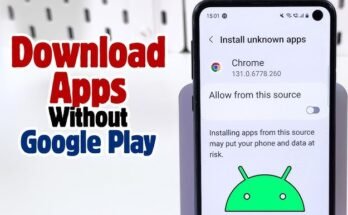
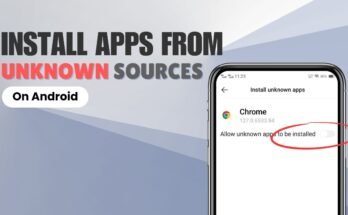
Prerequisites: Enable Unknown Sources
Before you can install APK on Android, you need to allow installations from sources other than the Google Play Store.
For Android 8.0 and Above:
- Go to Settings > Apps & Notifications
- Tap Advanced > Special App Access
- Select Install Unknown Apps
- Choose the browser or file manager you’ll use
- Toggle Allow from this source
For Android 7.1 and Below:
- Go to Settings > Security
- Enable Unknown Sources
- Confirm the security warning
Step-by-Step: How to Install APK File
Process 1: Direct Download on Phone
- Download the APK file using your mobile browser
- Open your Downloads folder or notification
- Tap the APK file
- Review the app permissions
- Tap Install
- Wait for installation to complete
- Tap Open to launch the app
Step 2: Transfer from PC
- Download APK on PC
- Connect your Android device via USB
- Enable File Transfer mode
- Copy the APK to your phone’s storage
- On your phone, use a File Manager app
- Navigate to where you saved the APK
- Tap the file and follow installation prompts
Method 3: Sideload APK Using ADB
For developers and advanced users, you can use Android Debug Bridge (ADB) to install APK files:
Steps to sideload APK using ADB:
- First, install Android Debug Bridge (ADB) on your computer
- Connect your Android device via USB cable
- Enable USB debugging on your device (Settings > Developer Options > USB Debugging)
- Open command prompt or terminal on your computer
- Type “adb devices” to list all connected devices and verify your device is recognized
- To install a new APK, use command: adb install path/to/your-app.apk (replace with actual file path)
- To reinstall or update an existing app, use command: adb install -r path/to/your-app.apk
- Wait for the installation to complete
Where Are APK Files Stored?
After installation, where are APK files stored on Android?
- Downloaded APKs: /sdcard/Download/ or internal storage
- Installed Apps: /data/app/ (system partition, requires root)
- System Apps: /system/app/ (pre-installed apps)
- APK Backup: Use file manager to export installed APKs
Troubleshooting Installation Issues
“App not installed” error solutions:
- Insufficient storage space – Free up space
- Corrupted APK file – Re-download
- Incompatible with device – Check minimum Android version
- Conflicting signature – Uninstall old version first
- Security restrictions – Check Unknown Sources setting
How to Create APK File (For Developers)
To build APK Android Studio:
- Open your project in Android Studio
- Go to Build > Build Bundle(s) / APK(s)
- Select Build APK(s)
- Wait for Gradle build to complete
- Click locate to find your APK
- Sign APK file with your keystore for distribution
To generate APK from command line, you can use Gradle commands. Use “./gradlew assembleDebug” to create a debug APK for testing purposes. For production, use “./gradlew assembleRelease” to create a release APK, which requires proper signing with your keystore certificate.
APK vs Google Play Store: Pros and Cons (Detailed Comparison)
Why Use APK Files?
Understanding APK vs Play Store helps you decide the best installation method:
Advantages of Direct APK Installation
- Access to Unavailable Apps
- Apps not available in your region
- Apps removed from Play Store
- Beta versions and unreleased apps
- Older versions of applications
- Freedom and Flexibility
- APK backup for future reinstallation
- No Google account required
- Install multiple versions simultaneously
- Modify app versions if needed
- Faster Updates
- Get updates before Play Store rollout
- Choose when to update
- Keep older stable versions
- Avoid forced updates
- Privacy Benefits
- No Google tracking of installations
- Offline installation possible
- No automatic update background downloads
- Control over app permissions
- APK Sharing
- Share apps with friends without internet
- Install same app on multiple devices
- Transfer purchased apps to new devices
Advantages of Google Play Store
- Security
- Google Play Protect scanning
- Verified developers
- Regular security audits
- Automatic malware detection
- Convenience
- One-click installation
- Automatic updates
- Easy app discovery
- Centralized management
- Authenticity
- Guaranteed legitimate apps
- Official versions only
- Developer verification
- User reviews and ratings
- Integration
- Seamless with Google services
- Purchase history sync
- Family Library sharing
- Cross-device installation
APK vs Other Formats
EXE vs APK
- EXE: Windows executable files
- APK: Android package files
- Cannot cross-install (Windows ≠ Android)
- APK can run on Android emulators on Windows
IPA vs APK
- IPA: iOS app package format
- APK: Android app package
- Platform-specific, not interchangeable
- Different architectures and ecosystems
APK vs APPX
- APPX: Windows Store app package
- APK: Android package
- Windows 11 can run APKs via Windows Subsystem for Android
- Different signing and distribution methods
Running APK Files on Other Platforms
APK on Windows 11
Windows 11 includes Windows Subsystem for Android (WSA):
- Enable WSA from Microsoft Store
- Install Amazon Appstore
- Run APK on PC through WSA
- Sideload APK using ADB to WSA
APK Emulator Options
To run APK on PC, use these Android emulators:
- BlueStacks APK Support
- Best for gaming
- Drag-and-drop APK installation
- High performance
- NoxPlayer
- Multiple instances
- Keyboard mapping
- Root access available
- LDPlayer
- Gaming-focused
- Macro recording
- Good performance
- Android Studio Emulator
- Developer-focused
- Various device profiles
- Official Google solution
- Genymotion
- Professional emulation
- Cloud-based option
- Desktop integration
APK on Mac
To install APK on Mac:
- Use Android Studio Emulator
- Install BlueStacks for Mac
- Use Genymotion Desktop
- Set up Android-x86 virtual machine
APK File Format: Technical Specifications
How Big Can APK Files Be?
APK file size limitations:
- Google Play Store: 100 MB base APK + 2 GB expansion files
- Direct Installation: No strict limit (depends on device storage)
- Average Size:
- Simple apps: 5-20 MB
- Medium apps: 20-100 MB
- Games: 100 MB to 2+ GB
APK Compilation Process
How apps become APK files:
- Source Code → Java/Kotlin files
- Compilation → .class files
- DEX Conversion → classes.dex
- Resource Packaging → resources.arsc
- APK Assembly → Combine all components
- Signing → Add digital signature
- Alignment → Optimize for Android
APK Development Best Practices
When you create APK file:
- Enable ProGuard/R8 for code shrinking
- Optimize images and resources
- Use Android App Bundle when possible
- Implement proper signing procedures
- Test across different Android versions
- Monitor APK size regularly
Frequently Asked Questions
What is the difference between APK and app?
An APK is the file format (package), while an app is the installed application. APK is the container; the app is the contents running on your device.
Can I convert APK to other formats?
You cannot directly convert APK to IPA (iOS) or EXE (Windows) as they’re platform-specific. However, you can extract resources or rebuild for other platforms using cross-platform frameworks.
How do I update APK files?
Download the newer version APK and install it over the existing app. Ensure it’s signed with the same certificate, or uninstall the old version first.
Are modded APKs safe?
Modded APKs carry significant risks including malware, data theft, and account bans. Avoid unless from absolutely trusted sources and understand the legal implications.
Can I delete APK files after installation?
Yes, you can safely delete the APK file after successful installation. The app data is stored separately in your device’s system partition.
How do I backup APK files?
Use file manager apps with APK export features, apps like “APK Extractor,” or use ADB command to backup. Connect your device to computer with USB debugging enabled, then use the command “adb pull /data/app/package.name/base.apk” to extract the APK file to your computer.
Conclusion
Understanding what is APK file format is essential for any Android user who wants more control over their device. The Android Package Kit provides flexibility, freedom, and access to applications beyond the official store, but it requires knowledge of security practices and proper installation methods.
Key takeaways:
- APK files are the standard Android application format
- Always download from trusted APK sources like APKSharp.org
- Verify signatures and scan for APK malware before installing
- Enable unknown sources carefully and only for trusted apps
- Understand the APK file structure for better security awareness
- APK vs Play Store – each has advantages depending on your needs
Whether you’re looking to install APK files on Android, understand how APK files work, or explore APK development, this guide provides comprehensive knowledge about the Android Package Kit format.
For safe and verified APK downloads, visit APKSharp.org – your trusted source for Android applications.