Losing your app data saved game progress, WhatsApp chats, app settings is one of the most frustrating things that can happen to any Android user. Whether you’re switching to a new phone, doing a factory reset, or your device just crashed, knowing how to back up Android app data before something goes wrong can save you hours of frustration.
This guide covers every working method to make a backup of any app installed on your phone from Google’s built-in backup to ADB, Samsung Smart Switch, and third-party options so your data stays protected no matter what.
What Is Android App Data And Why Does It Matter?
Android app data is the information an app stores locally on your phone your progress, preferences, login sessions, and saved files. It is separate from the app itself.
When you install an app from the Google Play Store, you’re only installing the program. The data your settings, game saves, chat history, custom configurations is stored separately in your phone’s internal storage.
This is why uninstalling and reinstalling an app often wipes everything. The app comes back, but your data doesn’t.
App data includes:
- Game progress and achievements
- Chat history (WhatsApp, Telegram, etc.)
- App settings and preferences
- Login sessions and account states
- Downloaded content within apps
- Custom configurations and profiles
For regular users, this means losing months of game progress. For businesses, it can mean losing critical work app configurations or mobile CRM data.

When Should You Back Up Android App Data?
You should back up your Android app data before any of these situations:
- Switching to a new Android phone
- Performing a factory reset
- Installing a major Android OS update
- Sending your phone for repair
- Before trying a risky mod or rooting process
- Regularly, as part of a monthly data protection routine
The biggest mistake people make is only thinking about backup after data is already gone.
How to Make a Backup of Any App Installed on Your Phone
This is the question most users are really asking not just how backup works in theory, but how to actually protect every app on their device, including games, social apps, productivity tools, and sideloaded APKs.
The honest answer is that no single method backs up every app completely. Different apps handle their data differently, and some actively block backup access for security reasons. The smart approach is to combine two or more methods based on what you have installed.
Best Ways to Back Up Data From Apps and Games
Here is a practical breakdown by app type:
| App Type | Best Backup Method |
|---|---|
| Social apps (WhatsApp, Telegram) | App’s own built-in backup + Google Drive |
| Mobile games with account login | Sign in to game account progress syncs automatically |
| Offline games (no account) | Google Play Games sync or ADB backup |
| Productivity apps (notes, tasks) | Usually syncs to cloud account automatically |
| Sideloaded APK apps | ADB backup or Helium (Carbon) |
| Banking and finance apps | Cannot be backed up data tied to account login |
| System settings and preferences | Google One Backup |
The most reliable overall strategy:
- Enable Google One Backup for automatic system-level backup
- Use app-specific backup for WhatsApp, Telegram, and similar apps
- Run an ADB backup before any major change like a factory reset
- For games connect to a Google Play Games account whenever possible
- For sideloaded apps keep the original APK file saved separately
💡 If you regularly install apps outside the Play Store, make sure you always download APKs from a reliable source and keep copies before resetting your device.
Method 1: Google One Backup (Built-In, Easiest)
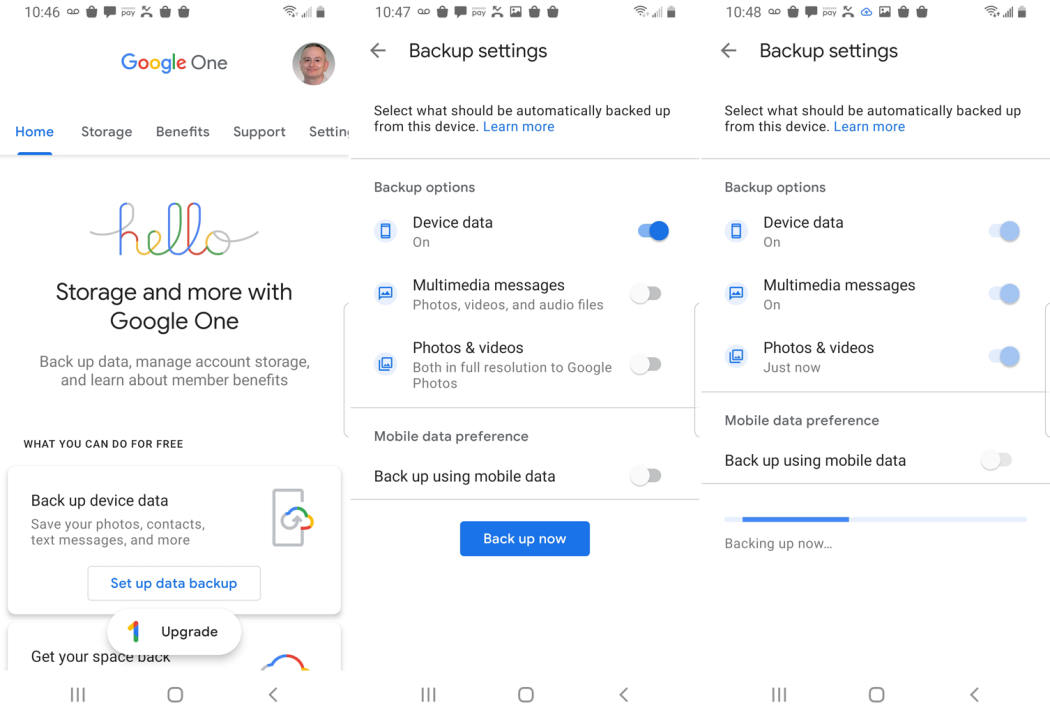
Google One Backup automatically saves your app data, call history, contacts, device settings, and SMS to Google Drive. It works on most Android phones running Android 6.0 or later no extra apps needed.
This is the simplest and most widely used method. If you use a Google account on your Android phone, this backup system is likely already partially active.
What Google One Backup Actually Saves
| Data Type | Backed Up? |
|---|---|
| App data (if app allows it) | Yes |
| App settings | Yes |
| Call history | Yes |
| SMS messages | Yes |
| Contacts | Yes |
| Wi-Fi passwords | Yes |
| Photos and videos | Only via Google Photos |
| WhatsApp chats | Requires separate WhatsApp backup |
| Banking app data | Usually blocked by app developer |
| Offline game data | Depends on game’s allowBackup setting |
What Google Backup Does NOT Save
This is the part most guides miss. Google Backup cannot save data from apps that have disabled the android:allowBackup flag in their code. This includes many:
- Banking and finance apps (for security reasons)
- Certain offline games
- Apps with heavy DRM protection
If an app doesn’t allow backup, Google simply skips it silently and you won’t know until you’ve already lost that data.
How to Enable Google Backup (Step-by-Step)
- Open Settings on your Android phone
- Scroll down and tap Google
- Tap Backup
- Toggle Back up to Google Drive to ON
- Tap Back up now to run an immediate backup
- Verify backup status you should see a “Last backup” timestamp
How to verify it worked:
- Go to Google Drive → Storage → Backups
- You should see your device listed with a recent timestamp
- Tap it to see what categories were included
💡 Google Backup uses your Google Drive storage. The free tier gives you 15GB shared across Gmail, Drive, and Photos. If you’re running low, consider upgrading to Google One.

Method 2: Samsung Smart Switch (Samsung Galaxy Users)
Samsung Smart Switch is a free OEM tool that backs up nearly all data from a Samsung Galaxy phone including apps, settings, call logs, messages, and some app data to a PC or another Samsung device.
If you’re on a Samsung Galaxy device, Smart Switch is arguably the most complete backup solution available without rooting.
How to Back Up Samsung Galaxy App Data Using Smart Switch
- Download Samsung Smart Switch on your PC (Windows or Mac)
- Connect your Samsung phone via USB cable
- Click Backup in the Smart Switch desktop app
- Select the data categories you want to include
- Click OK and wait for the backup to complete
- The backup file is saved locally on your PC
Smart Switch can back up:
- Apps and app data (for supported apps)
- Messages and call logs
- Contacts and calendar
- Photos, videos, and documents
- Device settings and home screen layout
- Samsung Health data
Smart Switch is especially useful for users migrating from one Samsung device to another, as it handles the full transfer in one go.
Method 3: ADB Backup (Advanced, No Root Required)
ADB (Android Debug Bridge) is a command-line tool from Google that lets you back up most Android app data to your PC without rooting your device. It works on Windows, Mac, and Linux.
ADB backup is the most powerful no-root backup method available and almost no competitor guides explain it properly.
Learn about the latest tech updates, guides, and insights in our Technology category.
What You Need
- A PC (Windows, Mac, or Linux)
- A USB cable
- Android SDK Platform Tools installed
- USB Debugging enabled on your Android phone
How to Enable USB Debugging
- Go to Settings → About Phone
- Tap Build Number 7 times to unlock Developer Options
- Go back to Settings → Developer Options
- Enable USB Debugging
ADB Backup Step-by-Step
- Connect your phone to your PC via USB
- Open Command Prompt (Windows) or Terminal (Mac/Linux)
- Type:
adb devicesconfirm your device appears - Run:
adb backup -apk -shared -all -f backup.ab - On your phone, confirm the backup request
- Wait for the process to complete (can take 10–30 minutes)
To restore from ADB backup:
adb restore backup.ab⚠️ ADB backup support was partially restricted in Android 12+ for security reasons. Some app data may not be included depending on the app’s backup policy. Always test a restore before relying on this method.

Method 4: Third-Party Backup Apps (No Root + Root Options)
No-Root Options
Helium (Carbon Backup) Helium allows app data backup without root. It requires a one-time desktop setup via ADB, after which backups can run from the phone itself. It supports backup to SD card, cloud storage, or PC.
Super Backup & Restore A straightforward app for backing up SMS, contacts, call logs, and some app data to local storage or Google Drive. Good for basic users who don’t need full system backup.
Root-Required Option
Titanium Backup Titanium Backup is the gold standard for rooted Android devices. It can back up every app and its associated data including system apps with full freeze and restore capabilities.
| Tool | Root Required | Backup Destination | Best For |
|---|---|---|---|
| Google One Backup | No | Google Drive | Everyday automatic backup |
| Samsung Smart Switch | No | PC / Samsung Cloud | Samsung users |
| ADB Backup | No | PC (local) | Technical users, full control |
| Helium (Carbon) | No | SD card / Cloud / PC | Non-root selective backup |
| Titanium Backup | Yes | Local / Cloud | Power users, rooted devices |
How to Back Up Specific Apps
WhatsApp Chat Backup on Android
WhatsApp does not rely on Google Backup by default. It has its own system.
- Open WhatsApp → Settings → Chats → Chat Backup
- Set Back up to Google Drive to Daily, Weekly, or Monthly
- Select your Google account
- Tap Back Up Now
WhatsApp backups are stored in Google Drive but do not count against your Drive storage quota under current policy.
Game Progress Backup Best Ways to Save Game Data
This is one of the most searched topics and most guides skip it entirely.
Games with a Google Play Games Account
- Download and open the Google Play Games app
- Sign in with your Google account
- Open your game progress syncs automatically when connected to Wi-Fi
Offline Games with No Account System
- ADB backup is your best option
- Helium (Carbon) can also back up game data for supported titles
- Some games store save files in accessible folders you can copy these manually to PC via MTP
Games with Custom Logins (Supercell, PUBG, etc.)
- Simply log back into your account on the new device
- Progress is stored server-side, so no local backup is needed
💡 Before updating any game APK manually, read our guide on how to update an APK without losing data to avoid accidentally wiping your save files.
OEM-Specific Backup Methods
Different Android manufacturers include their own backup tools:
| Brand | Built-In Tool | Notes |
|---|---|---|
| Samsung | Smart Switch | Most comprehensive OEM tool |
| Xiaomi / POCO | Mi Cloud + MIUI Backup | Works well within MIUI ecosystem |
| OnePlus | OnePlus Switch | Basic transfer tool |
| Google Pixel | Google One Backup | Tightest Google integration |
| Huawei | HiSuite (PC) | Essential where Google services are unavailable |
A Note for Users in China and Restricted Regions
If you’re using a Huawei device without Google services, or any Android phone in a region where Google Play is restricted, Google One Backup won’t work. Your primary options are:
- Huawei HiSuite PC software for full Huawei device backup
- Xiaomi Mi PC Suite / HyperOS Backup for Xiaomi and POCO devices
- Local ADB backup works regardless of Google service availability
This affects a large portion of Android users globally, particularly across mainland China and other regions with restricted Google access.
How to Verify Your Backup Actually Worked
Most people skip this step and it’s the most important one.
Google Backup:
- Go to drive.google.com
- Click the gear icon → Settings → Manage Apps
- Look for your device under Backups
- Check the timestamp and data size
ADB Backup:
- Confirm the
.abfile exists on your PC with a reasonable file size (not 0KB) - Test restore on a secondary device if possible
Samsung Smart Switch:
- Open Smart Switch on PC and click Restore to preview what was saved
- Do not confirm the restore unless you actually need it
⚠️ A backup that was never verified is not a backup it is a hope.
Automatic Backup: Set It and Forget It
Google Backup runs automatically when all three conditions are met:
- Your phone is plugged in and charging
- Connected to Wi-Fi
- Screen is locked
To force an immediate backup, go to Settings → Google → Backup → Back up now.
For Samsung users, Smart Switch can be scheduled via the desktop app. For ADB, automated backups can be scripted using Task Scheduler on Windows or cron jobs on Mac and Linux.
Enterprise and B2B: Managing Android Backups at Scale
For IT administrators managing a fleet of Android devices, individual backup methods don’t scale. This is where MDM (Mobile Device Management) solutions come in.
Tools used in enterprise environments:
- Microsoft Intune Enforces backup policies across enrolled Android devices
- VMware Workspace ONE Full lifecycle management including backup and remote wipe
- Google Workspace with Android Enterprise Managed separation of work and personal app data
Enterprise MDM allows IT teams to enforce automatic backup schedules, remotely restore devices, and ensure compliance with GDPR data portability requirements.
Troubleshooting: When Android Backup Fails
| Problem | Likely Cause | Fix |
|---|---|---|
| Backup never runs | Not on Wi-Fi or not charging | Enable backup over mobile data or plug in |
| Apps missing from backup | App has disabled allowBackup | Use ADB or Helium as alternative |
| Google Drive storage full | 15GB free tier exceeded | Upgrade Google One or clear Drive storage |
| ADB device not detected | USB Debugging not enabled | Re-enable in Developer Options |
| Smart Switch backup incomplete | USB connection interrupted | Switch to wireless mode or try another cable |
| Backup timestamp is very old | Auto-backup conditions never met | Run manual backup via Settings |
💡 If you restored a backup and your APK files are not installing correctly, check our guide on why APK files fail to install on Android for a full fix list.
Before Factory Reset: Android Backup Checklist
Use this before any factory reset or phone switch:
- Google Backup enabled and “Back up now” completed
- WhatsApp chat backup to Google Drive confirmed
- Photos backed up to Google Photos or local PC
- Contacts synced to Google account
- ADB backup run for apps without Google Backup support
- SMS backed up via Google Messages or third-party tool
- Backup timestamp verified in Google Drive
- Game progress synced via Google Play Games
- Two-step verification accessible on new device
💡 After your reset, if you need to reinstall apps that weren’t from the Play Store, read our guide on how to install unknown apps on Android safely.
Conclusion
Backing up Android app data is not complicated but it does require knowing which method covers which type of data. Google One Backup handles most everyday needs automatically. Samsung Smart Switch is the best OEM-level option for Galaxy users. ADB gives you maximum control without root. For games specifically, Google Play Games account sync is your most reliable long-term solution.
The single most important step most people skip is verifying the backup actually worked. Check your Google Drive backup timestamp. Confirm WhatsApp saved successfully. Run a manual backup before any major change to your phone.
Your data represents months or years of progress, conversations, and configurations. Five minutes of backup work now is worth far more than losing it all later.
Explore more useful apps, tools, and Android resources on APK Sharp.
FAQs About How to Back Up Android App Data
Q1: Does Google Backup save all my app data?
No. Google Backup saves data only from apps that permit it. Apps with android:allowBackup="false" in their code including most banking and security apps are excluded silently. You won’t be notified which apps were skipped.
Q2: Can I back up Android app data without rooting my phone?
Yes. Google One Backup, ADB backup, Samsung Smart Switch, and Helium all work without root. Rooting gives you more control via Titanium Backup, but it is not required for most users.
Q3: How do I back up game data on Android?
Games using Google Play Games sync progress automatically once you sign in. Offline games with no account system are best handled through ADB backup or Helium. Account-based titles like PUBG Mobile store everything server-side, so simply logging back in on your new device is all it takes.
Q4: How do I transfer app data to a new Android phone?
Enable Google Backup on your old phone and tap “Back up now.” During setup on your new phone, sign in with the same Google account. For Samsung devices, use Smart Switch for a more complete transfer including apps and data.
Q5: What happens if my Android backup fails silently?
You will not know until you need to restore. Always verify by checking Google Drive → Settings → Manage Apps → Your Device after every backup. A timestamp older than a week is a warning sign.
Q6: How do I back up apps I installed as APK files outside the Play Store?
Google Backup does not cover sideloaded APKs. Use ADB backup to save the app data, and keep a copy of the original APK file. Our guide on downloading APKs safely can help you re-source APKs if needed after a reset.
Q7: Is Android backup GDPR compliant?
Google encrypts Android backups in transit and at rest. EU users are covered under Google’s data processing agreements. Enterprise environments should implement additional MDM policies to fully meet GDPR data portability obligations.