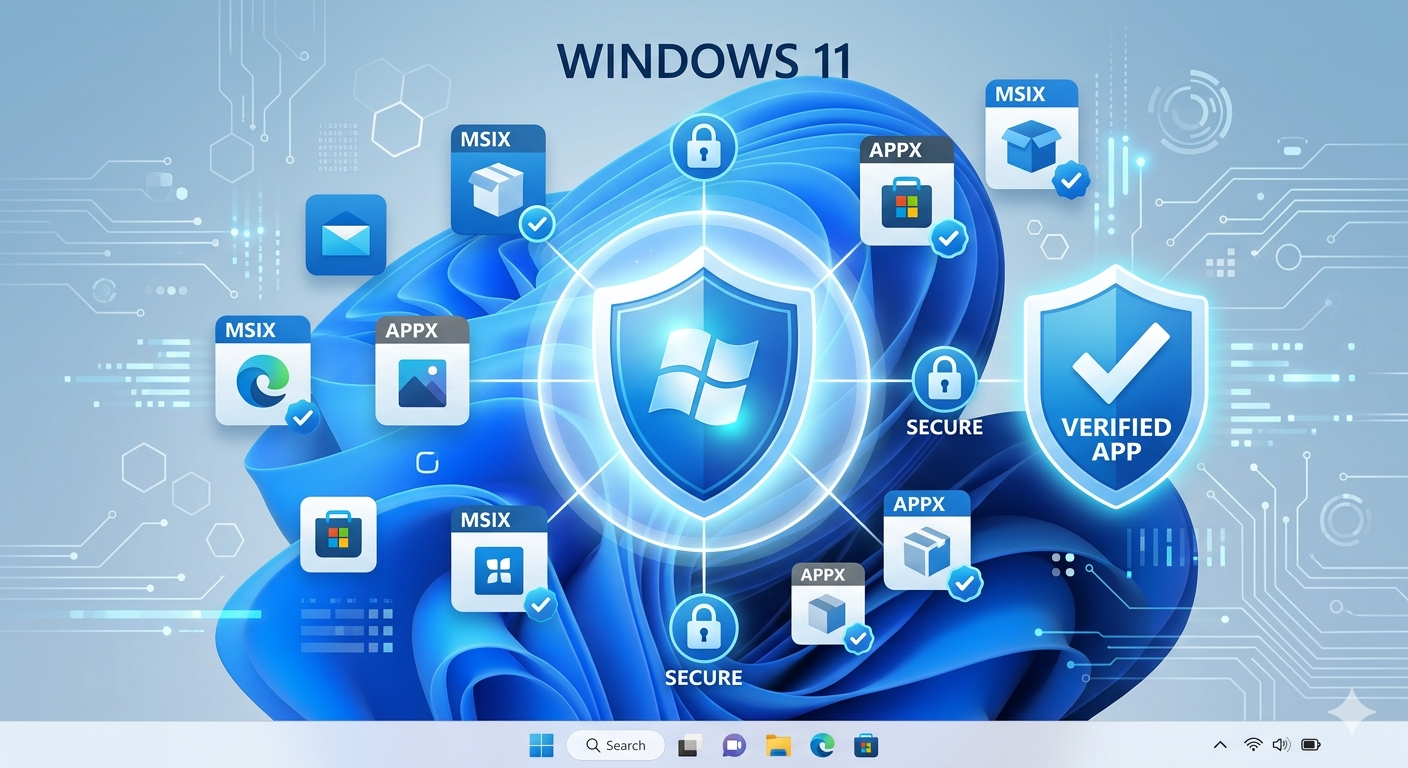
App package integrity on Windows is the system’s ability to verify that an application’s files, code, and digital signature have not been altered, corrupted, or tampered with since they were originally published. Whether you’re a home user seeing a weird error after a Windows Update, a developer preparing an MSIX release, or an IT admin locking down an enterprise environment understanding how Windows handles package integrity can save you hours of troubleshooting and serious security headaches.
Behind the scenes, Windows doesn’t just install apps blindly. A layered verification process checks digital signatures, compares file hashes, and validates publisher certificates before allowing an application to run. When any part of that chain breaks, you get integrity errors and knowing what to do next makes all the difference.
What Is App Package Integrity on Windows?
App package integrity refers to the assurance that an application’s package whether an MSIX, AppX, or traditional EXE matches its original signed state and has not been modified by any unauthorized party.
Windows uses a combination of Authenticode digital signatures, SHA-256 hash verification, and X.509 certificate chains (part of the broader Public Key Infrastructure) to confirm that what you’re running is exactly what the publisher released.
This applies at three levels:
- OS-level integrity — Windows verifies system files and core app components using built-in tools
- Store-level integrity — Microsoft Store apps (MSIX/AppX) are signed and verified at installation and during updates
- Enterprise-level integrity — IT admins enforce policies using WDAC (Windows Defender Application Control) or AppLocker to allow only trusted, verified apps to run
If any of these checks fail, Windows may block the app, throw an error code, or silently prevent execution depending on your configuration.
For more information on app safety and protection mechanisms, visit our Security section.
Why App Package Integrity Matters
Ignoring integrity warnings isn’t just an inconvenience it’s a real security risk.
A compromised or unsigned package could contain malware, ransomware, or spyware injected into what looks like a legitimate app. This is especially dangerous with sideloaded apps (those installed outside the Microsoft Store) or software downloaded from unverified sources.
⚠ Warning: Error codes like 0x80073CF0, 0x80073CF3, and 0x800B010A are direct indicators of package integrity failures. Never dismiss these without investigation.
For regulated industries healthcare, finance, government integrity validation is not optional. Frameworks like ISO 27001, CMMC (US DoD), and GDPR (EU) require software integrity controls as part of a broader security compliance posture.
If you’re curious about how similar risks play out on mobile, this guide on security threats when installing unofficial apps covers the pattern from a different angle and the underlying principles map directly to Windows environments.
How Windows Verifies App Package Integrity
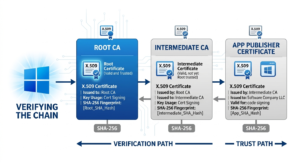
Windows uses several mechanisms working together:
1. Authenticode Signature Verification
Every signed Windows application carries an Authenticode signature a digital stamp from a trusted Certificate Authority (CA) like DigiCert or Sectigo. When you install or launch an app, Windows checks this signature against its trusted root store. Learn more about how Authenticode works from Microsoft’s official Authenticode documentation.
2. Hash Comparison (SHA-256)
Windows computes the SHA-256 hash of package files and compares it to the hash recorded at signing time. Even a one-byte change in any file produces a completely different hash instantly flagging tampering without any manual review needed.
3. Certificate Chain Validation
Windows traces the signing certificate back through the PKI chain to a trusted root CA. If any certificate in the chain is expired, revoked, or untrusted, the package fails verification immediately.
4. MSIX and AppX Manifest Integrity
For modern MSIX and AppX packages (used in the Microsoft Store and enterprise deployments), Windows additionally validates the package manifest, content hashes embedded within the package, and publisher identity all at installation time.
To understand the broader structure of what an app package actually contains, see: What is an App Package File?
Common Integrity Error Codes on Windows
| Error Code | Meaning | Typical Cause |
|---|---|---|
| 0x80073CF0 | Package not found or corrupted | Missing or damaged package files |
| 0x80073CF3 | Package update failed validation | Hash mismatch during update |
| 0x800B010A | Certificate chain not trusted | Expired or revoked signing certificate |
| 0x80073CFA | Package removal required | Integrity too damaged to repair in-place |
| 0x80070570 | File or directory is corrupt | Underlying file system corruption |
Tools for Checking and Fixing App Package Integrity
Tool Comparison: SFC vs DISM vs Sigcheck vs PowerShell
| Tool | Best For | Scope | Requires Admin? | Windows 11 Support |
|---|---|---|---|---|
| SFC (System File Checker) | System file integrity | OS core files | Yes | ✅ |
| DISM | Windows image health | Full OS image | Yes | ✅ |
| Sigcheck (Sysinternals) | Individual app signature | Any EXE/DLL | No (limited) | ✅ |
| PowerShell Get-AppxPackage | Store/MSIX app integrity | AppX/MSIX | Yes | ✅ |
For full documentation on Sigcheck, refer to the official Sysinternals Sigcheck page maintained by Microsoft.
Step-by-Step Guide: How to Check App Package Integrity on Windows
For Home Users Run SFC and DISM
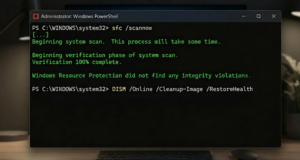
Step 1: Open Command Prompt as Administrator (Right-click Start → “Terminal (Admin)”)
Step 2: Run System File Checker:
sfc /scannowWait for the scan to complete. Corrupted files found during this process will be automatically repaired where possible.
Step 3: If SFC reports errors it cannot fix, run DISM:
DISM /Online /Cleanup-Image /RestoreHealthThis pulls clean files from Windows Update to repair the image.
Step 4: Restart your PC and rerun sfc /scannow to confirm repairs.
Step 5: If a specific Store app is failing, try resetting it via Settings → Apps → [App Name] → Advanced Options → Reset.
For Developers Verify and Sign MSIX Packages
If you’re preparing an app for distribution, package integrity starts with proper signing.
Step 1: Use the MSIX Packaging Tool (available from Microsoft Store) to create your package.
Step 2: Obtain a code signing certificate from a trusted CA (DigiCert, Sectigo, etc.).
Step 3: Sign your package using SignTool:
signtool sign /fd SHA256 /a /f MyCert.pfx /p MyPassword MyApp.msixStep 4: Verify the signature:
signtool verify /pa MyApp.msixStep 5: Use Sigcheck (from Sysinternals) for deeper inspection:
sigcheck -a MyApp.msixFor a useful cross-platform comparison, this article on Android app signing explained walks through the same PKI concepts applied to mobile the signing logic is nearly identical.
For IT Admins Enforce Integrity with WDAC and AppLocker
Enterprise environments need proactive integrity enforcement, not just reactive repair.
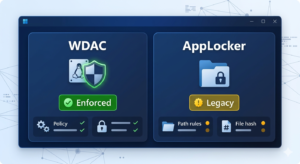
Windows Defender Application Control (WDAC) is Microsoft’s recommended solution for Windows 10 1903+ and Windows 11. It operates at the kernel level and cannot be bypassed by standard user-mode processes making it the most robust option available today.
AppLocker is the older, GPO-based alternative still valid for Windows 10/11 Enterprise and Education editions, but being gradually superseded by WDAC in modern deployments.
For a full breakdown of both tools and their deployment scenarios, refer to Microsoft’s official WDAC and AppLocker documentation.
WDAC vs AppLocker: Quick Comparison
| Feature | WDAC | AppLocker |
|---|---|---|
| Enforcement level | Kernel-mode | User-mode |
| Bypass resistance | High | Moderate |
| Policy granularity | Fine-grained | Rule-based |
| Management | Intune / GPO | GPO |
| Recommended for | 2025–2026 deployments | Legacy environments |
IT Admin Integrity Checklist
- Deploy WDAC policy in audit mode before enforcement
- Whitelist only signed, trusted publishers
- Use Intune or GPO for policy distribution
- Enable Code Integrity event logging (Event ID 3076, 3077)
- Review and rotate signing certificates annually
- Test app packages in staging before enterprise rollout
- Document all approved publishers and package hashes
Verifying Integrity of Sideloaded Apps
Sideloaded apps those installed outside the Microsoft Store using .msix, .appx, or .exe files carry higher integrity risk because they bypass Store-level validation entirely.
To verify a sideloaded app before installation:
- Right-click the file → Properties → Digital Signatures tab
- Check the signer name and certificate validity date
- Run
sigcheck -a filename.exefor full certificate chain details - Cross-reference the SHA-256 hash with the publisher’s official checksum (if provided)
Checking app authenticity before installation is a habit that prevents most tampering incidents. This app authenticity check guide covers the verification mindset thoroughly the core principles apply equally to Windows packages.
What Happens When Integrity Check Passes vs. Fails
When it passes: Windows silently continues installation or execution. No user-facing notification appears unless the app itself triggers one. In enterprise environments with WDAC enabled, the event is logged as allowed (Event ID 3076 in audit mode).
When it fails:
- Home users see error codes (0x80073CF0, etc.) or a generic “This app can’t run” message
- Developers receive signing validation errors in the build pipeline
- Enterprise environments log blocked execution events (Event ID 3077) and may silently prevent the app from running making log monitoring absolutely critical
Windows 10 vs Windows 11: Integrity Handling Differences
| Feature | Windows 10 | Windows 11 |
|---|---|---|
| MSIX support | Partial (1709+) | Full native support |
| WDAC policy engine | Available | Improved + Intune-integrated |
| Secure Boot integration | Optional | Enforced on new hardware |
| Package signing requirement | Recommended | Enforced in more scenarios |
| Smart App Control | Not available | Available (W11 22H2+) |
Smart App Control is a Windows 11-exclusive feature that uses AI-based reputation scoring combined with signature verification to block unknown or untrusted apps at the OS level a significant step forward in automatic integrity enforcement that requires no admin configuration.
For more updates and guides on app security, visit Apk Sharp homepage.
Conclusion
App package integrity on Windows is not a single feature it’s a layered security framework protecting every level of the software stack. Home users benefit from understanding integrity errors for faster, safer troubleshooting. Developers must treat proper MSIX signing as non-negotiable before any distribution. IT admins enforcing WDAC policies ensure only trusted, verified software runs across the entire organization.
Start with the basics: run SFC and DISM when something breaks. Move to Sigcheck and PowerShell for deeper inspection when needed. If you’re managing an enterprise environment, make WDAC your standard not an afterthought.
Your action steps:
- Run
sfc /scannowtoday if you’ve seen any integrity warnings - Check installed apps’ digital signatures via Properties → Digital Signatures
- Developers: verify your MSIX signing workflow before your next release
- IT Admins: audit your WDAC policy and enable Code Integrity logging if not already active
Frequently Asked Questions
Q1: What is app package integrity on Windows?
App package integrity on Windows is the process of verifying that an application’s files and digital signature are intact, unmodified, and trusted. Windows checks this using Authenticode signatures, SHA-256 hash comparison, and X.509 certificate chain validation before allowing an app to install or run.
Q2: How do I fix a package integrity error on Windows 10 or 11?
Run sfc /scannow in an elevated Command Prompt first. If errors persist, follow with DISM /Online /Cleanup-Image /RestoreHealth. For Store app-specific errors, go to Settings → Apps → select the app → Advanced Options → Reset. Error code 0x80073CFA typically requires a full reinstall.
Q3: Is SFC or DISM better for fixing integrity errors?
Use SFC first it’s faster and handles individual file corruption well. When SFC reports errors it cannot fix, DISM repairs the underlying Windows image that SFC draws clean files from. Running them sequentially gives the best results.
Q4: Can Windows automatically detect tampered apps?
Yes. Windows uses Authenticode verification at every launch, and on Windows 11, Smart App Control adds an AI-based reputation check on top. In enterprise environments, WDAC blocks any app that doesn’t match an approved signature policy automatically, without requiring user interaction.
Q5: What is the difference between WDAC and AppLocker?
WDAC enforces app integrity at the kernel level and is Microsoft’s current recommendation for enterprise deployments. AppLocker is an older GPO-based tool operating at user-mode level that is easier to bypass. For any new deployment on Windows 10 or 11, WDAC is the stronger and more future-proof choice.