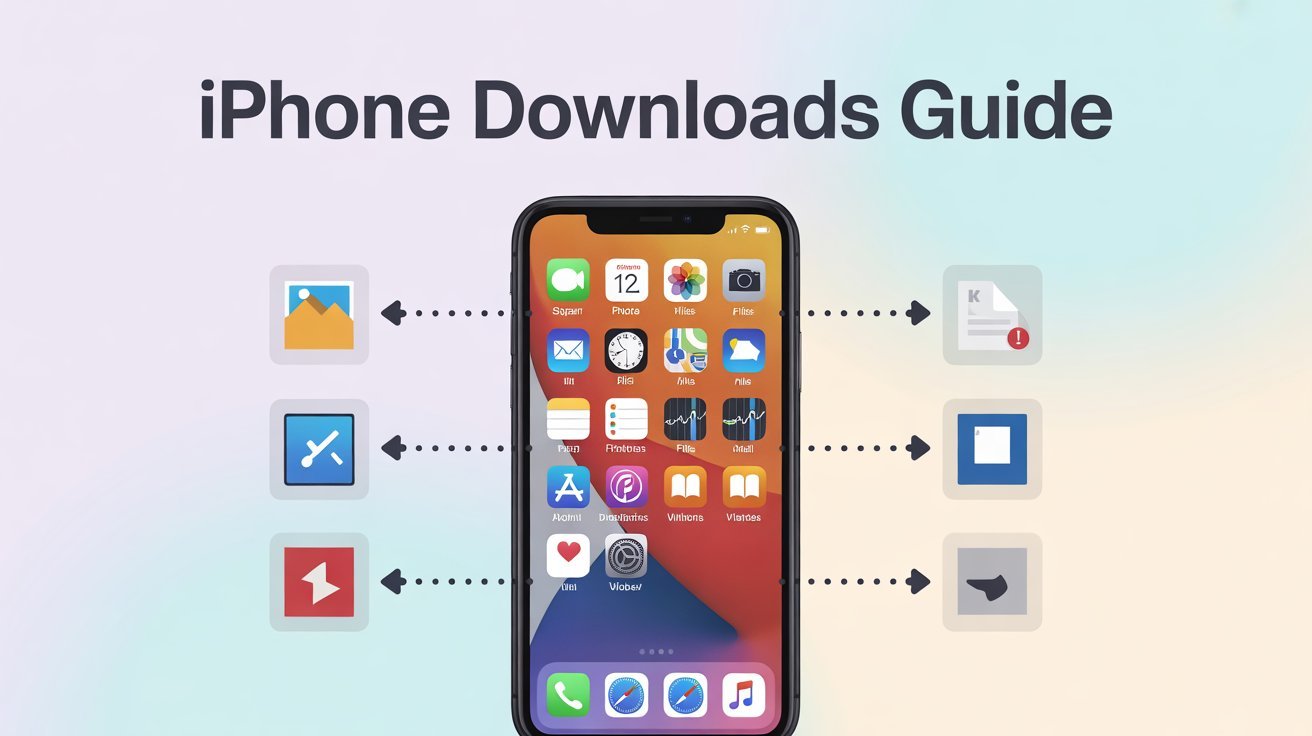
How to Access Downloads on iPhone
Have you ever downloaded something on your iPhone and couldn’t find it later? Don’t worry — this happens to almost everyone! iPhones don’t have one big Downloads folder like a computer. Instead, your phone saves things like photos, videos, and files in different places.
This simple guide will show you where to find everything you download on your iPhone and how to keep it neat and easy to use.
1. How to Find Files in the Files App
When you download things like PDFs, ZIP files, or documents, they go into the Files app.
Steps to find them:
Open the Files app (it looks like a blue folder).
Tap Browse at the bottom.
Tap On My iPhone or iCloud Drive.
Tap the Downloads folder.
You’ll see all your saved files here. You can also rename, move, or share them.
Tip: If you can’t see your file, tap the Search bar at the top and type its name.
2. How to Find Downloaded Photos and Videos
Photos and videos don’t go into the Files app. They go into the Photos app.
Follow these steps:
Open the Photos app.
Tap the Albums tab.
Tap Recents.
You’ll see your most recent pictures, videos, and screenshots.
Tip: If you downloaded a picture from Safari or social media, it will appear in your Photos app too.
3. How to Find Music and Podcasts You Download
Songs and podcasts are stored in their own apps, not in the Files app.
| Type | Where to Find It |
|---|---|
| Music | Open Apple Music → Tap Library → Tap Downloaded Music |
| Podcasts | Open Podcasts App → Tap Library → Tap Downloaded Episodes |
Keeping them in their own apps helps you find them faster and stay organized.
4. How to Find PDFs or Files from Safari
If you downloaded something while using Safari, like a PDF or Word file, here’s how to find it:
Open Safari.
Tap the Download icon (a small arrow pointing down).
Tap the file name to open it.
Tap See All to view all saved downloads.
You can also change where Safari saves your files.
Go to Settings → Safari → Downloads → On My iPhone / iCloud Drive.
This lets you choose if your files save on your phone or in iCloud.
5. How to Find Apps You Download
When you download an app from the App Store, it appears on your Home Screen or in your App Library.
Here’s how to find it:
Swipe left on your Home Screen until you reach the App Library.
Type the app name in the Search bar.
If there’s a cloud icon, tap it to reinstall the app.
You can also make folders to keep your apps organized.
6. How to Manage All Downloads on iPhone
Sometimes your phone gets full of files. You can clean it up easily.
Steps to manage your storage:
Go to Settings → General → iPhone Storage.
Wait for your iPhone to load all apps.
Tap on an app to see how much space it uses.
Delete files or tap Offload Unused Apps to free space.
This helps your iPhone work faster and saves storage space.
Where to Find Different Downloads
| Type of Download | Where to Find It |
|---|---|
| Files (PDFs, ZIPs, Docs) | Files App → Downloads Folder |
| Photos/Videos | Photos App → Recents Album |
| Music | Apple Music → Library → Downloaded Music |
| Podcasts | Podcasts App → Library → Downloaded |
| Apps | Home Screen / App Library |
7. Common Download Problems and Easy Fixes
Sometimes files don’t show up or open. Use this table to fix common problems quickly.
| Problem | Reason | Quick Fix |
|---|---|---|
| Can’t find file | Saved in iCloud instead of iPhone | Open Files → Browse → iCloud Drive |
| Photo missing | No permission for Photos | Go to Settings → Privacy → Photos → Allow Access |
| Download stopped | Internet connection lost | Check Wi-Fi and try again |
| File won’t open | Wrong app for the file | Get a PDF viewer or ZIP opener |
| iPhone storage full | Not enough space | Go to Settings → Storage → Delete old files |
FAQs
Q1: How do I change where my iPhone saves downloads?
Go to Settings → Safari → Downloads, then pick On My iPhone or iCloud Drive.
Q2: Can I delete downloads?
Yes! Open the Files app, tap Select, choose files, and tap Delete.
Q3: Why can’t I find my file?
Check both On My iPhone and iCloud Drive in the Files app. If it’s not there, download it again.
Q4: Do app downloads appear in the Files app?
No. Apps appear on your Home Screen or App Library, not inside the Files app.
Q5: How can I make downloads easy to find?
Make folders in the Files app and name them clearly (like “Work” or “School”).



