Table of Contents
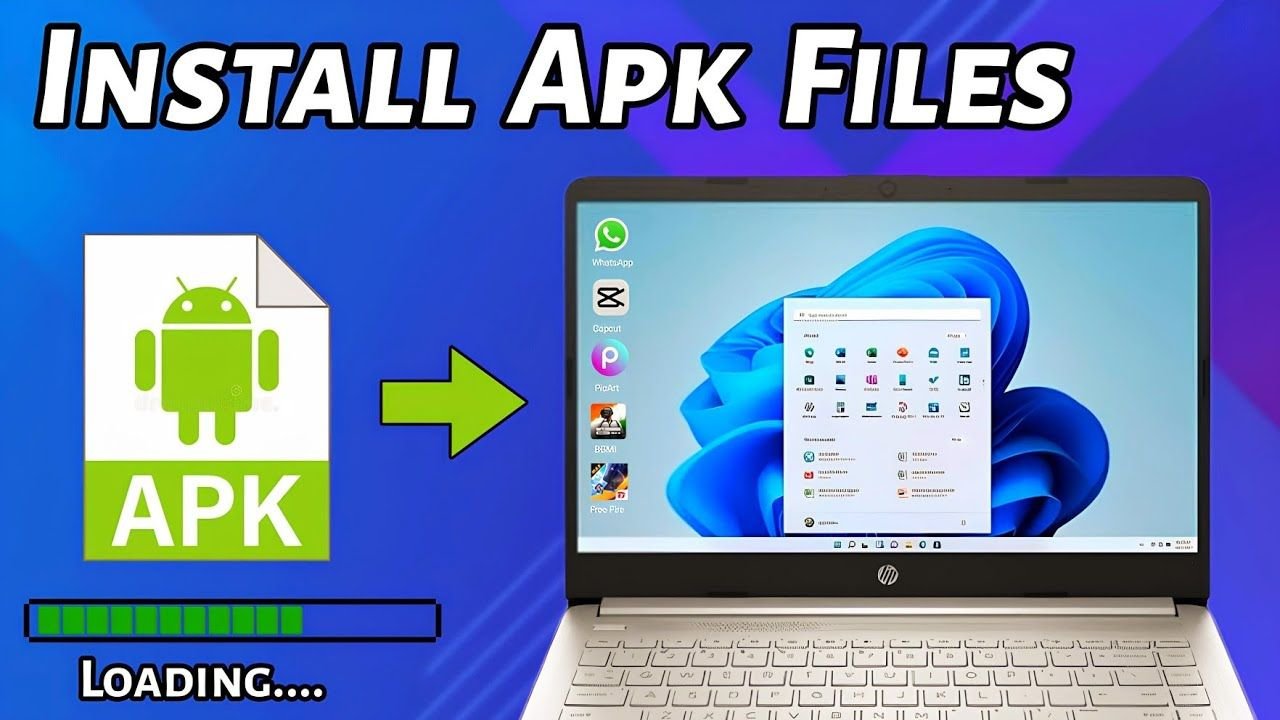
ToggleAPK files can run natively on Windows 11
With the release of Windows 11, Microsoft introduced official support for Android apps. Because of this, many users now ask an important question: Do APK files run natively on Windows 11?
APK files are the standard app installation files for Android devices. Windows, on the other hand, uses different file formats such as EXE and MSI. Although Windows 11 allows Android apps to run, the way APK files work on Windows is often misunderstood.
In this guide, we will explain clearly whether APK files run natively on Windows 11, how Android apps actually work on Windows, and the safest ways to use APK files.
What Is an APK File?
APK files are used to install applications on Android devices. It contains all the components an app needs to function, including code, resources, and configuration files.
APK files are comparable to:
EXE files on Windows
DMG files on macOS
Android phones and tablets can install APK files directly, but other operating systems usually need extra support.
What Does “Natively” Mean?
To answer the main question, it is important to understand what “run natively” means.
When a file runs natively:
The operating system supports it by default
No emulator or virtual system is required
The file runs directly on the OS
If APK files ran natively on Windows 11, users could simply double-click an APK file and install it like a normal Windows program.
Do APK Files Run Natively on Windows 11?
No, APK files do not run natively on Windows 11.
Windows 11 does not support APK files directly. You cannot install or run an APK file on Windows without additional tools or systems.
However, Windows 11 includes a special feature that allows Android apps to run in a supported environment, which is why many users think APK files are native.
Windows Subsystem for Android Explained
Windows 11 uses a feature called Windows Subsystem for Android (WSA) to run Android apps.
WSA works as:
A virtual Android environment
A compatibility layer between Android and Windows
Android apps do not run directly on Windows. Instead, they run inside this subsystem, which Windows manages in the background.
How Android Apps Run on Windows 11
Here is how the process works:
Windows 11 launches Windows Subsystem for Android
A virtual Android system is created
Android apps run inside that environment
The apps appear as normal Windows windows
This makes Android apps feel almost native, but technically they are not.
Can You Install APK Files on Windows 11?
Yes, APK files can be installed on Windows 11, but not directly.
There are three main ways to run Android apps or APK files on Windows 11.
Method 1: Amazon Appstore (Official Method)
The Amazon Appstore is Microsoft’s official way to run Android apps.
How it works:
Install Amazon Appstore from Microsoft Store
Windows Subsystem for Android installs automatically
Download supported Android apps
Limitations:
Limited number of apps
No direct APK file installation
Many popular apps are missing
This method is safe and official but restricted.
Method 2: Sideloading APK Files Using WSA
Advanced users can manually install APK files using Windows Subsystem for Android.
Requirements:
Windows 11 with WSA installed
Developer Mode enabled
Android Debug Bridge (ADB)
This method allows APK installation, but it requires technical knowledge and is not beginner-friendly.
Method 3: Using Android Emulators
Android emulators are the most common way to run APK files on Windows.
Popular emulators include:
BlueStacks
Nox Player
LDPlayer
Emulators create a virtual Android device where APK files can be installed and used normally.
Is Windows Subsystem for Android Better Than Emulators?
Windows Subsystem for Android usually offers better performance than traditional emulators because it is integrated into Windows.
However:
It still uses virtualization
Google Play Services are not included
Some APK files may not work
For gaming and advanced features, emulators are still more flexible.
Are APK Files Safe on Windows 11?
APK files themselves do not run directly on Windows, but unsafe APK files can still cause problems when used through emulators or WSA.
Possible risks include:
Malware
Data privacy issues
Modified or fake apps
Always download APK files from trusted sources only.
APK Files vs Windows Applications
| Feature | APK Files | Windows Apps |
|---|---|---|
| Designed for | Android OS | Windows OS |
| Native Windows support | No | Yes |
| Needs emulator or WSA | Yes | No |
| Security risk | Depends on source | Depends on source |
Advantages of Running Android Apps on Windows 11
Even without native support, Windows 11 offers benefits:
Large screen experience
Keyboard and mouse support
Better multitasking
Improved performance compared to older emulators
Limitations of APK Support on Windows 11
There are still some important limitations:
No direct APK installation
Limited app availability
No official Google Play Store
Hardware requirements
Windows 11 is not a replacement for Android devices.
FAQs
Q.1 Can APK files be opened directly on Windows 11?
No, Windows 11 cannot open APK files directly.
Q.2 Does Windows 11 support Android apps?
Yes, through Windows Subsystem for Android.
Q.3 Is WSA the same as an emulator?
No, but it still uses virtualization.
Q.4 Can I install Google Play Store on Windows 11?
Not officially.
Q.5 Are APK files dangerous for Windows?
Only if downloaded from untrusted sources.
Conclusion
Windows 11 requires additional software to run APK files. Windows does not support APK files directly like Android devices do. Instead, Android apps run through Windows Subsystem for Android or emulators.For official and safe use, Amazon Appstore is recommended. For more flexibility, Android emulators are a better choice. True native APK support is still limited to Android devices only.
![A graphic illustrating how to [Install APK without Play Store ] featuring a Windows laptop and Android icons.](https://apksharp.org/wp-content/uploads/2026/02/Install-APK-without-Play-Store--348x215.jpg "Install APK without Play Store – Easy Guide 2")
![A mobile smartphone displaying gameplay from the [Fortnite APK] with various characters and structures on a grassy field.](https://apksharp.org/wp-content/uploads/2026/02/Fortnite-APK-348x215.jpg "Fortnite APK Download – Latest Battle Royale 4")
