Can I Download APKs on BlueStacks?
If you’re using BlueStacks on your computer, chances are you’re trying to run Android apps without using a physical Android phone. And at some point, you’ve probably asked this question:
Can I download APKs on BlueStacks?
The simple answer is yes, you absolutely can install APK files on BlueStacks. In fact, one of the main reasons people use BlueStacks is to run Android apps and games directly on their PC or laptop — including apps that are not available on the Google Play Store.
But there are a few things you should understand before you start installing APK files. In this guide, I’ll explain how it works, the different ways to install APKs in BlueStacks, and what to do if something doesn’t work properly.
First, What Is BlueStacks?
BlueStacks is an Android emulator. That means it creates a virtual Android environment inside your computer. Instead of running Windows apps, it simulates an Android device so you can install and use mobile apps.
When you open BlueStacks, it looks very similar to an Android tablet. You can:
Access the Google Play Store
Install games and apps
Use Android settings
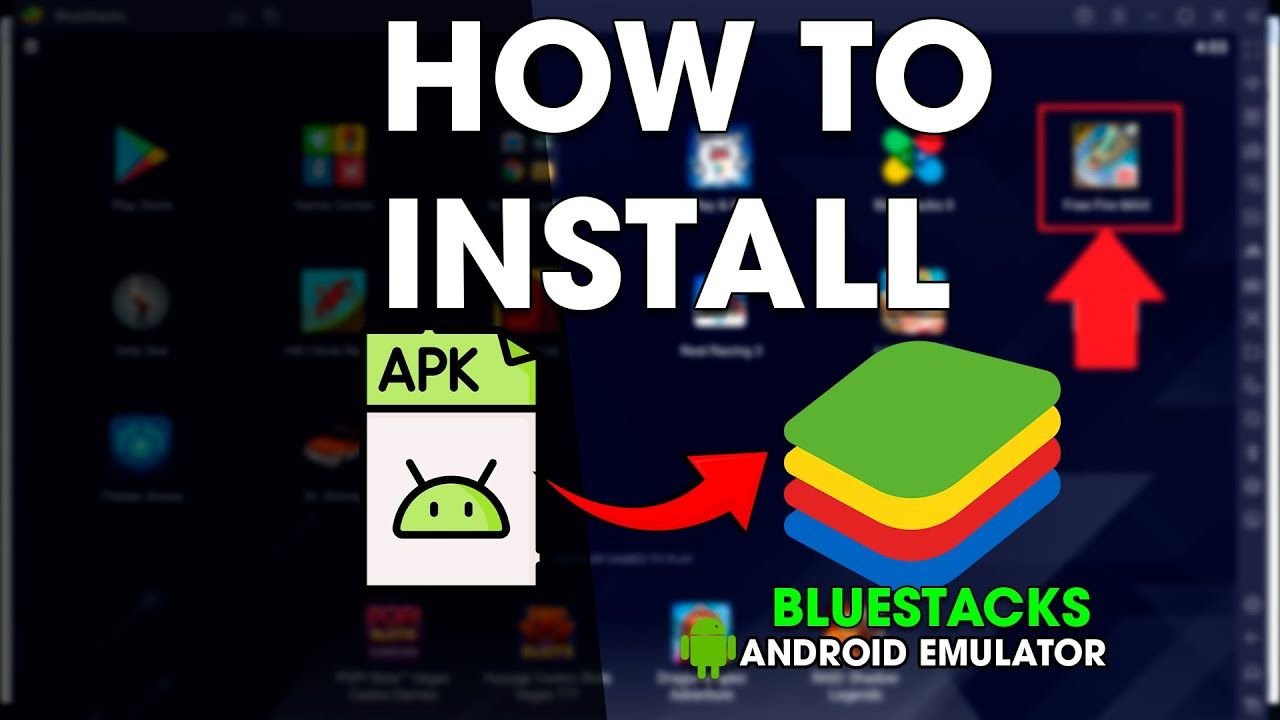
Install APK files manually
Since it behaves like an Android device, it supports APK installations just like a real phone would.
Yes, You Can Install APKs on BlueStacks
BlueStacks fully supports APK files. You don’t need any complicated tools, and you don’t need to root anything.
There are actually multiple ways to install an APK on BlueStacks, and all of them are simple.
Let’s go through them one by one.
Method 1: Double-Click the APK File
This is the easiest method.
Make sure BlueStacks is installed on your PC.
Download the APK file to your computer.
Double-click the APK file.
If BlueStacks is properly installed, it will automatically open and begin installing the APK inside the emulator.
Within a few seconds, the app should appear on your BlueStacks home screen.
This method works in most cases and requires no extra setup.
Method 2: Use the “Install APK” Option Inside BlueStacks
If double-clicking doesn’t work, you can install the APK manually from inside BlueStacks.
Here’s how:
Open BlueStacks.
Look at the right-side toolbar.
Click the “Install APK” option.
Browse to the location where your APK file is saved.
Select the file and confirm.
BlueStacks will begin installing the app immediately.
Once installed, the app icon will appear in the emulator just like any other Android app.
Method 3: Drag and Drop the APK
Another simple method is drag and drop.
Open BlueStacks.
Drag the APK file from your desktop.
Drop it directly into the BlueStacks window.
The emulator will detect the file and automatically start the installation process.
This method is fast and works well for most users.
Why People Install APKs Instead of Using Play Store
You might wonder why someone would use an APK instead of just downloading from Google Play inside BlueStacks.
There are several reasons:
The app may not be available in your region.
You want an older version of the app.
You’re testing a custom or beta build.
- You can’t find the app on the Play Store anymore.
APK installation gives you more flexibility — just like on an actual Android phone.
Is It Safe to Install APKs on BlueStacks?
BlueStacks itself is safe if downloaded from the official website. However, APK files from random websites can be risky.
Just because you’re using an emulator does not mean you’re completely protected. Malicious APKs can:
Install unwanted background processes
Steal login information
Display aggressive ads
Slow down your system
To stay safe:
Download APKs from trusted sources.
Avoid modified or cracked versions.
Scan files with antivirus software before installing.
BlueStacks isolates the Android environment, but it’s still wise to be careful.
What If the APK Doesn’t Install?
Sometimes you might try installing an APK and it fails. Here are common reasons:
1. Incompatible Android Version
Some APK files require a specific Android version. If your BlueStacks instance is running an older Android version, the app may not install.
Solution: Create a new instance in BlueStacks using a newer Android version (if supported).
2. Corrupted APK File
If the download was incomplete, the APK may fail during installation.
Solution: Re-download the APK from a reliable source.
3. Architecture Mismatch
Some APK files are built for specific CPU architectures like ARM or x86.
BlueStacks may not support certain architectures depending on your setup.
Solution: Try downloading a universal version of the APK if available.
4. Storage Issues
If BlueStacks does not have enough allocated storage, installation can fail.
Solution: Clear unused apps or increase allocated storage in settings.
Can You Use Modded APKs in BlueStacks?
Technically, yes — BlueStacks does not block modded APK installations.
However, there are risks:
Account bans (especially in online games)
Malware
Stability problems
Performance issues
If you’re using BlueStacks for gaming with online accounts, installing modified apps could result in permanent bans.
Always think carefully before installing unofficial versions.
Does BlueStacks Need Root to Install APKs?
No. You do not need root access to install APK files in BlueStacks.
APK installation works the same way as on a normal Android device. Root access is only needed for advanced system-level modifications.
For basic app installation, nothing extra is required.
Performance Considerations
Running APKs in BlueStacks depends on your computer’s hardware.
For smoother performance:
Enable virtualization in BIOS.
Allocate more RAM to BlueStacks.
Close unnecessary background programs.
Update graphics drivers.
Heavy games may require stronger hardware.
If apps lag or freeze, your system resources may be the cause.
Final Answer
So, can you download APKs on BlueStacks?
Yes, you can install APK files easily using double-click, drag and drop, or the built-in Install APK option.
BlueStacks is specifically designed to run Android apps on a PC, and APK support is one of its core features.
Just remember to download APK files from trusted sources and ensure compatibility with your BlueStacks version.
If your goal is to run Android apps on your computer, BlueStacks makes the process simple and straightforward.
![An educational graphic showing a smartphone with file management icons to illustrate [How to Remove APK Files Safely] from an Android device.](https://apksharp.org/wp-content/uploads/2026/03/How-to-Remove-APK-Files-Safely--348x215.jpg "How to Remove APK Files Safely – Easy Guide 2")