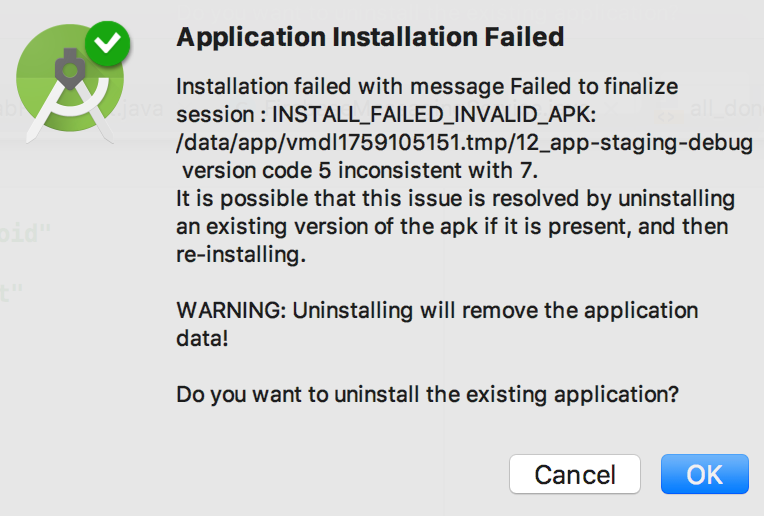
If your APK file not installing on Android, you’re not alone. You’ve downloaded the file, tapped to install it, and Android throws an error maybe “App Not Installed,” “There was a problem parsing the package,” or it just silently fails. Your phone isn’t broken.
APK installation failures are one of the most common issues faced by Android users worldwide, from casual users in India trying to access region-locked apps to developers in the US and UK sideloading test builds. The causes vary, but every single one has a fix.
This guide covers all of them in plain English for every Android version from 8 through 14, every major OEM skin (Samsung One UI, Xiaomi MIUI, OnePlus OxygenOS), and every APK format including .xapk and .apkm files.
What Is an APK File?
An APK (Android Package Kit) is the file format Android uses to distribute and install applications the equivalent of a .exe file on Windows or a .dmg on macOS. When you install an app from the Google Play Store, Android downloads and processes an APK behind the scenes.
When you install an APK manually from outside the Play Store a practice known as sideloading you’re doing the same thing, just without Google’s automated safety layer.
Modern Android also uses split APK formats: .xapk and .apkm are bundle formats that contain multiple APK components (base APK + language/resource packs). These require a special installer and cannot be installed like a regular .apk file.
Why Android Blocks APK Installation by Default
Android’s security model is built on sandboxing and verified app distribution. By default, the operating system only trusts apps from the Google Play Store (or your device manufacturer’s app store). Any APK from outside those trusted channels is treated as potentially harmful.
Google Play Protect Android’s built-in malware scanner actively scans sideloaded apps and may block or warn about ones it doesn’t recognize. This is by design, not a bug. You can learn more about how Play Protect works on Google’s official Play Protect support page.
To install an APK manually, you must explicitly grant permission to the specific app you’re using to open the file (your browser, file manager, etc.). This permission system changed significantly between Android 7 and Android 8, and again in Android 13.
We provide useful information about Android tools and apps in our Tool category.
APK Installation Error Messages: Causes and Fixes at a Glance
Use this table to identify your exact error and jump to the right fix:
| Error Message | Root Cause | Go To Fix |
|---|---|---|
| App Not Installed | Unknown sources off, signature conflict, or corrupt file | Fix #1, #2, #5 |
| There was a problem parsing the package | Corrupt download, wrong Android version, or bad file | Fix #3 |
| Package appears to be invalid | Incomplete download or wrong APK architecture (ARM/x86) | Fix #3, #4 |
| Installation unsuccessful | Storage full, or Play Protect block | Fix #6, #7 |
| Install blocked by Play Protect | Google Play Protect flagged the APK as potentially harmful | Fix #7 |
| App not installed conflicting package | Existing app version conflict or signature mismatch | Fix #5 |
| APK installed but not showing | Launcher cache issue or device profile conflict | Fix #9 |
9 Reasons an APK File Won’t Install on Android
Fix #1 — ‘Install Unknown Apps’ Permission Is Disabled
This is the most common cause. Android requires you to manually permit each app (file manager, browser, etc.) to install APKs. If this permission isn’t granted for the specific app you used to open the APK, installation will fail silently or show ‘Install blocked.’
How to enable it step by step:
Android 8.0 to 9.0 (Oreo / Pie):
- Go to Settings > Apps & Notifications
- Tap the app you used to open the APK (e.g., Chrome, Files)
- Tap ‘Install Unknown Apps’ or ‘Install other apps’
- Toggle it ON
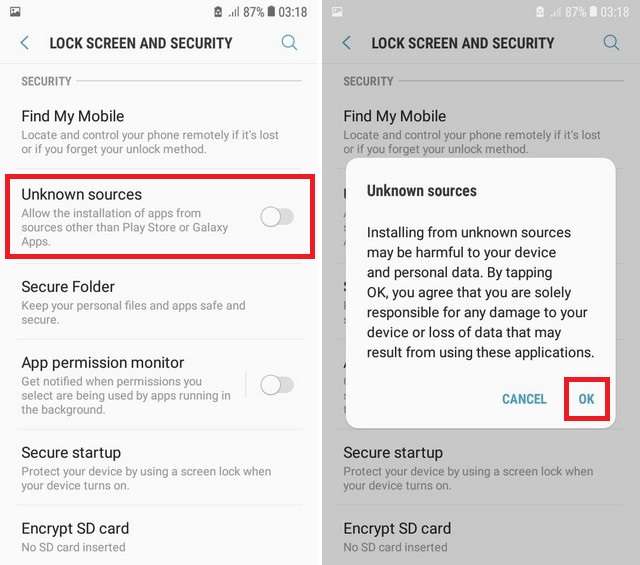
Android 10 to 14:
- Go to Settings > Apps > Special App Access
- Tap ‘Install Unknown Apps’
- Select the source app (e.g., your file manager or browser)
- Toggle ‘Allow from this source’
Samsung One UI (6 and earlier): Settings > Biometrics and Security > Install Unknown Apps
Xiaomi MIUI: Settings > Privacy > Special App Access > Install Unknown Apps
OnePlus OxygenOS: Settings > Privacy > Special Permissions > Install Unknown Apps
Fix #2 — APK Is Not Compatible with Your Android Version
Every APK has a minimum required Android version (minSdkVersion) and a target version (targetSdkVersion). If your Android version is older than what the APK requires, it simply won’t install.
If you see “App Not Installed” with no other explanation, check the APK source for version requirements and compare it against your Android version in Settings > About Phone > Software Information.
The fix: Download an older version of the app that supports your Android version, or check if your device is eligible for an OS update.
Learn more about APK safety and risks in our guide on Can APK Carry Viruses.
Fix #3 — The APK File Is Corrupted or Incomplete
A parse error “There was a problem parsing the package” almost always means the APK file itself is the problem. This happens when:
- The download was interrupted (common on mobile data)
- The APK was modified or tampered with after signing
- You’re opening an .xapk or .apkm file as if it were a regular .apk

The fix: Delete the APK and re-download it from APKMirror a signature-verified APK repository trusted by millions globally. APKMirror verifies signatures before hosting, making it one of the safer sideloading sources available.
Fix #4 — Architecture Mismatch (ARM vs. x86)
Android apps can be compiled for different processor architectures. Most modern Android phones use ARM64 (64-bit ARM). A small number of devices including some older Intel-based tablets and emulators use x86.
If you download an x86-only APK on an ARM phone (or vice versa), it will fail to install. The error is typically “Package appears to be invalid.”
The fix: Use an app like Droid Info to check your device’s CPU architecture, then download the matching APK variant. If running Android on an emulator like LDPlayer, ensure you select an x86-compatible APK build.
Fix #5 — Signature Mismatch with an Already-Installed Version
Every APK is digitally signed by its developer. Android uses this signature to verify updates. If you already have a version of an app installed even an older one from the Play Store and you try to install an APK signed with a different certificate, Android will block it.
This often affects modded or unofficial APKs, which are re-signed with a different key than the original developer used.
The fix: Uninstall the existing version of the app completely, then install the APK fresh. Note that this will erase the app’s local data.
Fix #6 — Not Enough Storage Space
Android needs free storage not just equal to the APK size, but additional space for unpacking and installing. If your internal storage is nearly full, the installation will fail sometimes without a clear error message.
The fix:
- Go to Settings > Storage to check available space
- Clear app caches (Settings > Apps > [App] > Clear Cache)
- Delete unused photos, videos, or apps
- Move files to an SD card or cloud storage if available
- Retry the installation once you have at least 500MB free
Fix #7 — Google Play Protect Is Blocking the Installation
Play Protect scans every APK you try to install. If it doesn’t recognize the developer certificate or finds suspicious code patterns, it will warn you or block installation outright. You can learn more about how Play Protect works on Google’s official Play Protect support page.
You’ll see a message like: “Play Protect doesn’t recognize this app’s developer. Installed apps may put your data at risk.”
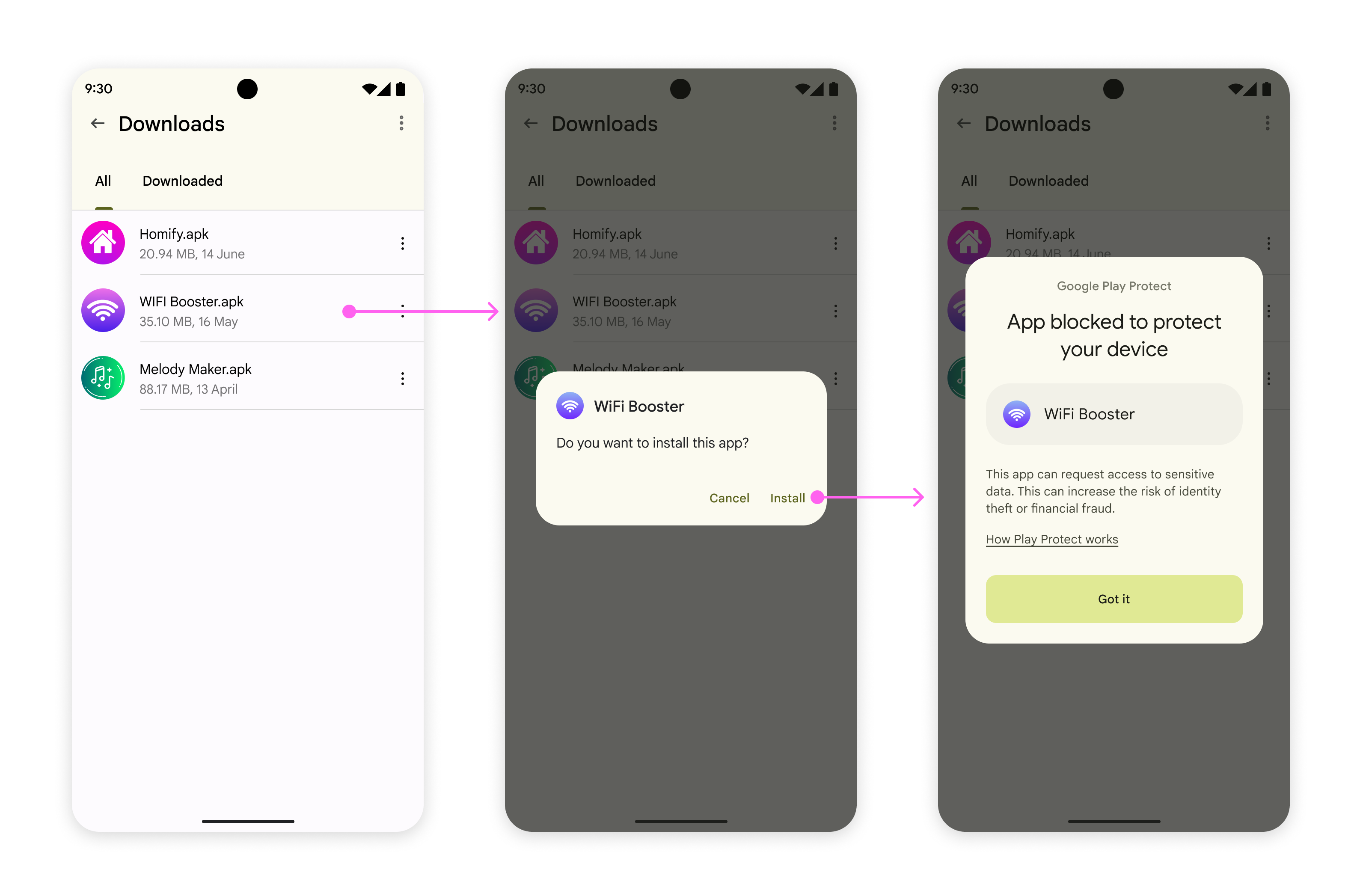
What to do:
- If you trust the source completely, tap ‘Install Anyway’ or ‘More Details > Install Anyway’
- If you’re unsure, do not install Play Protect’s warning is worth heeding
- To disable Play Protect temporarily: Google Play Store > Profile icon > Play Protect > Settings > toggle off Scan apps with Play Protect (re-enable after installing)
⚠️ Warning: Disabling Play Protect leaves your device unscanned. Only do this if you’re completely confident in the APK’s source. Re-enable it immediately after installation.
Fix #8 — Package Installer Cache Is Corrupted
The Android Package Installer itself can develop a corrupted cache that prevents new APK installations. This is rare but happens especially after OS updates.
The fix:
- Go to Settings > Apps > See All Apps
- Tap the three-dot menu and enable ‘Show System’ apps
- Find ‘Package Installer’ or ‘Android Package Installer’
- Tap Storage > Clear Cache
- Try the APK installation again
Fix #9 — APK Installed But Not Showing in App List
Sometimes an APK installs successfully but the app icon doesn’t appear in your launcher. This is a launcher cache bug, not an installation failure.
The fix: Long-press on an empty area of your home screen, tap ‘Home Settings’ or ‘Launcher Settings,’ and look for a ‘Refresh App Grid’ or ‘Restart Launcher’ option. Alternatively, a device restart almost always resolves this.
How to Install XAPK and Split APK Files
Regular .apk files can be opened directly from your file manager. But .xapk and .apkm files are bundle formats that contain multiple components. Trying to open them like a normal APK will either fail or produce a parse error.
The solution is SAI Split APKs Installer a free, open-source tool specifically built for this. Download SAI Split APKs Installer from its official GitHub page, or find it on F-Droid for a verified open-source install.
- Open SAI and grant it the ‘Install Unknown Apps’ permission
- Tap ‘Install APKs’ and navigate to your .xapk or .apkm file
- SAI unpacks and installs all split components automatically
- The app will appear in your launcher once installation completes
SAI is also useful for installing .apks files (Apktool output) during development and testing workflows.
How to Install an APK Using ADB (Advanced Method)
ADB Android Debug Bridge is a command-line tool that lets you install APKs from a PC, bypassing some of Android’s on-device security prompts. This is the go-to method for developers, QA testers, and enterprise IT admins.
Even if you’re not a developer, this method is surprisingly approachable:
- Enable Developer Options: Settings > About Phone > tap ‘Build Number’ seven times
- Enable USB Debugging: Settings > Developer Options > USB Debugging > ON
- Connect your phone to your PC via USB
- Download Android Platform Tools from Google’s official developer site
- Open a terminal/command prompt and navigate to the platform-tools folder
- Run:
adb devices(confirm your device is listed) - Run:
adb install yourfile.apk

If successful, you’ll see “Success” in the terminal and the app will appear on your device. For split APKs, use adb install-multiple base.apk split1.apk split2.apk.
Note: ADB bypasses some device-level restrictions but does not bypass corporate MDM policies on managed devices.
APK Installation on Enterprise and MDM-Managed Devices
If your Android device is issued by an employer or managed through a Mobile Device Management (MDM) platform like Microsoft Intune, VMware Workspace ONE, or Google Android Enterprise, installation of unauthorized APKs is likely blocked by policy not a setting you can toggle.
IT administrators can enforce restrictions that prevent any sideloading, regardless of the ‘Install Unknown Apps’ setting. For detailed MDM policy guidance, Bayton.org is the most comprehensive independent resource for Android Enterprise administrators.
If this applies to you:
- Contact your IT administrator to request the app be added to the approved distribution list
- Ask whether the app is available through your organization’s managed app store (Intune Company Portal, etc.)
- Do not attempt to bypass MDM restrictions this can violate your organization’s security policy
For IT admins: APK deployment to managed fleets is done via the managed Google Play Store or through direct APK distribution using your MDM console’s app push feature not manual sideloading.
Read more about app management solutions in our guide on What Is an Enterprise App Store.
Pre-Install APK Safety Checklist
Before installing any APK from outside the Play Store, run through this checklist:

- Download only from trusted sources: APKMirror, F-Droid, or the official developer website
- Verify the APK version matches your Android version requirements
- Check the file size matches what’s listed on the source site (corruption indicator)
- Scan the APK with Malwarebytes for Android before opening one of the most trusted mobile security tools available
- Check app permissions during install reject APKs requesting excessive permissions
- Re-enable Play Protect and Unknown Sources restriction after installation
- Verify the developer certificate matches using ZipSigner or APKMirror’s signature check tool
When You Should NOT Install an APK
Sideloading is a legitimate tool, but some situations are genuine red flags:
- The APK source is a random file-sharing site, Telegram group, or forum post with no verification
- The APK claims to be a ‘cracked’ or ‘modded’ version of a paid app
- Play Protect shows a ‘Harmful app detected’ warning (not just ‘Unknown developer’)
- The APK requests permissions unrelated to its stated function (a calculator requesting SMS access)
- The file size is dramatically smaller or larger than the official app’s known size
- You’re on a work device subject to MDM policy
Alternatives to Sideloading
If sideloading feels risky or complicated for your use case, consider these legitimate alternatives:
- Aurora Store — an open-source Play Store client that lets you download apps anonymously without a Google account. Useful for region-locked apps.
- F-Droid — a curated repository of free and open-source Android apps. All apps are independently verified. A strong alternative for privacy-focused users.
- Google Play via VPN — if an app isn’t available in your country’s Play Store, a VPN can sometimes make it accessible directly.
- Amazon Appstore — an alternative app store that works on Android and Amazon Fire devices.
A Note for Users Across Different Regions
APK sideloading is extremely common in markets where Google Play has limited availability or where many apps are region-locked. In India, Southeast Asia, and the Middle East, tens of millions of users rely on APK sources for legitimate apps not available locally.
In China, where Google services are not available by default, devices from Xiaomi, Huawei (EMUI), and OPPO use alternative app stores as the primary distribution channel. The installation process is the same, but the ‘Unknown Sources’ path may differ slightly per manufacturer.
If you’re in Europe, be aware that sideloaded apps bypass the app store’s data-handling review process. While not illegal, it’s worth reviewing the app’s privacy policy if data protection matters to you.
Conclusion
An APK not installing on Android is almost always fixable the key is matching your specific error to the right cause. Most users simply need to enable the ‘Install Unknown Apps’ permission for their file manager or browser. A corrupted file? A fresh download from APKMirror will clear the parse error instantly. Split APKs and .xapk bundles are best handled with SAI it installs what your file manager simply cannot.
Advanced users and developers have the ADB path available download Android Platform Tools from Google’s official site, which sidesteps most device-level prompts and is reliable across all Android versions. Enterprise users operating on MDM-managed devices should refer to Bayton.org for policy guidance, or go through their IT department rather than attempting manual workarounds.
Whichever situation applies to you: keep Play Protect enabled, verify your APK source, and re-disable the ‘Install Unknown Apps’ permission once you’re done. Sideloading is a powerful capability of Android used carefully, it’s completely safe.
Find the latest Android apps, tools, and helpful tech info at APKSharp.
Frequently Asked Questions
Q:Why is my APK file not installing on Android?
APK may not install due to unknown sources disabled, corrupted file, or incompatible version. Enable installation from unknown sources and download a clean APK file.
Q: Why does my APK show ‘App Not Installed’ even after enabling unknown sources?
The most likely cause is either a signature conflict (you have an existing version installed with a different certificate) or an incompatible Android version. Uninstall any existing version of the app and try again. If that doesn’t work, re-download the APK from APKMirror.
Q: What is ‘parsing error’ on Android and how do I fix it?
A parse error means Android’s Package Manager cannot read the APK’s contents. This is caused by a corrupted download, a file meant for a different Android version, or an attempt to open an .xapk file as a regular .apk. Re-download the APK and use SAI if it’s an .xapk or bundle format.
Q: How do I enable unknown sources on Android 13 or 14?
Go to Settings > Apps > Special App Access > Install Unknown Apps. Select the specific app you’re using to open the APK (e.g., Chrome or your file manager) and toggle ‘Allow from this source.’ The toggle applies per-app, not system-wide, on Android 8 and later.
Q: Is it safe to install APK files outside the Play Store?
It can be, if you’re sourcing from trusted places like APKMirror, F-Droid, or an official developer site. APKs from random file-sharing sites, Telegram groups, or ‘cracked app’ sources carry a real risk of malware. Always verify the source, check the signature, and keep Play Protect enabled.
Q: What is the difference between .apk, .xapk, and .apkm files?
A .apk is a standard Android install package. An .xapk is a bundle format used by APKPure that combines the base APK with OBB data files. An .apkm is APKMirror’s own bundle format. Both .xapk and .apkm require SAI Split APKs Installer to install correctly they cannot be opened like a regular .apk.