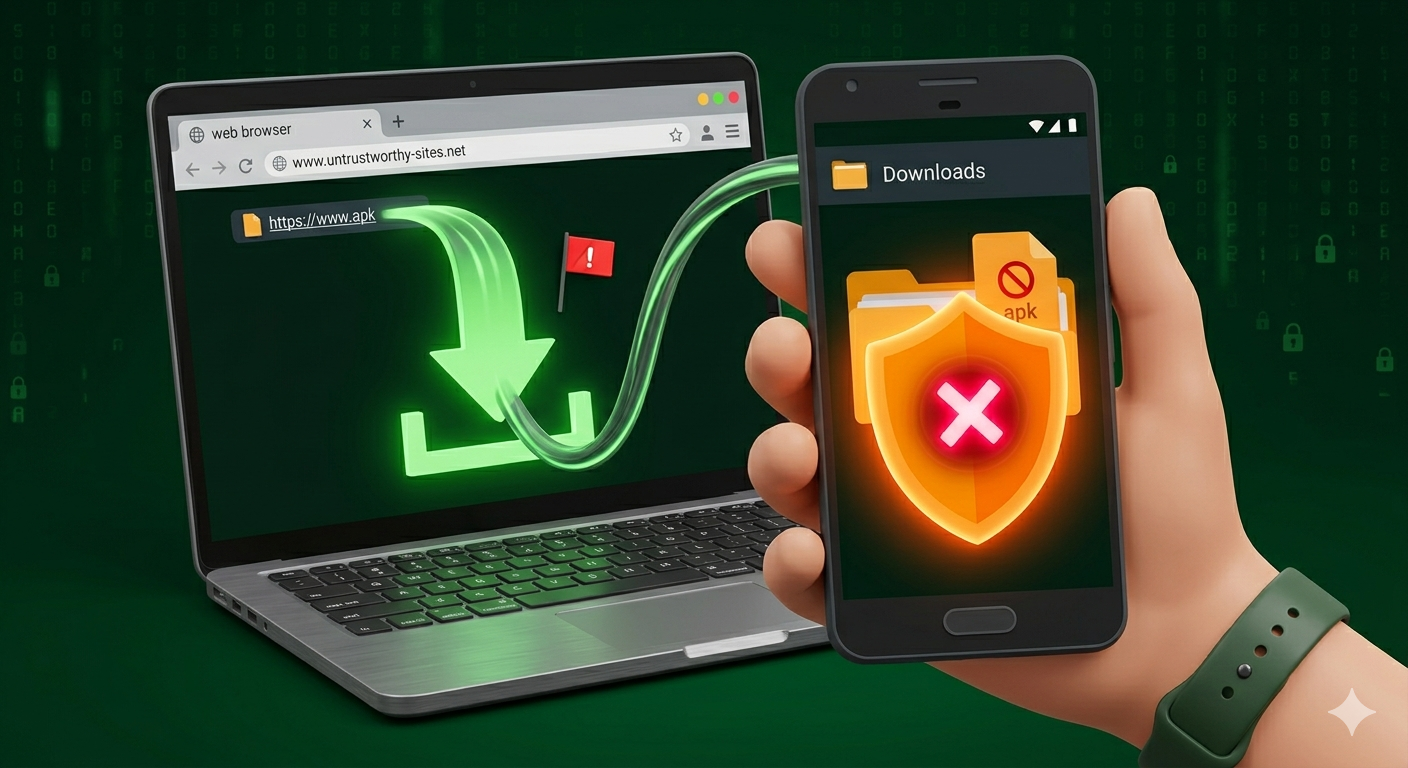
There’s an APK sitting in your Downloads folder right now. You’re one tap away from installing it, but something is making you pause. Smart instinct. This isn’t just a random doubt because many users ask the same thing: can APK carry viruses? Yes, APK files can absolutely carry viruses, and malware inside them is often more subtle than most people expect. This isn’t a “just use the Play Store” lecture. You already know that. What you actually need is a working checklist something that tells you, for this specific file, whether it’s safe or not.
That’s exactly what this guide delivers.
An APK (Android Package Kit) is the file format Android uses to install apps. Like any executable file, it can contain legitimate code or malicious code embedded by someone who repackaged a real app with hidden malware. The file extension alone tells you nothing about safety.
How Malware Actually Hides Inside an APK File
Most people assume a virus looks like a virus. It doesn’t.
The 5 Real Things Malware in an APK Can Do to Your Phone
Not all threats are equal. Here’s what you’re actually dealing with:
1. Spyware — reads your SMS (including OTP codes), accesses your microphone, tracks GPS. Extremely common in modded messaging apps.
2. Banking trojans — uses overlay attacks. The moment you open your banking app, a fake login screen slides over it. You type your credentials into what looks like your bank. They go straight to an attacker.
3. Credential harvesters — requests Accessibility Service permission, then silently reads the screen content of every app on your phone, including your password manager.
4. Ransomware — rarer on mobile, but it exists. Locks your device behind a fake “law enforcement” screen and demands crypto payment.
5. Adware — the least catastrophic but still harmful. Drains your battery and data, hijacks browser searches, and sells your browsing behavior to data brokers without your knowledge or consent.
Look if you’re downloading a modded APK for a free version of a paid game, understand that credential harvesters and adware are the most probable risks, not dramatic device lockdowns. The threat profile changes based on what you’re downloading and from where.
Understanding what’s at stake also means understanding the full range of security threats when installing unofficial apps that guide goes deep on every threat type by platform.
Counter-intuitive insight: Most people assume that if an APK installs and runs correctly, it’s clean. The opposite is often true the most effective mobile malware is designed to work perfectly as the app it’s pretending to be. Functionality is part of the disguise.
How to Check If an APK Is Safe Step-by-Step
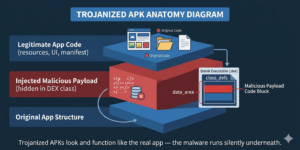
An APK file is simply a ZIP package that contains compiled code, app resources, and a manifest file. Attackers take advantage of this structure. They download a real, working app—such as a popular game or VPN—then decompile it. After that, they inject malicious code into one of the existing classes and repackage the app for distribution.
From the user’s point of view, everything looks normal. The app installs, opens, and works exactly as expected. But behind the scenes, the malicious code runs silently in the background.
The real problem is detection. Security tools like Google Play Protect mainly rely on known malware signatures. If the malicious payload is new or cleverly obfuscated, it can easily bypass detection. This is especially true for targeted attacks where the malware is custom-built.
Also, not all threats are obvious. It’s not always ransomware or a virus that locks your screen. In many cases, it’s something much quieter—like a hidden keylogger inside a modified WhatsApp clone. It can monitor messages, capture login details, and even steal banking OTPs for weeks without raising suspicion.
According to Kaspersky’s Mobile Threat Report 2023, there were over 33 million malware, adware, and riskware attacks on mobile devices in just one year. Android devices were the main target, largely because users install APKs from unofficial sources.
This isn’t an exaggerated fear tactic. It reflects the real security landscape today. For more security details.
Do this before installing anything from outside the Play Store.
Step 1. Download the APK but don’t install it yet. Keep it in your Downloads folder.
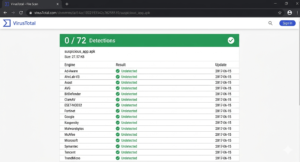
Step 2. Go to VirusTotal.com and upload the file. It runs it against 70+ antivirus engines simultaneously. Free. No account needed.
Step 3. Read the result. 0/70 or 1–2 detections = likely safe. Three or more detections = serious warning. Don’t rationalize it away.
Step 4. Check the file hash. If the developer published an MD5 or SHA-256 hash on their official website or GitHub, compare it to the hash of your downloaded file. A mismatch means the file was modified after the developer built it.
Step 5. Review permissions before completing installation. Pay attention to: Accessibility Services, Device Administrator, Read SMS, Draw Over Other Apps, Install Unknown Apps. If an app’s function doesn’t explain why it needs these stop.
Step 6. Cross-reference the version number. Does it match the official developer’s site or verified GitHub repo? Version number discrepancies on unofficial mirror sites are a common sign of a repackaged file.
Step 7. Verify the app signing certificate. A legitimate APK is signed with the same developer certificate every time. Use APK Inspector or a similar tool to check the signing fingerprint. Understanding Android app signing explains exactly what a valid certificate looks like and why a mismatch is a hard stop.
Quick Comparison: APK Sources Ranked by Safety
| Source | Safety Level | Best For | Key Risk |
|---|---|---|---|
| Google Play Store | Highest | All users | Rare policy-violating apps still slip through |
| Official developer website | High | Tech-savvy users | Requires SHA-256 verification |
| APKMirror | Medium-High | Verified app versions | Must still run VirusTotal scan |
| F-Droid | High | Open-source apps only | Smaller library |
| Random APK mirror sites | Low | Nothing | No signature verification, frequent repackaging |
| Telegram / WhatsApp groups | Very Low | Nothing | Zero traceability, zero accountability |
Note: APKMirror verifies that APKs carry the same signing certificate as the official Play Store version. That’s meaningful but it doesn’t rule out zero-day malware in a legitimate developer’s own build.
What Permissions Should Make You Stop Immediately
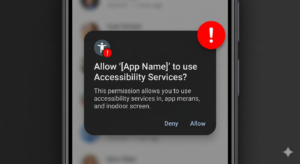
Some permissions are legitimate. Others are almost always a red flag when requested by an app whose function doesn’t explain them.
Hard stops deny unless you have a verified specific reason:
Accessibility Services, Device Administrator rights, Read SMS, Draw Over Other Apps, Install Unknown Apps, Read Contacts + Access Camera simultaneously.
These are the exact permissions most frequently abused in credential harvesting and spyware attacks not because they’re inherently evil, but because they give an app the ability to operate across your entire device, not just within its own sandbox. This is also why many users ask, can APK carry viruses, especially when installing apps from outside the Play Store.
A flashlight app asking for SMS read access. A wallpaper app requesting Accessibility Services. A game requiring Device Administrator privileges. These make no functional sense.
No functional sense = don’t install.
For a broader look at what fake and repackaged apps actually do with these permissions, the can fake apps steal your data breakdown covers documented attack vectors in detail.
APK Scanning Tools Which One Actually Works
| Tool | Type | Cost | What It Actually Does |
|---|---|---|---|
| VirusTotal | Web-based | Free | 70+ engine multi-scan best first check |
| Malwarebytes for Android | App | Free + Paid tier | Real-time on-device scanning |
| Google Play Protect | Built-in | Free | Background scanning of known signatures |
| NViso APKScan | Web-based | Free | Behavioral sandbox analysis |
| Lookout Security | App | Free + Premium | Enterprise-grade threat intelligence |
The combination that actually works: VirusTotal scan first + Malwarebytes active on your device. Play Protect alone isn’t sufficient for sideloaded files it was designed primarily for Play Store-distributed apps.
I’ve seen conflicting data on how effective Play Protect is against novel APK malware some researchers cite 70%+ detection rates, others put it significantly lower for obfuscated threats. My read is that it’s a solid baseline for everyday use, but not a substitute for VirusTotal before sideloading something from an unfamiliar source.
For comprehensive antivirus comparison across mobile platforms, the best antivirus solutions for scanning mobile application files article has detailed tool comparisons with real detection data.
What to Do If You Already Installed a Suspicious APK
Fast actions matter here.
- Disconnect from Wi-Fi and mobile data immediately cuts off any active data exfiltration
- Uninstall the app from Settings → Apps
- Change passwords for all accounts accessed on the device do this from a different clean device
- Enable two-factor authentication on everything if you haven’t already
- Run a full scan with Malwarebytes
- If the app had Device Administrator privileges, a factory reset may be necessary these can survive a normal uninstall
- Monitor bank accounts and cards for 30–90 days
Quick note: step 6 is the one most people skip. If an app got Device Administrator rights, an uninstall alone is not enough.
For more information, security tips, and other Android guides, visit APKSharp.
FAQ’s:
Q: What’s the best way to check if an APK is safe?
A: Upload it to VirusTotal.com before installing. If three or more of the 70+ antivirus engines flag it, don’t install it. Also verify the app’s signing certificate and review its requested permissions.
Q: How do I know if an APK has a virus?
A: Run it through VirusTotal, check the developer’s published file hash, review the permissions it requests, and verify the signing certificate. No single check is absolute use all four together.
Q: Should I trust APKMirror for downloading APKs?
A: APKMirror is significantly safer than random mirror sites because it verifies signing certificates. But always still run the file through VirusTotal as an additional step before installing.
Q: Why does my antivirus say the APK is clean but I’m still not sure?
A: Antivirus tools detect known malware signatures. Novel or obfuscated payloads can bypass them. A clean scan reduces risk it doesn’t eliminate it. Permission review and source verification are your next layers.
Q: When should I just not install an APK at all?
A: If it came from a Telegram group, a random mirror site, or anywhere you can’t verify the developer’s identity skip it. If VirusTotal shows 3+ detections, skip it. If the permissions don’t match the app’s function skip it.