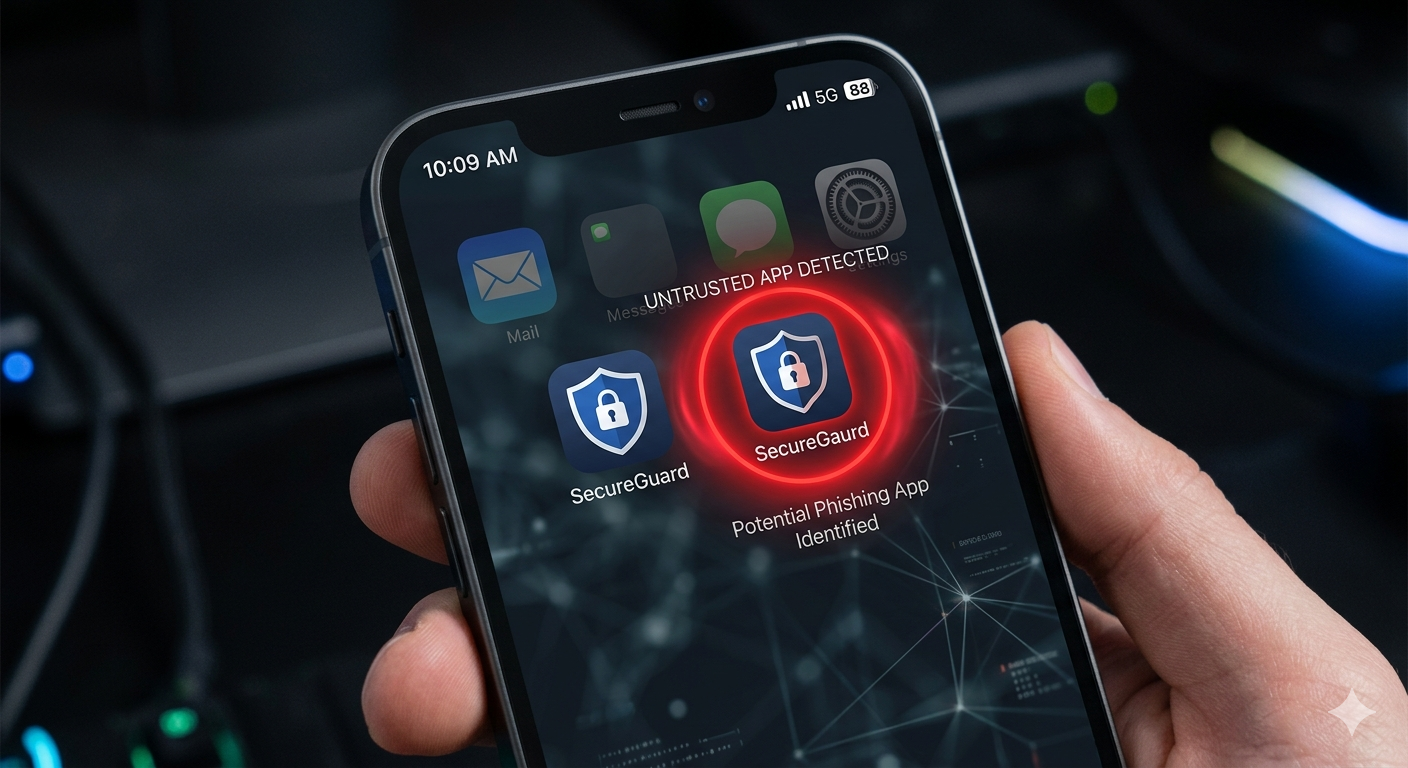
Spotting clone apps on iPhone is harder than most people realize and that’s exactly what makes them dangerous. In 2024, Apple removed more than 9,500 deceptive apps from App Store search results and terminated over 146,000 fraudulent developer accounts, according to Apple’s official fraud report. Despite all that, clone apps still slip through. If something about an app you just downloaded feels wrong the icon looks slightly off, permissions seem excessive, or reviews read like a script this guide is exactly what you need right now.
Clone apps on iPhone are applications designed to visually and functionally imitate a legitimate app while secretly stealing data, committing payment fraud, or serving malicious ads. They copy the icon, name, and interface of trusted apps. The only way to catch them is knowing exactly what to look for.
Apple reviews every app before it goes live. That review process is real and it’s rigorous. But it isn’t perfect, and clone app creators know exactly how to exploit the gaps.
According to Kaspersky’s security research, some fraudulent apps display harmless content during Apple’s review phase, then quietly pull phishing pages from external servers after approval. By the time users start reporting them, the damage is already done.
Some experts argue the App Store is safe enough that users don’t need to worry. That’s valid for the majority of apps. But if you’re downloading anything related to banking, crypto, trading, or messaging, the risk profile jumps significantly. Kaspersky’s analysis found that investment and finance clone apps are among the most common types to successfully pass App Store review.
Here’s what most guides miss entirely: the threat isn’t always an app that fails to work. The scariest clones work perfectly. They do exactly what they promise while quietly logging your keystrokes or sending your login credentials to a remote server.
The 9 Warning Signs of a Clone App on iPhone
1. The Developer Name Doesn’t Match the Official Brand
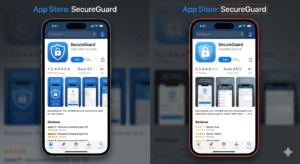
Open the App Store listing. Look directly under the app name the developer name appears in small grey text. For WhatsApp it reads “WhatsApp LLC.” For Instagram, “Instagram, Inc.”
Clone apps use names like “WhatsApp Pro Studio” or “Instagram App LLC.” Close. Not identical. Tap that developer name you’ll see every other app they’ve published. If a supposed Meta app comes from a developer whose other apps are random utility tools, walk away immediately.
2. The Privacy Nutrition Label Shows Excessive Data Collection
This is what nearly every competitor article skips.
Scroll past the screenshots in any App Store listing to find the “App Privacy” section Apple’s Privacy Nutrition Label. A calculator app shouldn’t request your location. A flashlight app has no business collecting your contacts.

Compare the suspected clone’s Privacy Label against the real app’s official listing. A bank’s legitimate app collects minimal, predictable data. A clone of that same bank app might list Location, Browsing History, Contact Info, and User Content all at once. That mismatch is a major red flag.
Also worth checking: how to verify an iOS app developer’s credentials before installing anything that requests sensitive permissions.
3. The Icon Is Almost Right But Not Quite
Zoom in on the app icon. Clone apps use slightly altered logos a different shade of blue, a missing gradient, a font that’s off by just enough to avoid trademark detection.
Real development teams are obsessive about pixel-perfect branding. Fake developers move fast. The icon is usually their weakest point.
4. Reviews Are Suspiciously Uniform or Aggressively Positive
Low review count is one signal. Not the only one.
Read the one-star and two-star reviews first. Specific complaints like “immediately asked for my contacts,” “charged me without permission,” or “app crashed when I tried to log in” those are credible. Generic five-star reviews saying “Great app! Works perfectly!” with zero detail are often bots.
In 2024 alone, Apple removed more than 143 million fraudulent ratings and reviews from the App Store wh Appleich means fake review inflation is a real, active tactic. I’ve seen conflicting data on how reliable review counts are as a standalone signal some researchers say even legitimate apps have inflated reviews. My read is: weight specific negative reviews heavily, and treat a wall of identical five-star reviews as a warning.
For more updates and useful information, visit the Apk Sharp homepage.
5. The App Was Published Recently But Has Huge Download Numbers
Legitimate apps build audiences over months or years. If an app was released three weeks ago and claims 500,000 downloads with no press coverage something doesn’t add up.
Check the “Version History” section at the bottom of the App Store listing. Real apps show update logs stretching back months. A clone might show one entry, dated last week, with a changelog that reads “Bug fixes and performance improvements.”
That’s it. One entry. Be suspicious.
Understanding the difference between apps from official stores vs. unofficial sources helps put this risk in context clone apps thrive wherever review processes have gaps.
6. Post-Install Permissions Requests Feel Wrong
You already installed it. The app is now asking for your microphone, contacts, and precise location but it’s a QR code scanner.
Stop. Don’t grant those permissions.
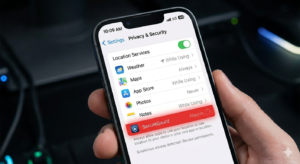
To check and remove suspicious permissions on iPhone:
- Open Settings on your iPhone.
- Tap Privacy & Security.
- Tap each category Location, Microphone, Contacts, Camera.
- Find the suspicious app and tap it.
- Set permission to Never or delete the app entirely.
For more on what happens when you install unverified apps from unofficial sources, see security threats when installing unofficial apps.
7. The App Support Link Is Dead or Leads Nowhere
Go to the App Store listing on the web at apps.apple.com search the app name and open the full listing. Every legitimate app must include a working “App Support” link and a Privacy Policy. Tap both.
If the support link 404s, redirects to a generic homepage, or the privacy policy never mentions the app by name that’s a red flag most users never think to check. Apple’s own support documentation flags this as one of the clearest ways to identify fraudulent apps before installing.
You can also perform an app authenticity check using third-party tools that cross-reference developer credentials and certificate data.
8. The App Description Has Grammar Errors or Vague Language
Real developer teams have editors. Not always perfect ones but professional enough.
Look if you’re reading a description that says “best tool for your daily uses in the smart phone experience,” that app didn’t come from a serious studio. Clone developers rush the listing. The description is the last thing they polish, and it shows.
Also watch for keyword stuffing descriptions crammed with phrases like “best iPhone app secure safe private login tool 2025.” That’s an SEO manipulation tactic, not a product description.
9. Your iPhone Behaves Strangely After Installing the App
Or maybe I should say it this way: the cleverest clone apps work exactly as advertised. You log in, the interface looks right, everything functions. Meanwhile the app is silently logging credentials and sending them to an external server.
Signs to watch after installing any new app:
- Battery draining faster than usual
- Unexpected data usage spikes check under Settings → Cellular
- The app crashes specifically when you navigate to a login screen
- Unrecognized sign-in attempts appear in your email account
If you can fake apps steal data and they absolutely can here’s a detailed breakdown of what they access and how.
Clone App vs. Legitimate App: Quick Comparison
| Signal | Legitimate App | Clone App |
|---|---|---|
| Developer name | Matches official brand exactly | Close variation or unknown studio |
| Privacy Nutrition Label | Minimal, relevant data collection | Excessive or unrelated categories |
| Version history | Months or years of update logs | One or two recent entries only |
| App Support link | Live, branded, functional | Dead link or generic template |
| Review quality | Mix of detailed positive and negative | Uniformly generic five-star reviews |
| Download count vs. age | Proportional grew over time | High numbers, brand-new listing |
For more information on mobile and app security, visit our Security section.
What to Do If You Already Installed a Suspected Clone App
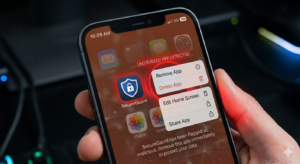
Don’t panic. Move fast.
Step 1: Delete the app. Press and hold the icon → Remove App → Delete App.
Step 2: Change the password for every account you logged into through that app. Do this from a different device if possible.
Step 3: Check for unauthorized subscriptions Settings → [Your Name] → Subscriptions. Remove anything you didn’t knowingly sign up for.
Step 4: Review your bank and payment accounts for unrecognized charges in the last 30 days.
Step 5: Report the app to Apple at reportaproblem.apple.com select “Report a concern.” Apple’s Trust & Safety team investigates and removes confirmed threats. You can also learn more about how to back up your app data safely in case you need to recover after deleting a compromised app.
FAQ: Spotting Clone Apps on iPhone
Q: How do I know if an app is a clone on my iPhone?
A: Check the developer name under the app title, review the Privacy Nutrition Label for excessive data requests, and read one-star reviews for permission-related complaints. These three checks catch most fakes before you install anything.
Q: Can fake apps actually steal data from an iPhone?
A: Yes. Clone apps that pass App Store review often work normally while quietly logging login credentials or sending data to external servers. Banking and crypto apps are the most common targets.
Q: What should I do immediately after installing a fake app on iPhone?
A: Delete the app, change every password you used through it, check for unauthorized subscriptions under Settings → [Your Name] → Subscriptions, and report the app at reportaproblem.apple.com.
Q: Is the iPhone App Store completely safe from clone apps?
A: No not completely. Apple removed 9,500 deceptive apps from search results in 2024 alone. Clone apps sometimes pass review by showing harmless content during evaluation, then loading malicious code afterward from external servers.